Power Platform Pipelines: Deploy Solution using specified Service Principal - Part 2
Based on part 1 which you can read here, I realized that creating a plugin to automate the approval process will be easier compared to creating Power Automate Flow. The main reason is, that if we need to use Flow, then we need to create multiple connection reference components for that particular Service Principal that will be used for the Target environments. Also, there will be lots of conditions checking to select the correct connection reference. Based on this problem, I will demonstrate to you a simple plugin to solve this problem. Let's start!
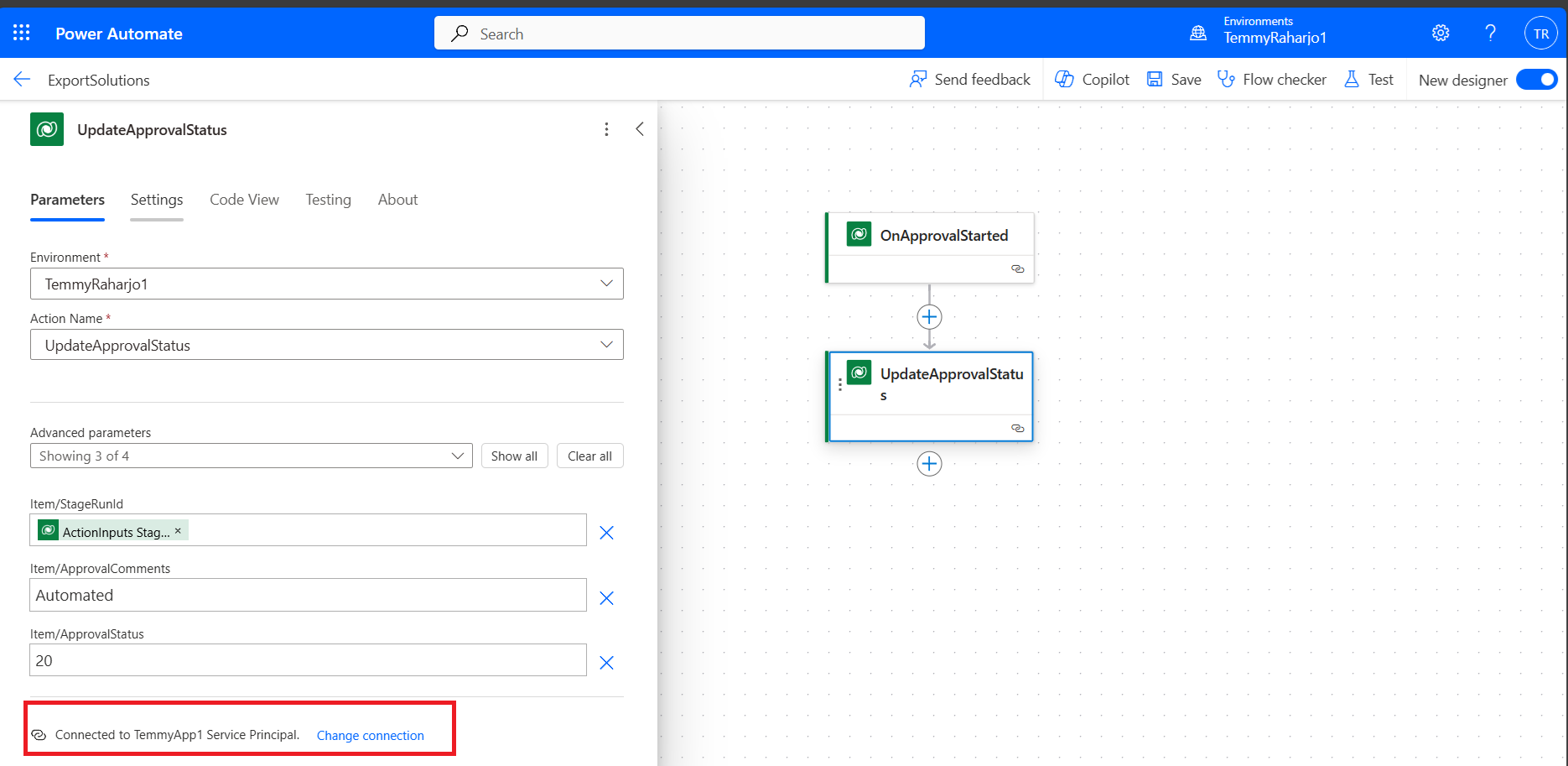
Action to trigger UpdateApprovalStatus needs to be run on the Service Principal's context
Create Auto Approved Plugin
To refresh your understanding of "Deployment Pipeline Configuration", during the setup of the Deployment Stages, you will be checked "Is Delegate Deployment" and provide "SPN Client Id":
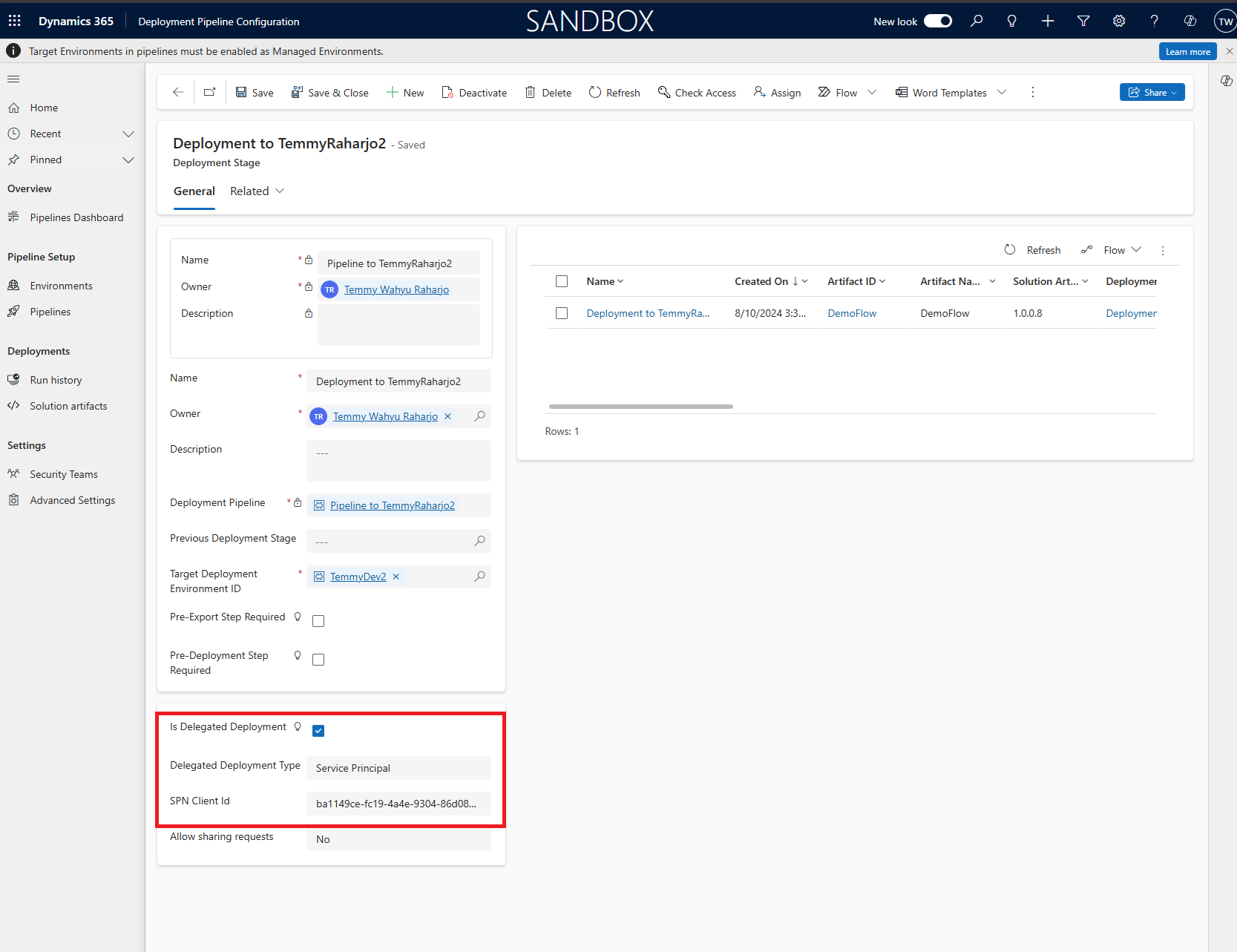
Set "Is Delegated Deployment" to true, "Delegated Deployment Type" to "Service Principal", and set the "SPN Client ID"
The SPN Client ID also will be matched with the Application User (the systemusertable) where ApplicationId = the said SPN Client ID.
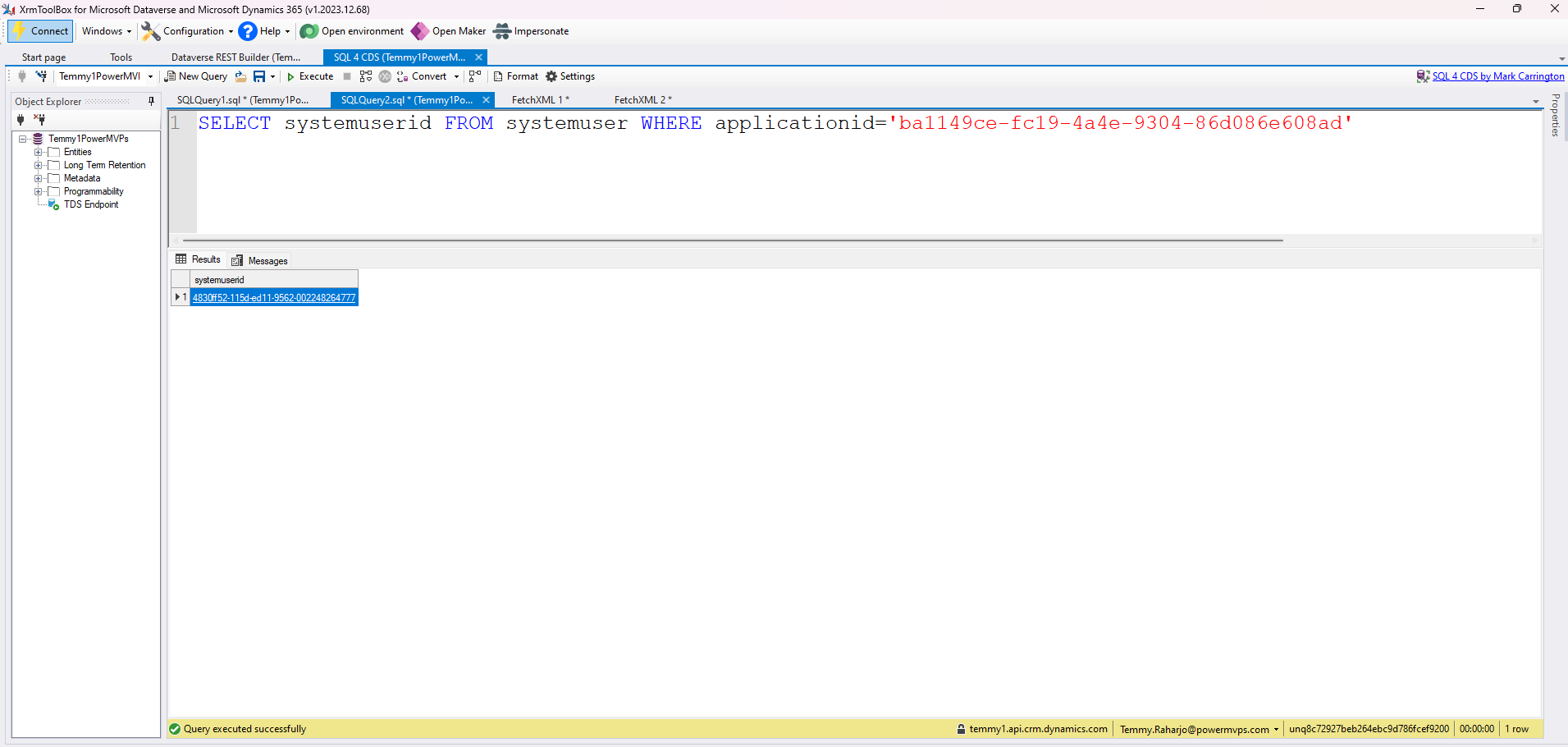
Get the UserId based on the ApplicationId
Here is the Plugin code:
using Microsoft.Xrm.Sdk;
using Microsoft.Xrm.Sdk.Query;
using System;
using System.Linq;

namespace BlogPlugins
{
    public class AutoApprovalDeploymentPipeLine : PluginBase
    {
        public AutoApprovalDeploymentPipeLine() : base(typeof(AutoApprovalDeploymentPipeLine))
        {
        }

        protected override void ExecuteDataversePlugin(ILocalPluginContext localPluginContext)
        {
            localPluginContext.PluginExecutionContext.InputParameters.TryGetValue("StageRunId", out Guid stageRunId);
            if (stageRunId == Guid.Empty) throw new InvalidPluginExecutionException("StageRunId is empty");

            var spnClientId = GetSpnClientId(localPluginContext.AdminService, stageRunId);
            localPluginContext.Trace($"SPN Client Id: {spnClientId}");

            var userId = GetUserByApplicationId(localPluginContext.AdminService, spnClientId);
            localPluginContext.Trace($"Application User Id: {userId}");

            var serviceAsSpnClient = localPluginContext.OrgSvcFactory.CreateOrganizationService(userId);
            var approval = new OrganizationRequest("UpdateApprovalStatus")
            {
                ["ApprovalStatus"] = new OptionSetValue(20), // Approved
                ["StageRunId"] = stageRunId
            };
            serviceAsSpnClient.Execute(approval);
        }

        private Guid GetUserByApplicationId(IOrganizationService adminService, Guid spnClientId)
        {
            var fetchXml = $@"<fetch xmlns:generator='MarkMpn.SQL4CDS'>
                              <entity name='systemuser'>
                                <attribute name='systemuserid' />
                                <filter>
                                  <condition attribute='applicationid' operator='eq' value='{spnClientId}' />
                                </filter>
                              </entity>
                            </fetch>";

            var result = adminService.RetrieveMultiple(new FetchExpression(fetchXml));
            return result.Entities.FirstOrDefault().Id;
        }

        private Guid GetSpnClientId(IOrganizationService adminService, Guid stageRunId)
        {
            var fetchXml = $@"
                <fetch xmlns:generator='MarkMpn.SQL4CDS'>
                  <entity name='deploymentstagerun'>
                    <link-entity name='deploymentstage' to='deploymentstageid' from='deploymentstageid' alias='deploymentstage' link-type='inner'>
                      <attribute name='spnclientid' />
                    </link-entity>
                    <filter>
                      <condition attribute='deploymentstagerunid' operator='eq' value='{stageRunId}' />
                    </filter>
                  </entity>
                </fetch>";

            var result = adminService.RetrieveMultiple(new FetchExpression(fetchXml));
            var data = result.Entities.FirstOrDefault() ?? new Entity();

            return new Guid(data.GetAttributeValue<AliasedValue>("deploymentstage.spnclientid").Value.ToString());
        }
    }
}
When OnApprovalStarted runs, it will give you the "StageRunId" which is the unique identifier for the "Run History" (deploymentstagerun) record. In the deploymentstagerun will have a relationship to "Deployment Stage"(deploymentstage) which we can get the SPN Client ID (logic for GetSpnClientId). Once we get the SPN Client ID, we can get the Application User ID (GetUserByApplicationId). Once we get the Application User ID, we just need to impersonate the Organization Service based on the Application User ID and call UpdateApprovalStatus with the Approval Status set as Approved(OptionSetValue as 20) and pass the StageRunId.
Once the plugin is ready, you can deploy and register a new step with the below setup (this only needs to be set on the Dev Environment!):
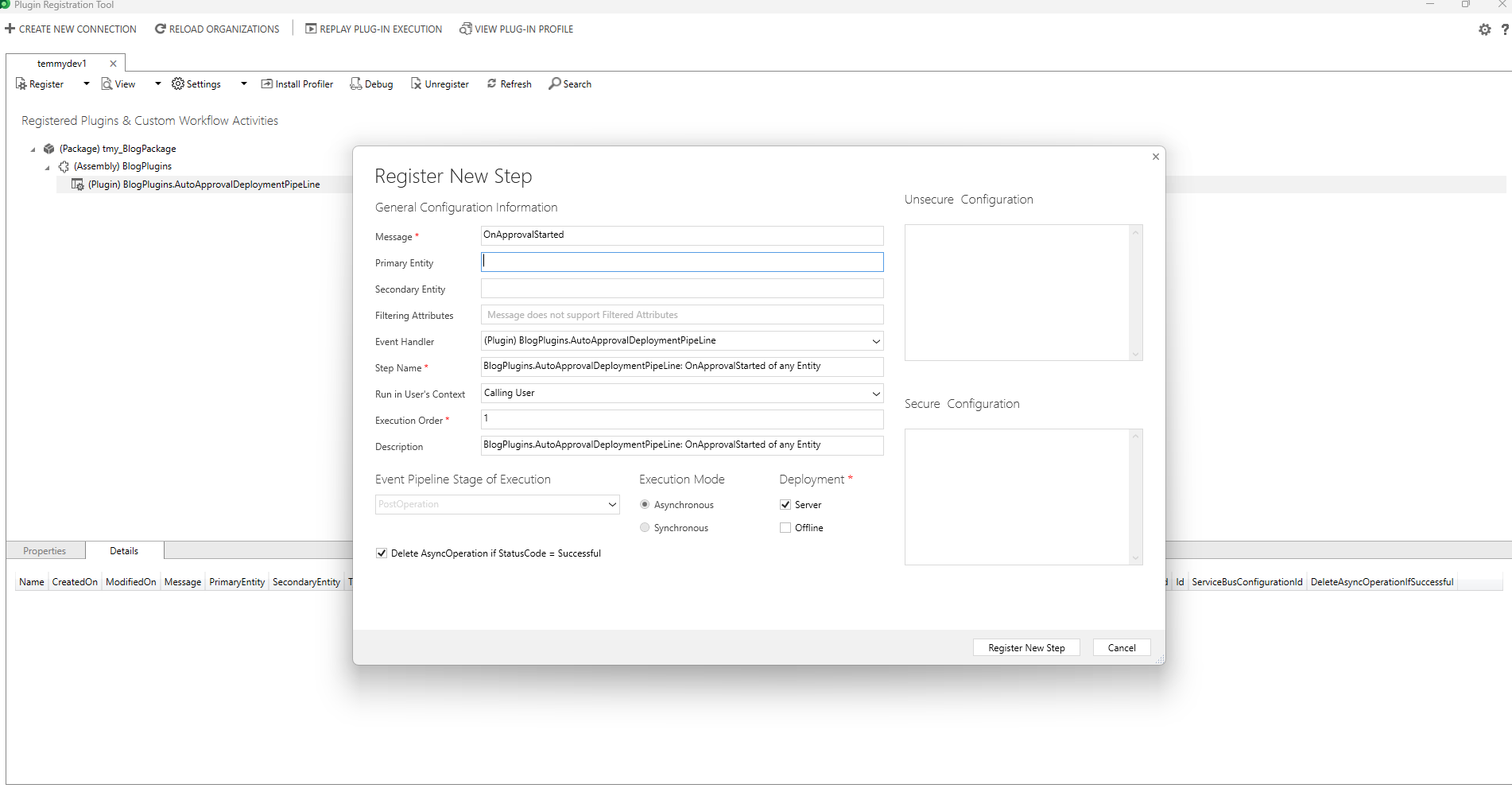
Register the plugin on "OnApprovalStarted"
Demo
For the demo, I created two Deployment Stages with different SPN Client IDs:
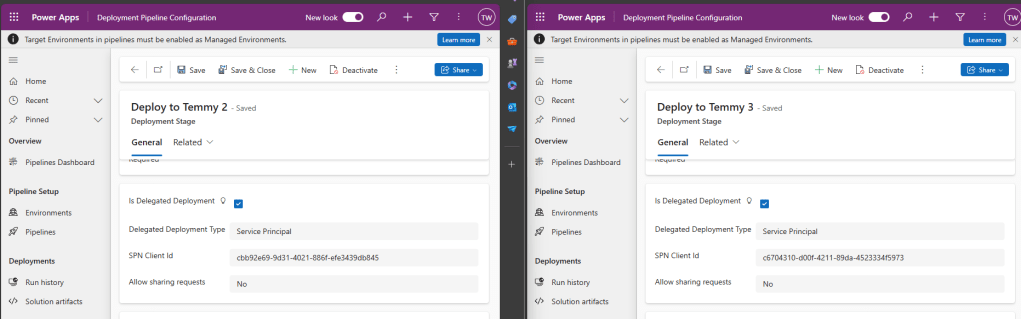
Once you are done with the above setup, you can start deploying your solution. In the below, I have set 2 Target Environments and deployed the same solution (with different versions):
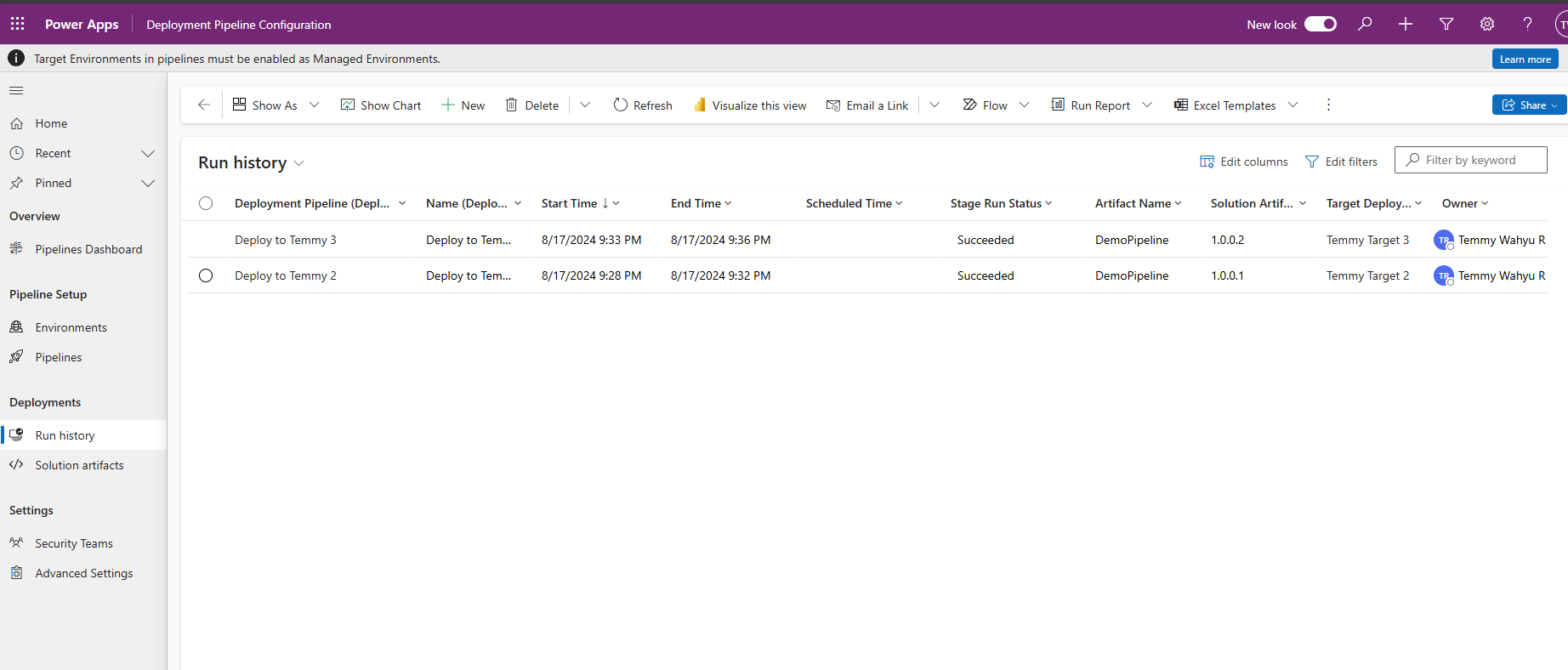
Deployed the same solutions to two different Target Environments
Last, here is the screenshot of the result on those Target Environments (as you can see, the Owner is different between temmydev2 and temmydev3):
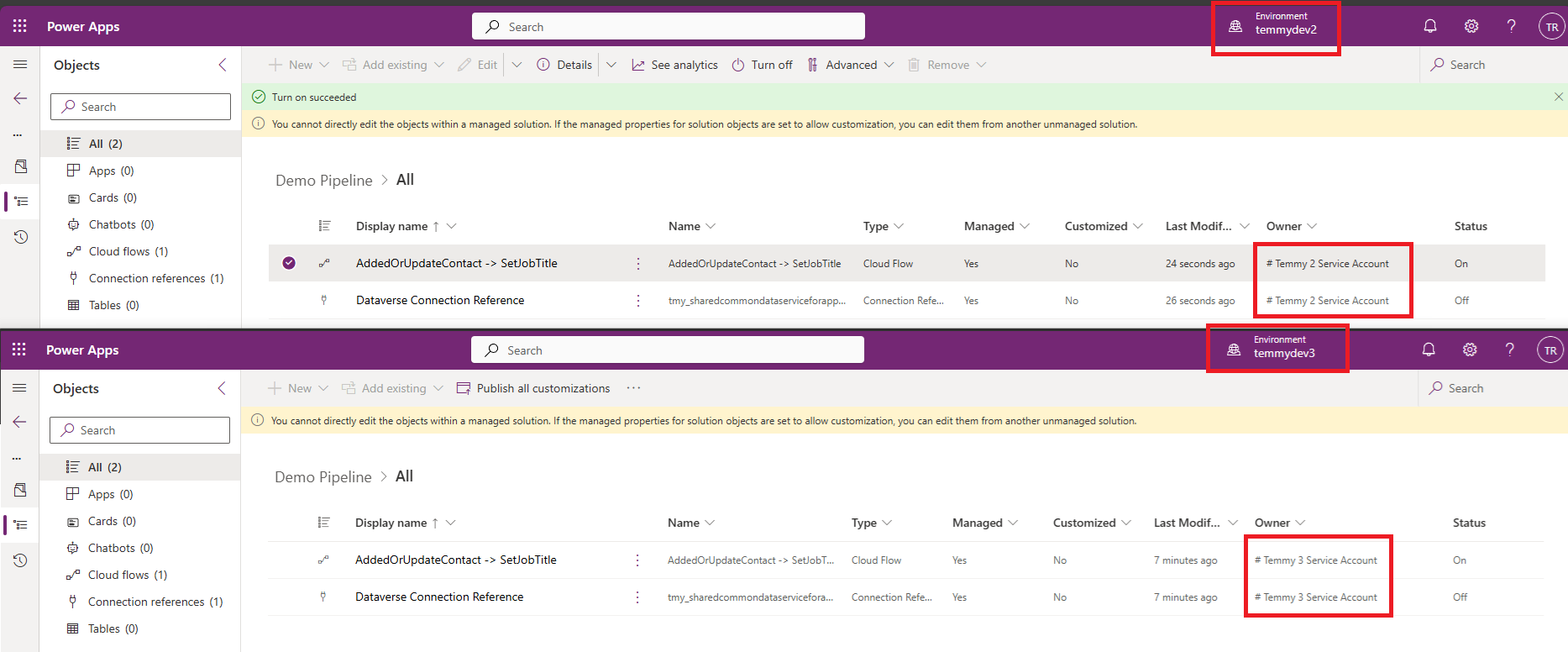
Solution Imported with a different owner between temmydev2 and temmydev3
Hope you learning something and Happy CRM-ing! 🚀
Leave a comment
Your comment is sent privately to the author and isn't published on the site.