What I learned about SSIS
Happy New Year, everyone! Today, I want to share a list of knowledge that I have gained since I started learning SSIS- KingswaySoft! Certainly, the tips I wrote here may not be applicable/outdated later on, and you can call them out or discuss with me if you think I have a wrong understanding. Without further ado, let's learn!
Batch Size and Multithreaded Writing
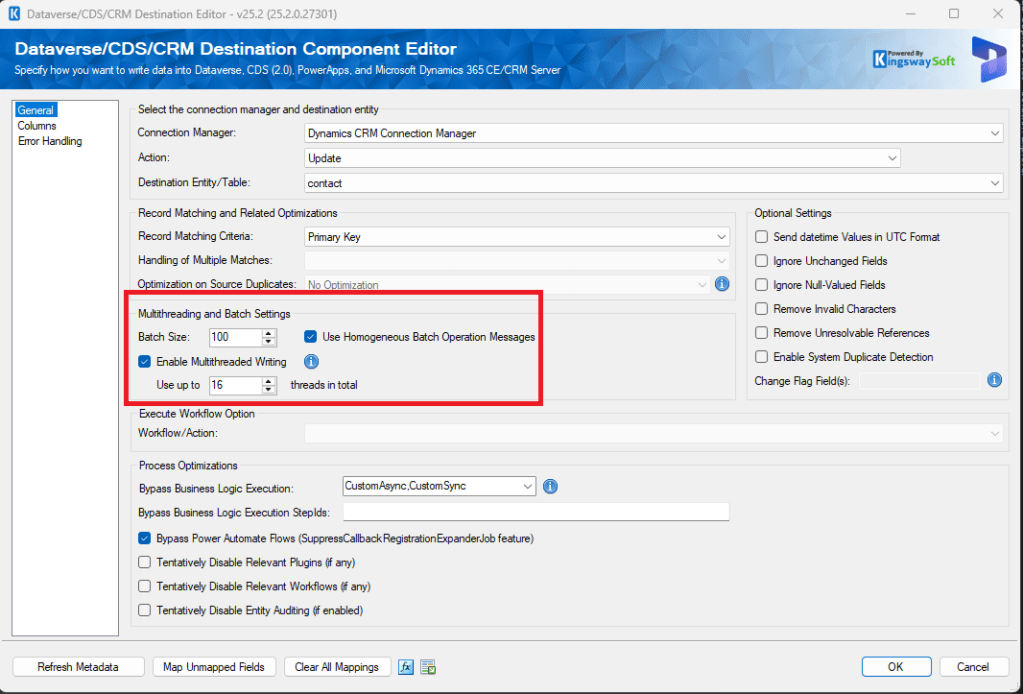
Dataverse Destination Editor - Multithreading and Batch Settings
Let's look at the picture to better understand Batch size and Threads:
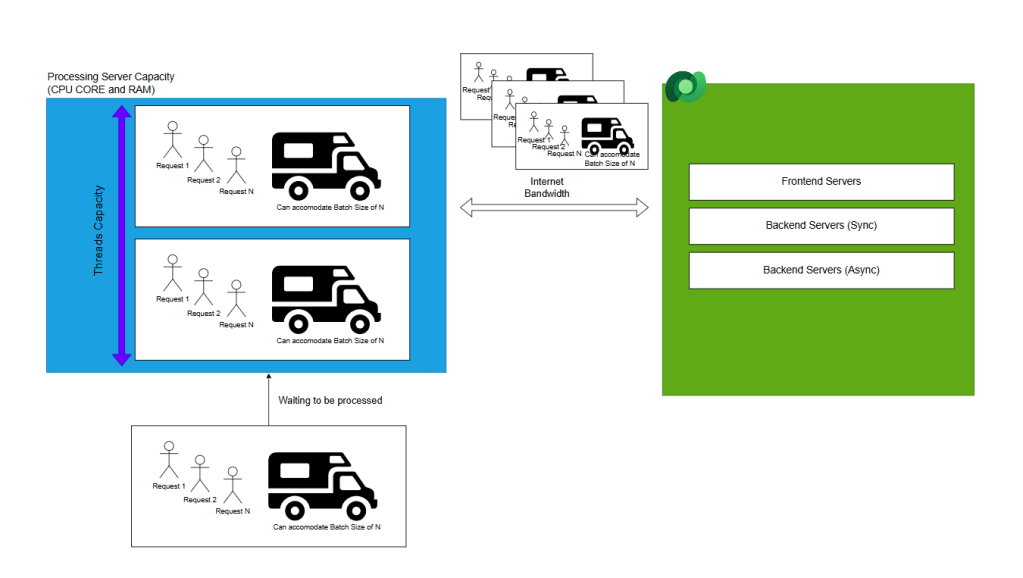
Simple diagram to understand the Batch size and Threads
The blue box will be the server capacity to create the collection of requests (the total requests will be matched or maxed with the "Batch Size"), and the Threads will be how many system threads are assigned to the job. If the number of Threads exceeds the server capacity, it will cause the task to be queued on the system.
The next section pertains to Internet access. This is a straightforward concept. The bigger the bandwidth and the faster (latency) the internet is, the better the result. If you ever need to use a proxy (or you need to ensure the connection is good enough), make sure to run https://https://.crm.dynamics.com/tools/diagnostics/diag.aspxto check your internet connection (old function, but good enough 🤣).
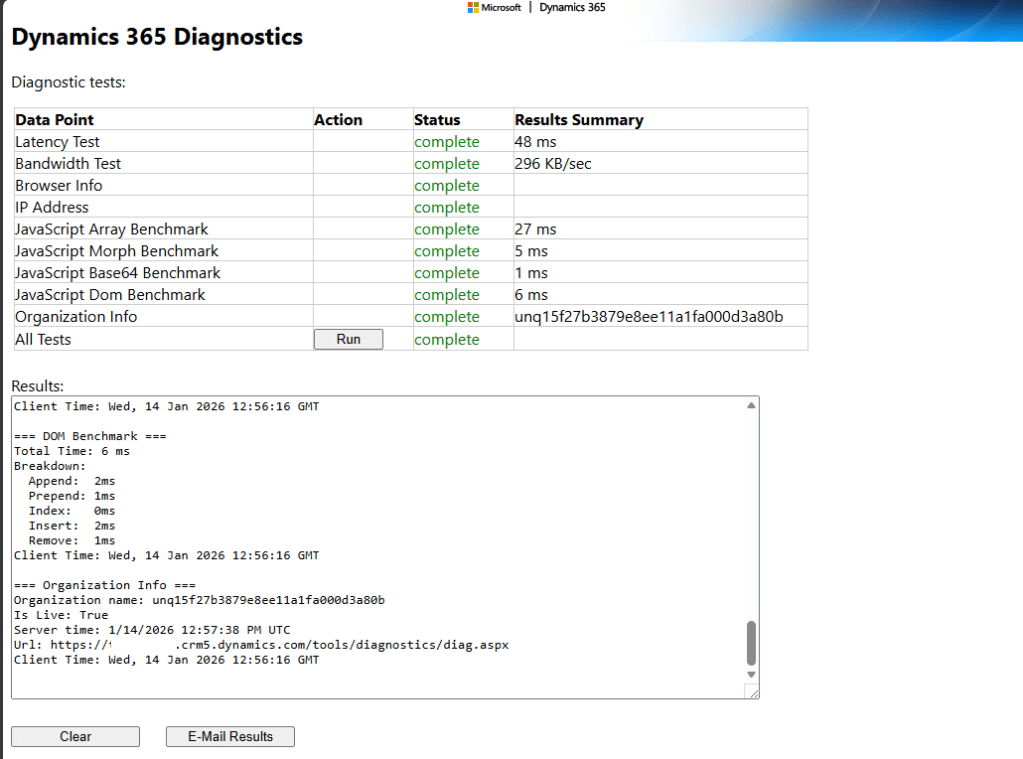
Check your internet connection
The last component is on how Dataverse processes the requests. I'm pretty sure those who seen how the Dynamics CRM xx evolves to Dataverse know that we need to install some components such as Frontend, Backend, and also Backend Async services, when installing it on premise server. And the explanation of how Dataverse processes the requests will still depend on these components + the Dataverse API Limit that is applied to ensure resources are being shared fairly with the customers.
- API Limit will check if the requests sent from the client side to Dataverse are valid (the numbers here are vague, and we know it has a sliding window of 5 minutes to check if we exploited the server or not).
- The process of Frontend - Backend (If required to run all the plugins, then a time-out of 2 minutes for each record will follow). If the requests are too big to handle, then Dataverse will return error 400 Bad Request. This is a sign that you need to lower the Batch Size/check other alternatives to load the data (Bypass the plugins or workflows).
- You also need to check the Async Job operations once the system can process the request (if you have async plugin operations). You probably need to check if the jobs are failing/if there are bugs because of heavy operation runs in async services (usually related to concurrency/duplicate data issues).
Trial and error will be a good approach to implement here. I don't think anyone will have a golden rule for all the scenarios. The reason is that there are too many variations. The Dataverse organizations in the same tenant can sit in different machine configurations, the table that you are using has different plugins, etc.
So, what you can do for this is, I believe:
- Start the Threads size to 1.5x of your processing server. Try increasing or decreasing until you find the best settings.
- Batch Size: you can start from 200 > add 100 until you find the best settings for that operation (different tables will have different configurations).
AutoAdjustBufferSize, BufferTempStoragePath, and EngineThreads
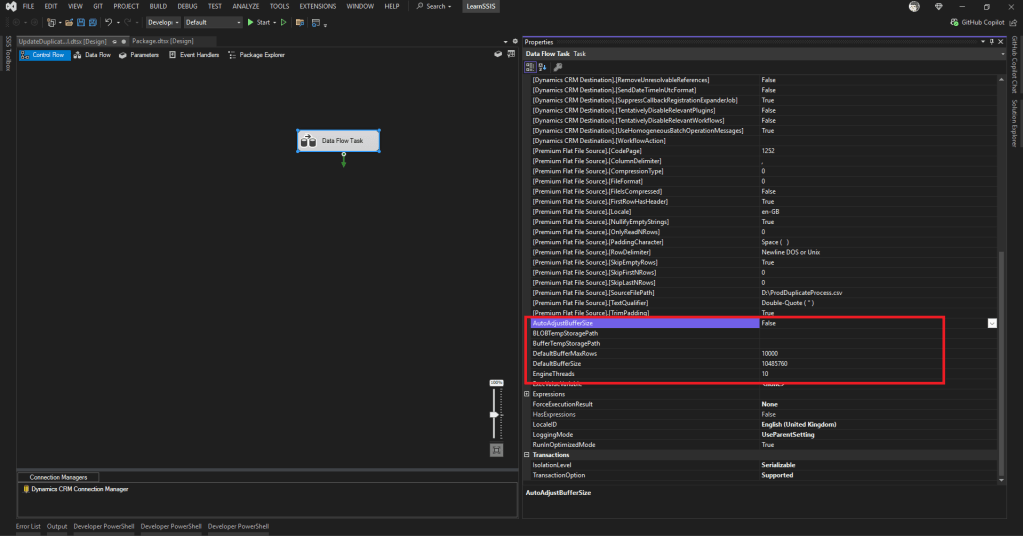
Performance properties in the SSIS data Task
Those are magic properties that you can find in each of the Data Flow Tasks in your SSIS package! If you ever debug your SSIS package, then you start realizing that the system will start reading with specific increment numbers. Once you set the magic properties, it will allow the system to process more data (eventually will be faster than ever!).
| Property Name | Description | Value Recommendation |
|---|---|---|
| AutoAdjustBufferSize | Default value: 10. You can start increasing/decrease until you find the best settings. | True |
| BufferTempStoragePath | When your RAM is not enough, the system will use hardisk to dump the data and process. | Put your temp directory. E.g.: D:\Performance\ |
| EngineThreads | Number of thread workers | Default value: 10. You can start increasing/decreasing until you find the best settings. |
If you don't want to set AutoAdjustBufferSize, you can adjust the DefaultBufferMaxRowsand DefaultBufferSize by yourself. For example, I'll change the DefaultBufferMaxRowsto 50000 (default 10000) and set the ***DefaultBufferSize***to 50485760 (default 10485760). This will push the data process to be faster, and probably you will end up to get error API Limiterror from Dataverse.
Connection String Parameter
For simplicity purposes, don't ever create multiple parameters for configuring a single connection. Just using the default connection string will do.
For example, KingswaySoft Dynamics CRM Connections has multiple properties:
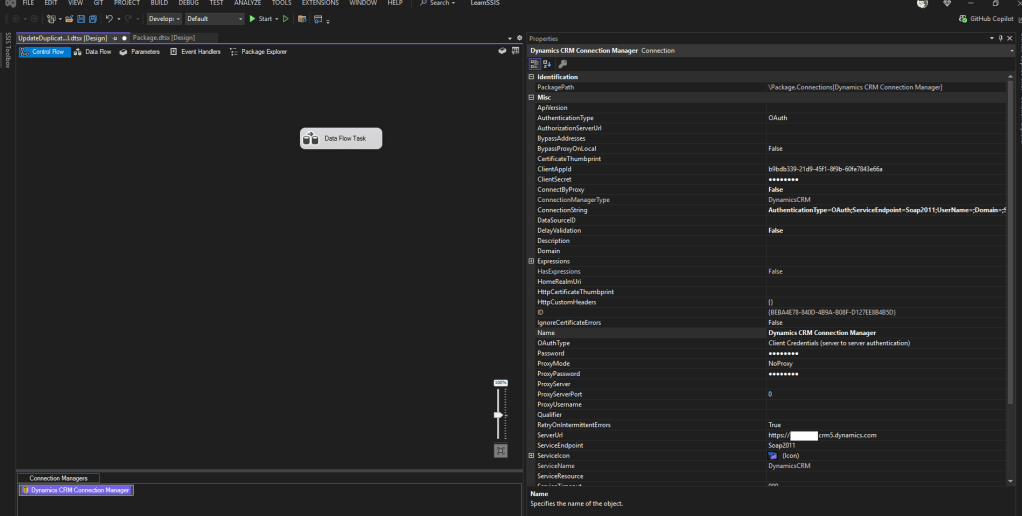
Dynamics CRM Connection Manager Properties
As you can see, there are multiple properties that you can fill in (ClientAppId, ClientSecret, ServerUrl, etc). In the past, I needed to update that stuff one by one and realized that it was troublesome when running on the production server. The best one, you just need to use the ConnectionString property and bind it to your Project/Package Param!
Sample of KingswaySoft ConnectionString:
AuthenticationType=OAuth;ServiceEndpoint=Soap2011;UserName=;Domain=;ServerUrl=https://{your-crm-url}.crm5.dynamics.com;ProxyUsername=;ProxyMode=NoProxy;ProxyServer=;ProxyServerPort=0;BypassProxyOnLocal=False;HomeRealmUri=;ApiVersion=;OAuthType=ClientCredentials;ClientAppId={client-id};TokenPath=;CertificateThumbprint=;Tenant=;AuthorizationServerUrl=;ServiceResource=;ServiceTimeout=900;RetryOnIntermittentErrors=True;IgnoreCertificateErrors=False;TimezoneConversionEngine=Auto;HttpCertificateThumbprint=;HttpCustomHeaders={}
Sample connection string
The same concept if you require a staging database. Bind your Project/Package params to the ConnectionString Property, and your solution will be simpler (check once only)!
Programmatically retrieving Connection Strings? DelayValidation set to true!
If ever you need to retrieve the connection string from anywhere (Retrieve the connection string from Azure KeyVault/AWS Secret Manager/specific .json file), then you need to set the DelayValidationto true to avoid error (I set it to all the Data Flows and the Connection Managers)!
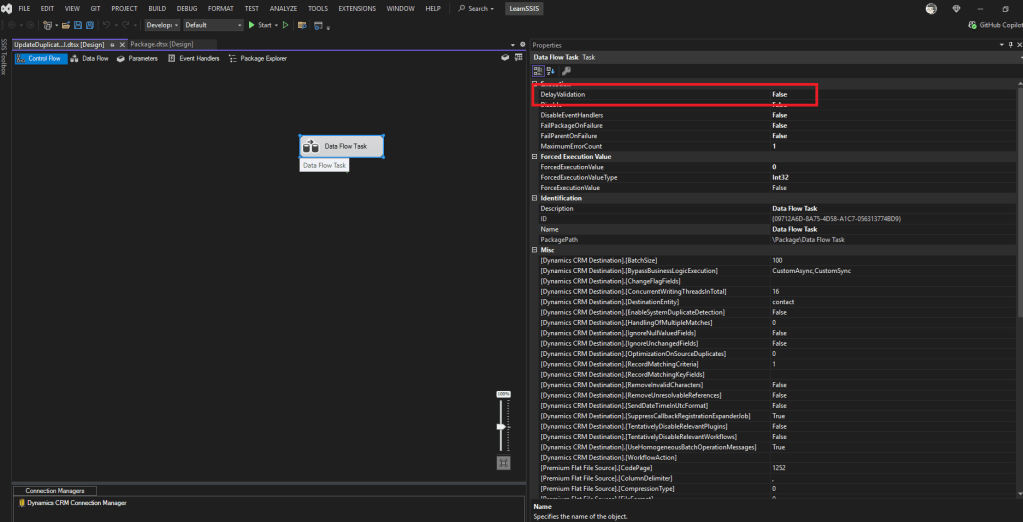
Set the ***DelayValidation***property to true if you has dynamics loading of the connection string
Load Batch Data into SQL Server: OLE DB Destination
I thought ADO NET is the latest and greatest stuff that needs to be used every time. But here, if you want to send batch requests, then you need to use OLE DB Destination (or just use OLE DB Destination always 🥲).
Third Party Libraries
Sometimes, we need to use third-party DLLs to accomplish the task more easily. But the mechanism of it is different compared to Console/Web development, where the DLLs will be loaded in a single location only. So, what we need to do is to load the DLLs into the GAC (Global Assembly Cache) folder via gacutil.exe.
Usually, if ever I need to create an SSIS Script Component > I'll create a console application and test my code there (please follow the .NET Framework that you will use in SSIS code script - including downloading the DLLs via NuGet package). Once it is done, I'll copy the necessary DLL into a specific folder and on the SSIS Script Component > reference the DLL from the previous folder :
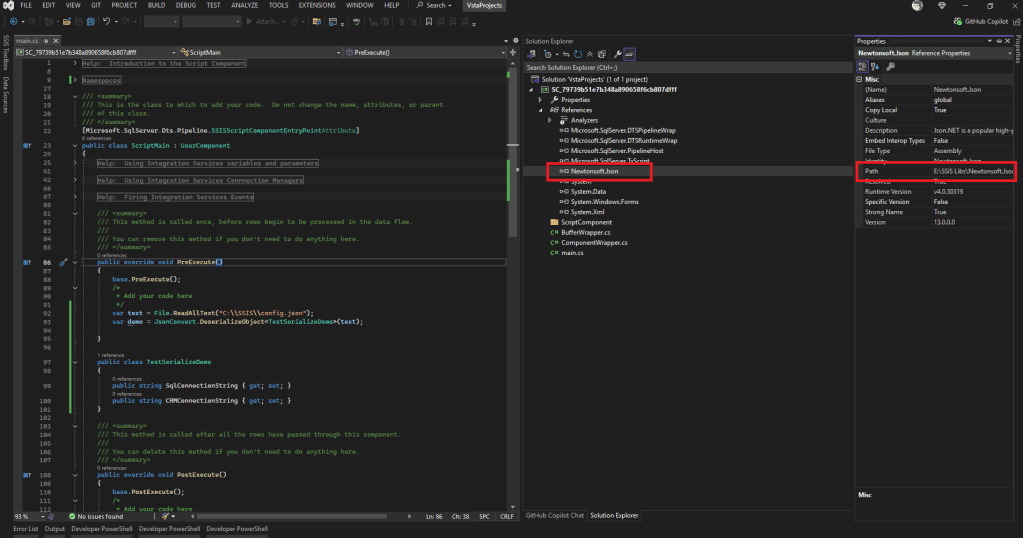
Reference the DLLs from a specific folder
For the deployment on the server, you need to drop all the DLLs and the correct gacutil.exe. Then, you can run the below PowerShell command (.ps1):
# Ensure script runs as Administrator
If (-NOT ([Security.Principal.WindowsPrincipal] [Security.Principal.WindowsIdentity]::GetCurrent()).IsInRole([Security.Principal.WindowsBuiltInRole] "Administrator")) {
    Write-Error "You need to run this script as Administrator!"
    exit
}

# Get the folder where this script is located
$scriptDir = Split-Path -Parent $MyInvocation.MyCommand.Definition
Set-Location $scriptDir

# Path to gacutil in the current folder
$gacutilPath = Join-Path $scriptDir "gacutil.exe"

# Check if gacutil exists
if (-Not (Test-Path $gacutilPath)) {
    Write-Error "gacutil.exe not found in the script folder ($scriptDir)."
    exit
}

# Get all DLLs in current folder and install them
Get-ChildItem $scriptDir -Filter *.dll -Recurse | ForEach-Object {
    Write-Host "Installing $($_.FullName) into GAC..."
    $process = Start-Process -FilePath $gacutilPath -ArgumentList "/i `"$($_.FullName)`"" -Wait -NoNewWindow -PassThru
    if ($process.ExitCode -eq 0) {
        Write-Host "Installed successfully!"
    } else {
        Write-Warning "Failed to install $($_.FullName). Exit code: $($process.ExitCode)"
    }
}
To uninstall, you can use the below .ps1:
# Ensure script runs as Administrator
If (-NOT ([Security.Principal.WindowsPrincipal] [Security.Principal.WindowsIdentity]::GetCurrent()).IsInRole([Security.Principal.WindowsBuiltInRole] "Administrator")) {
    Write-Error "You need to run this script as Administrator!"
    exit
}

# Get the folder where this script is located
$scriptDir = Split-Path -Parent $MyInvocation.MyCommand.Definition
Set-Location $scriptDir

# Path to gacutil in the current folder
$gacutilPath = Join-Path $scriptDir "gacutil.exe"

# Check if gacutil exists
if (-Not (Test-Path $gacutilPath)) {
    Write-Error "gacutil.exe not found in the script folder ($scriptDir)."
    exit
}

# Get all DLLs in current folder and install them
Get-ChildItem $scriptDir -Filter *.dll | ForEach-Object {
    Write-Host "Uninstalling $($_.FullName) into GAC..."
    $process = Start-Process -FilePath $gacutilPath -ArgumentList "/u `"$($_.BaseName)`"" -Wait -NoNewWindow -PassThru
    if ($process.ExitCode -eq 0) {
        Write-Host "Uninstallin successfully!"
    } else {
        Write-Warning "Failed to install $($_.FullName). Exit code: $($process.ExitCode)"
    }
}
To run both .ps1 above, you need to ensure that you run PowerShell using Administrator mode and run it.
If you run the package and you encounter the error "Could not load file or assembly 'xx, Version=yy'", then you need to download from NuGet the correct version, uninstall, and re-install the DLLs using the above .ps1. The tips for me are to follow the error (don't interpret the error and guess the next step, just follow the error and fix one by one).
Deploy Early and Test Directly in the SSIS Server
During build sessions, we tend to try to finish all the packages and only deploy once we're done. The reality when we use SSIS and run it on the local dev machine is not the same when we are running the package via SQL Server Agent. So, the suggestion that I want to give is to try running the package with incremental updates (20% - 50% - 70%..100%). For sure, you will encounter many error for example lib not correct. Sometimes the code that we're shipping is using higher C# code (e.g., ?? operator), and we must downgrade it. Once the major error is fixed, then the leftovers are the real bug that can be reproducible in your local/server run.
Happy CRM-ing 🚀!
Leave a comment
Your comment is sent privately to the author and isn't published on the site.