Dataverse: Address 101
The bigger your Contacts/Accounts (Customers) data, the more it also consumes your Dataverse Database Capacity. I had a client who had a database overage problem, and further checking, the CustomerAddress table was on the list. If you open the table, you will find lots of empty addresses. Why is it so? Today's blog post will try to unveil what, why, and how to solve this issue. Here is CustomerAddress (or Address) 101!
Address Introduction
To understand the issues, we need to understand the diagram below:
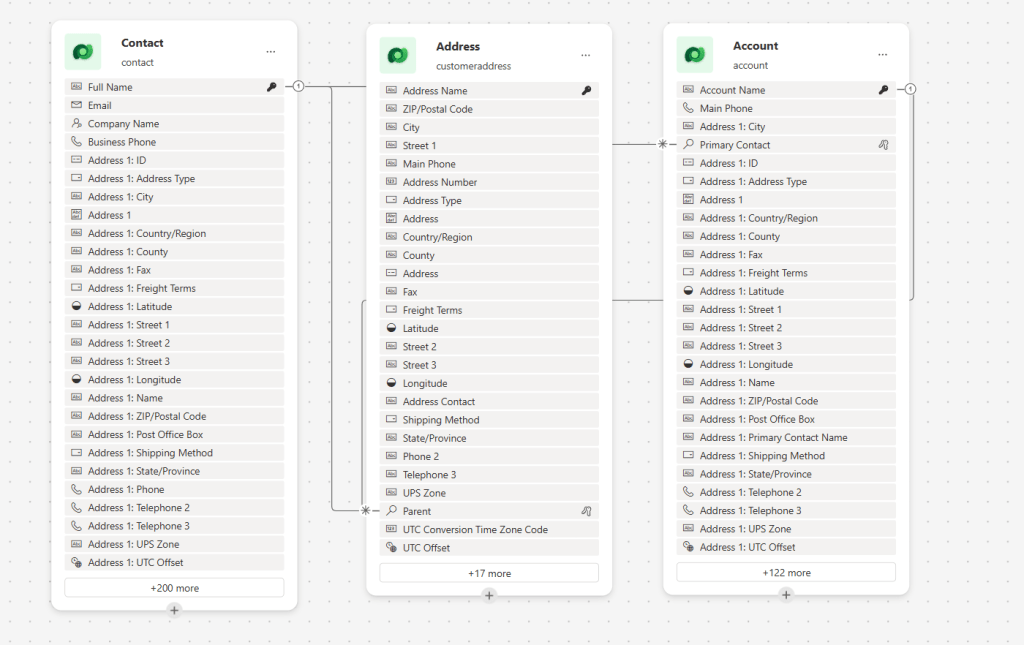
Address data model
For the Contact, Account, and Lead tables, we have a bunch of attributes that represent address data (you can find all the address attributes from Contact/Account/Lead with the prefix address[n]_). Additionally, because the system needs to support multiple addresses, you will find two extra bundle attributes in the database for the Contact and Account tables (e.g., address1_street1, address2_street1, address3_street1, etc). And the special thing about this is that those values will be synced to a special table called CustomerAddress.
To understand the behavior of the system, let's create a Contact with full address data and inspect it via SQL4CDS:
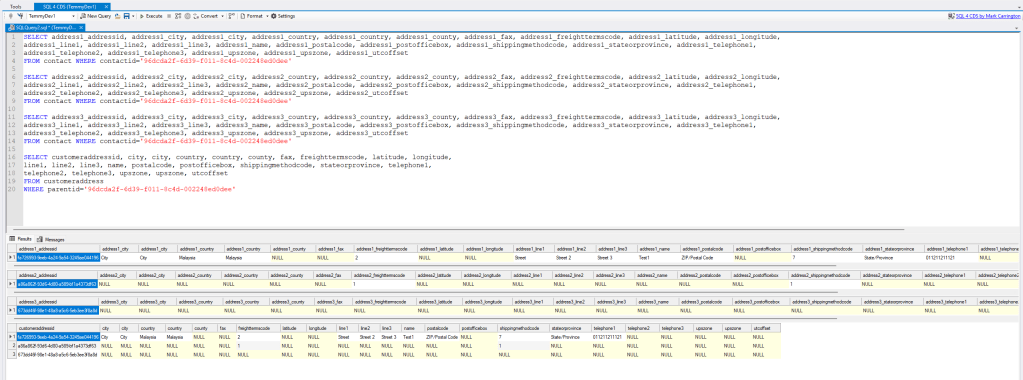
Contact and CustomerAddress data
As you can see in the above, the first 3 select queries are retrieving the same contact. The differences were regarding address1_, address2_, and address3_. The last query was to retrieve all the CustomerAddress rows belonging to that contact.
In short, the default behavior is to create 3 rows of CustomerAddress for each Contact/Account, even though practically, we only submit 1 address data (or the worst case, you even create contact data without address information). And because of this, the more contacts/accounts that you pump into the system, the system will create 3 records of data in the CustomerAddress table.
Prevent Empty Address Records Creation
To prevent this, Microsoft is already preparing the "Disable Empty Address Record Creation" feature via admin.powerplatform.com > select the Environment where you want to activate the feature > Settings > Features > search "Disable Empty Address Record Creation" > set to "On" and click Save:
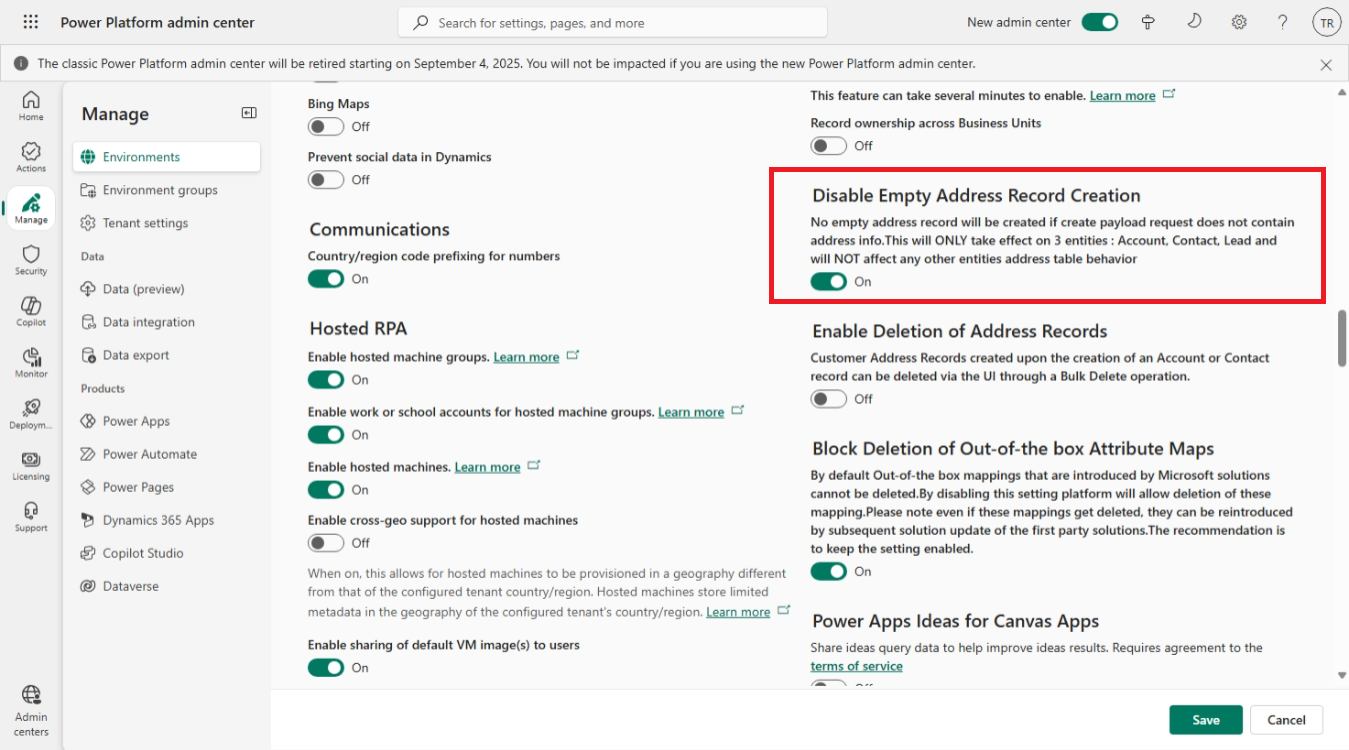
Disable Empty Address Record Creation
Once you have enabled the feature, let's try to create a new Contact record and validate the result in SQL4CDS again:
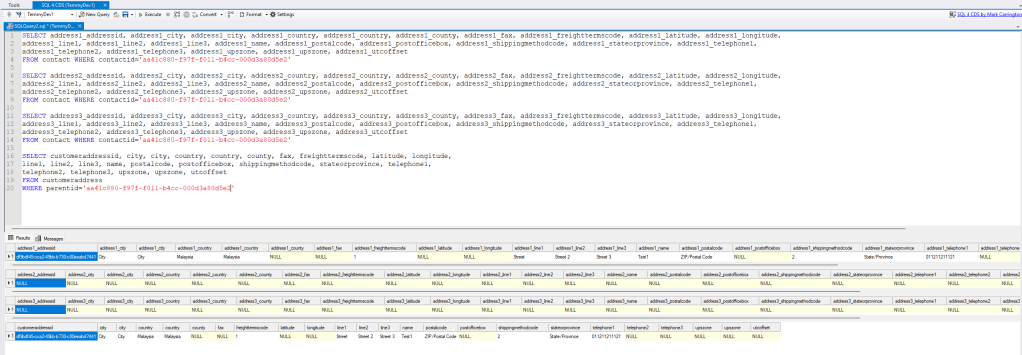
Only one record was created in CustomerAddress
As you can see. Once we have enabled the feature, it will affect the new record!
Delete Empty Address
Last, to delete "empty addresses", we need to enable the setting via admin.powerplatform.com > Features:
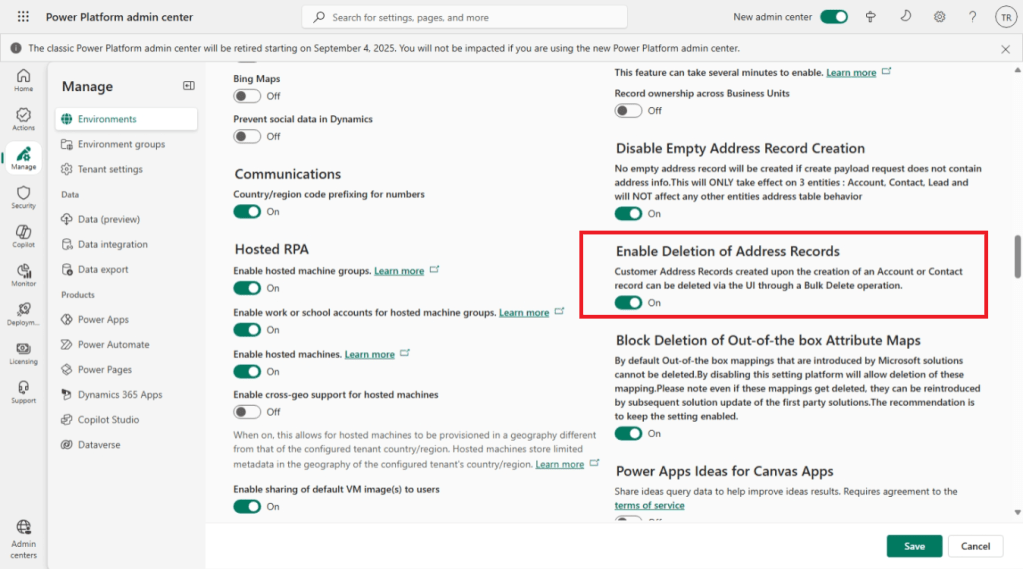
Enabled Deletion of Address Records
If, by any chance not yet enabled the setting. When running the deletion, we will encounter this error:
Customer Address can not be deleted because it is associated with another object. Address Id = a86a862f-93d6-4d80-a589-bf1a4373df63, AddressNumber=2, ParentId=96dcda2f-6d39-f011-8c4d-002248ed0dee, ObjectTypeCode=2
Please note, to delete the empty addresses, you need to search the best criteria on your own. I believe every organization can have different criteria, and you need to refine based on the needs.
To delete the records, you can create a Bulk Delete operation (recommended by Microsoft) or you can also run via SQL4CDS:
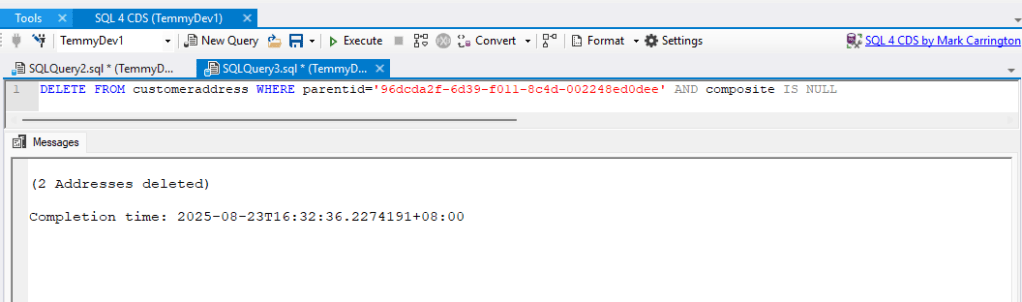
Delete via SQL4CDS
Again, if you are wondering what will happen if you accidentally delete the valid CustomerAddress record:
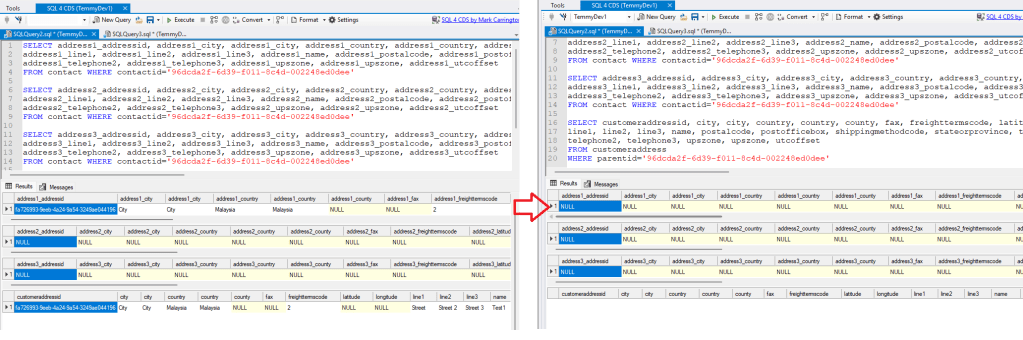
Deleting a valid CustomerAddress will remove the data in Contact/Account/Lead
Once you enable the "Enabled Deletion of Address Records", and you accidentally remove the valid CustomerAddress records will cost you to delete the data in the Contact/Account/Lead table.
Summary
- Enabling "Disable Empty Address Record Creation" is a must 😎
- If you want to reduce your Dataverse DB Capacityand decide to turn on the "Enabled Deletion of Address Records". You need to double-check or triple-check the criteria of deletion!
Hope this helps and Happy CRM-ing 🚀!
Leave a comment
Your comment is sent privately to the author and isn't published on the site.