Customer Insights: Export All Form Submissions
Today's blog post will focus on how to export form submissions for Customer Insights - Dynamics 365. When we publish an event in Customer Insights and want to export the registration list for internal use, the data format itself is not user-friendly. Usually, we prefer CSV or any other table format. Let's learn!
Enable Custom Fields in Customer Insights
To make the data retrieval more complex, I enabled the preview settings:
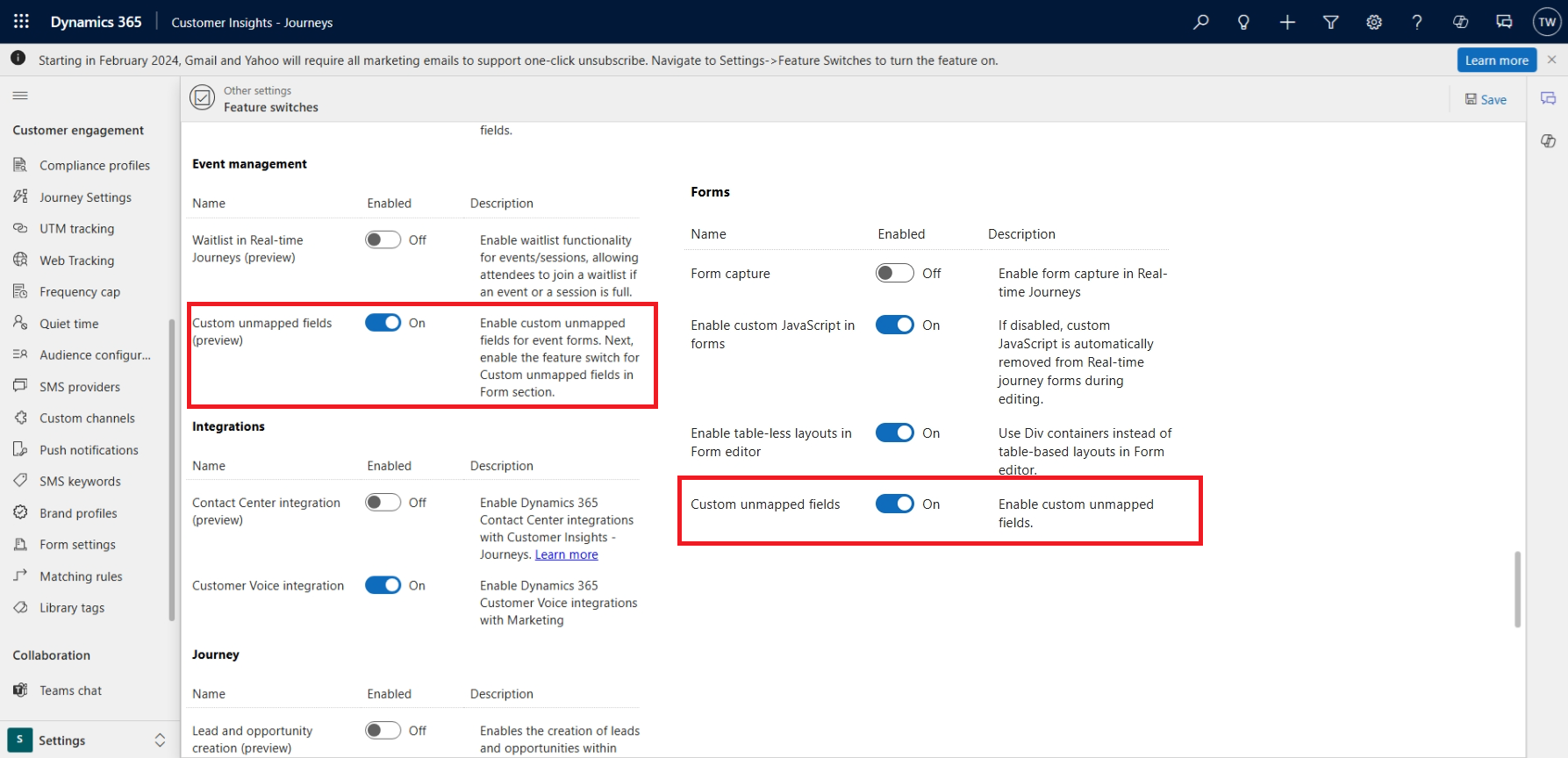
Enabled "Custom unmapped fields" in the Event management and Forms sections
Once we enable the above settings and click the "Save" button on the top left, we can start adding custom fields in the form:
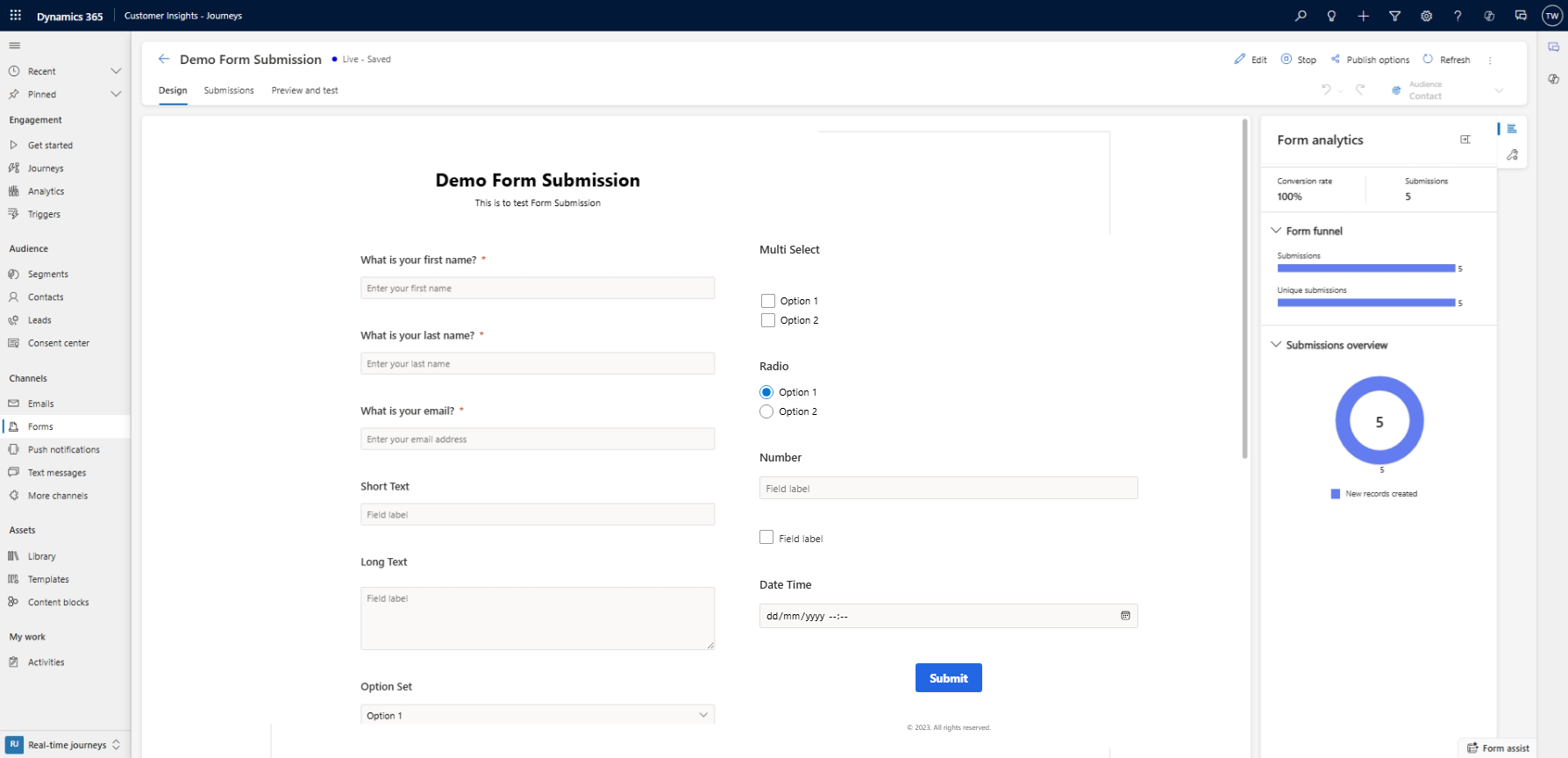
Registration Form setup
By default, when we create a new Form, the Form Type is always set to "Marketing Form". If we want to use the form as "Registration Form", we need to update the Form Type to "Registration Form" (you can execute the query below using SQL4CDS):
UPDATE msdynmkt_marketingform SET msdynmkt_marketingformtype='534120001' -- REGISTRATION FORM
WHERE msdynmkt_marketingformid='your-form-id'
Once you have updated the form type, you will be able to select the form that you created in the Event:
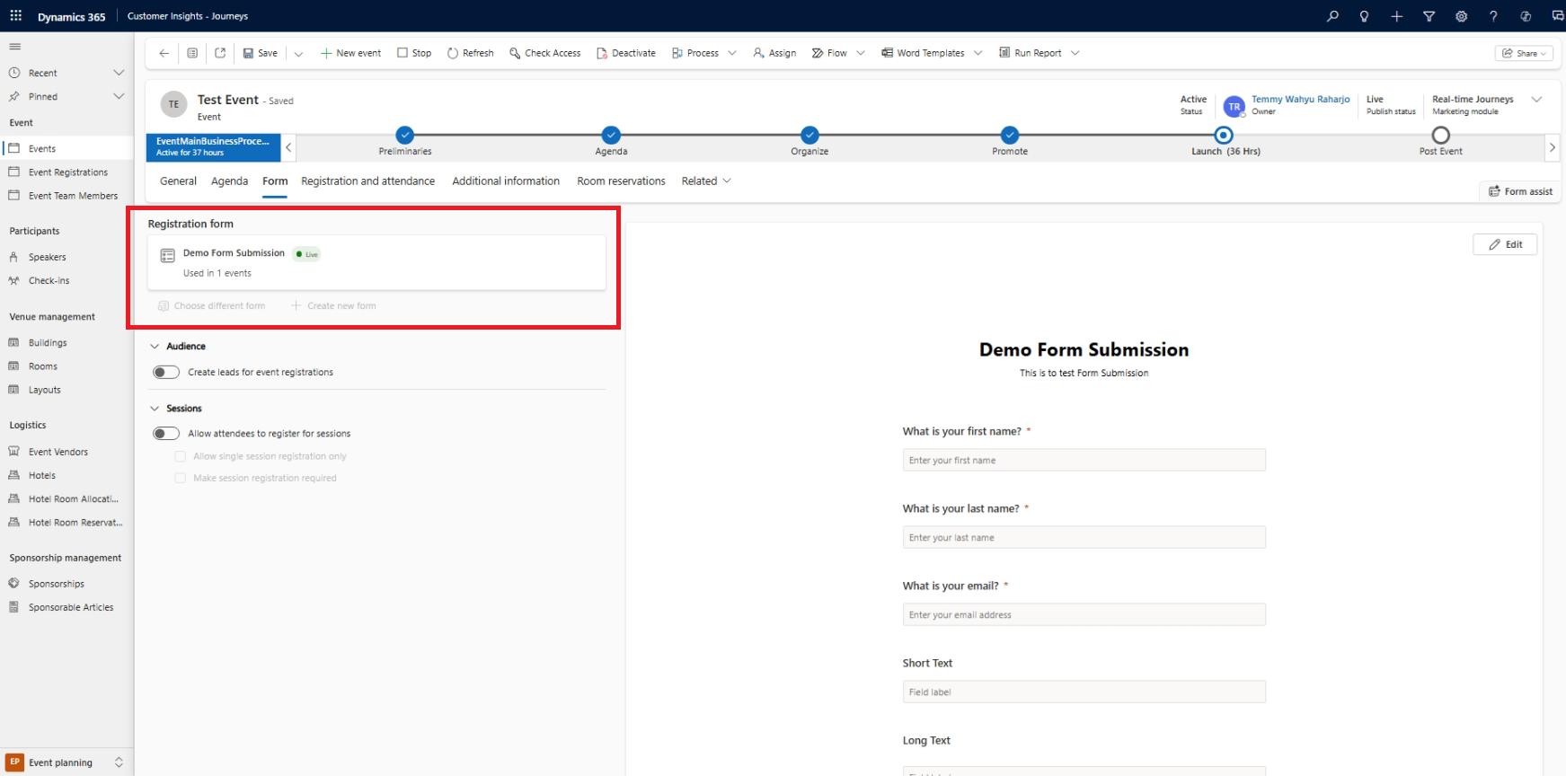
Event with the Registration form "Demo Form Submission"
With all the above, the event is ready to receive submissions, and for demo purposes, I have already submitted several data.
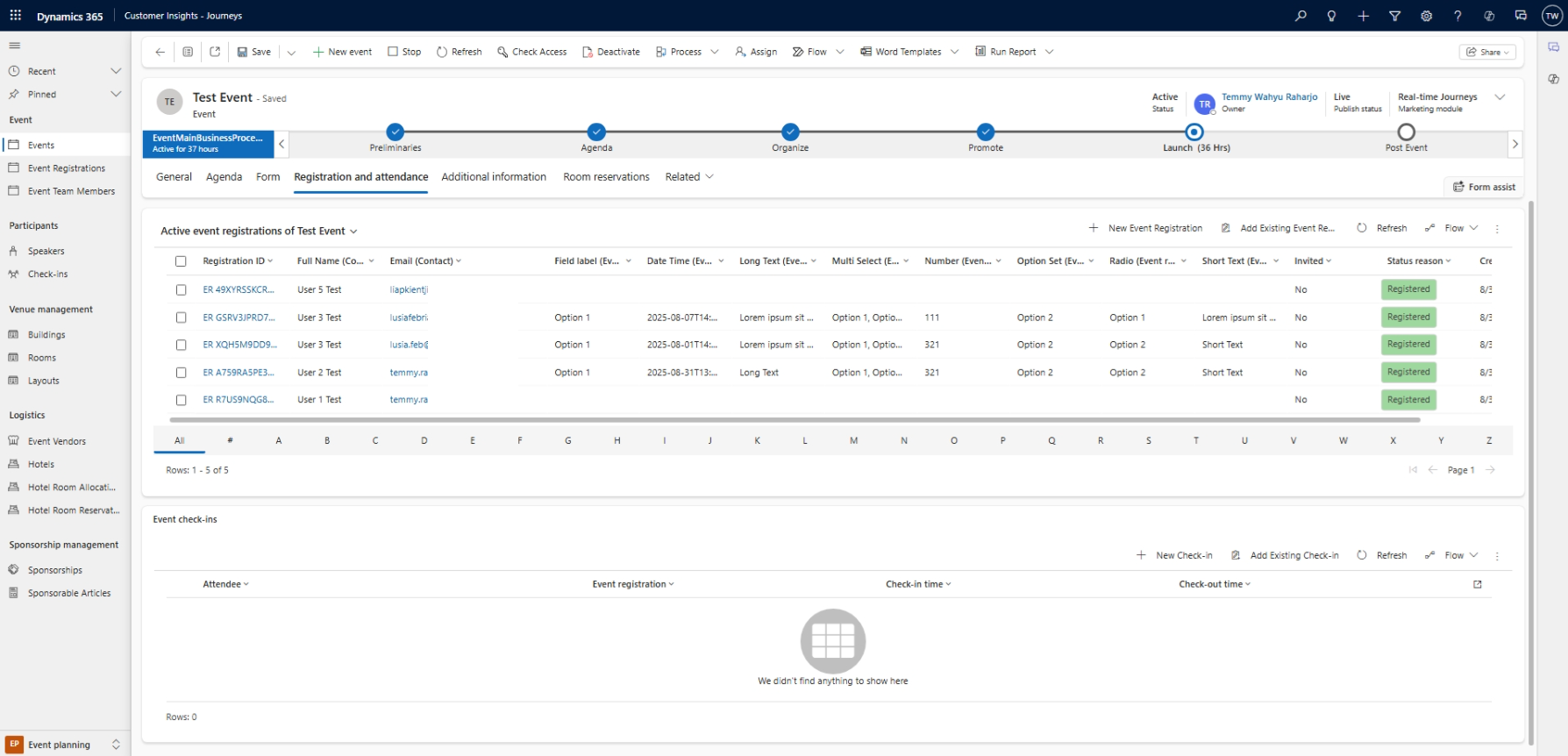
Event Submissions
Entity Relationship Diagram
Before we get to the action to retrieve the data submission, let's learn the relationship between the tables needed to extract the information:
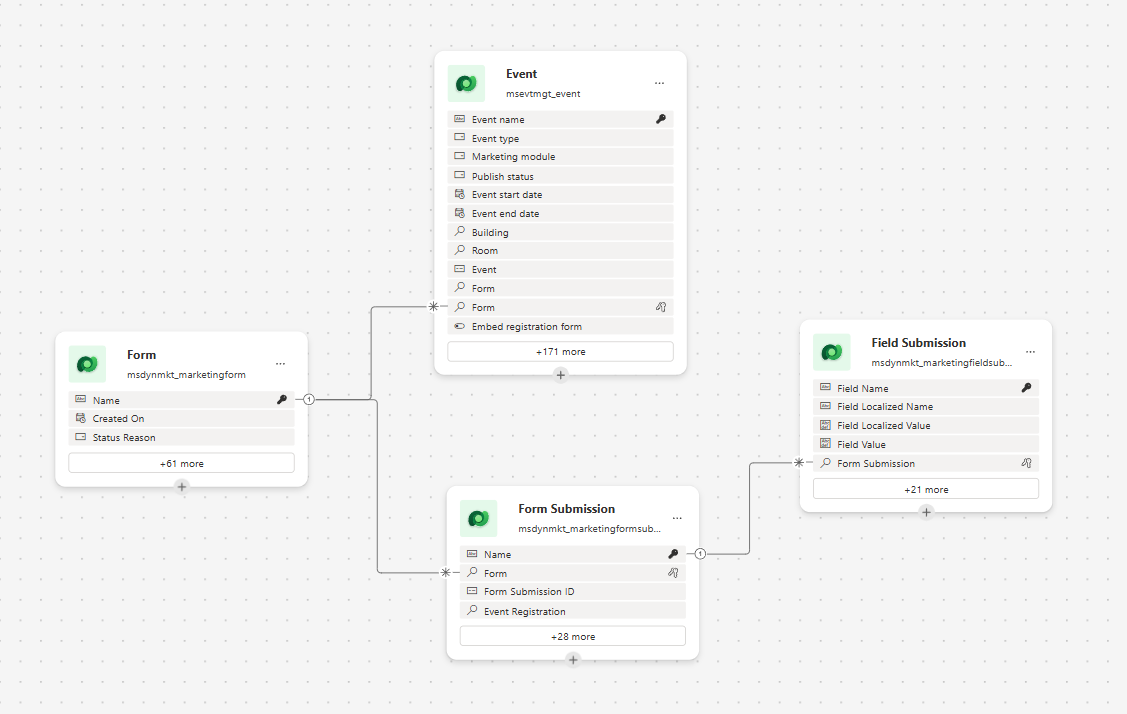
ERD for submission purposes
As you can see, there are 4 tables with these responsibilities:
- msdynmkt_marketingform: table to define the Form (to be able to be selected in Event, you need to update the Form Type to Marketing - see the above SQL4CDS)
- msevtmgt_event: table to define the Event.
- msdynmkt_marketingformsubmission: represents every submission by each client/customer.
- msdynmkt_marketingfieldsubmission: fields submission of each form submission.
Based on the above diagram, you will understand that if we want to extract the submission, the most important table is on the Field Submission (msdynmkt_marketingfieldsubmission).
Approach 1: SQL Method
The easiest way to get the data extracted (if you have the tools - SSMS via TDS Endpoint or SQL4CDS) is through SQL Query. Here is the query that you can use:
DECLARE @formid UNIQUEIDENTIFIER = 'form-id';
DECLARE @submissionid UNIQUEIDENTIFIER;
SELECT @submissionid = msdynmkt_marketingformsubmission.msdynmkt_marketingformsubmissionid
FROM
msdynmkt_marketingformsubmission JOIN
msdynmkt_marketingfieldsubmission ON
msdynmkt_marketingformsubmission.msdynmkt_marketingformsubmissionid =
msdynmkt_marketingfieldsubmission.msdynmkt_marketingformsubmissionid
WHERE msdynmkt_marketingformid = @formid
DECLARE @columns NVARCHAR(MAX), @sql NVARCHAR(MAX);
SELECT @columns = STRING_AGG(QUOTENAME(msdynmkt_marketingfieldsubmission.msdynmkt_name), ',')
FROM
msdynmkt_marketingfieldsubmission
WHERE msdynmkt_marketingformsubmissionid= @submissionid
SET @sql = 'SELECT *
FROM (
SELECT msdynmkt_marketingfieldsubmission.msdynmkt_marketingformsubmissionid RecordID,
msdynmkt_marketingfieldsubmission.msdynmkt_name ColumnName,
msdynmkt_marketingfieldsubmission.msdynmkt_fieldvalue Value
FROM msdynmkt_marketingformsubmission JOIN
msdynmkt_marketingfieldsubmission ON
msdynmkt_marketingformsubmission.msdynmkt_marketingformsubmissionid =
msdynmkt_marketingfieldsubmission.msdynmkt_marketingformsubmissionid
WHERE msdynmkt_marketingformid = '''+ CAST(@formid AS NVARCHAR(36)) +'''
) AS SourceTable
PIVOT (
MAX(Value)
FOR COlumnName IN ('+ @columns + ')
) AS PivotTable;';

SELECT @sql
You just need to get and replace the Form ID (first row) and execute the above query:
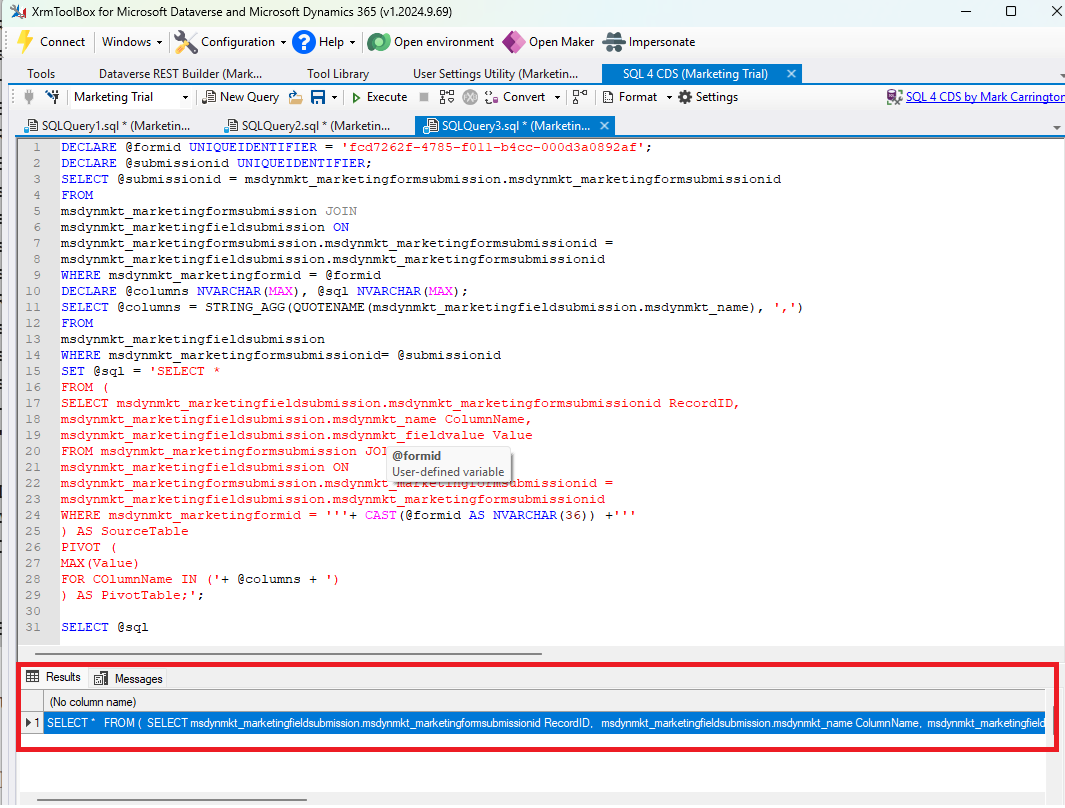
The first execution will generate the SQL to get the submission data
Once you execute the above, you will get the SQL query to generate the submission. Just copy and paste the SQL SELECT command:
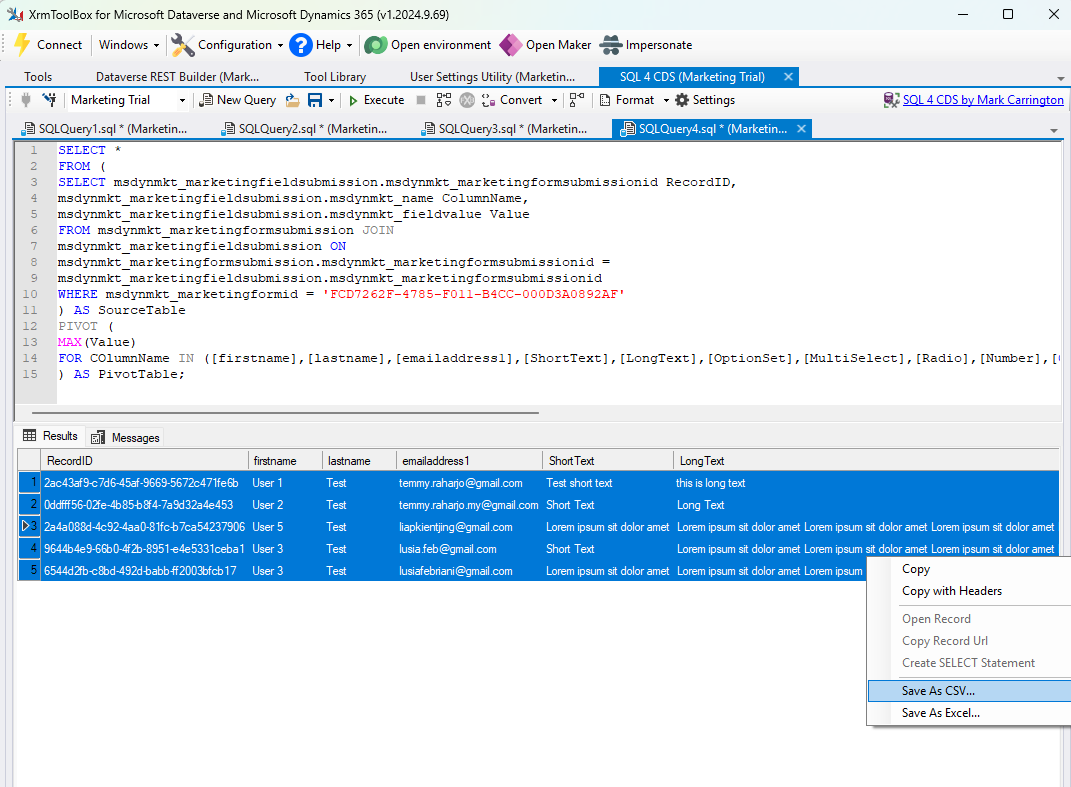
Get the Form Submission via SQL Query
Once you execute and the data is populated, you can right-click and "Save As CSV..." on the table!
Approach 2: Power Automate - Send Email
You can also create a Power Automate flow to generate the submission data. To trigger the flow, I'm using On Select of the Event data to make it available on the Event form:
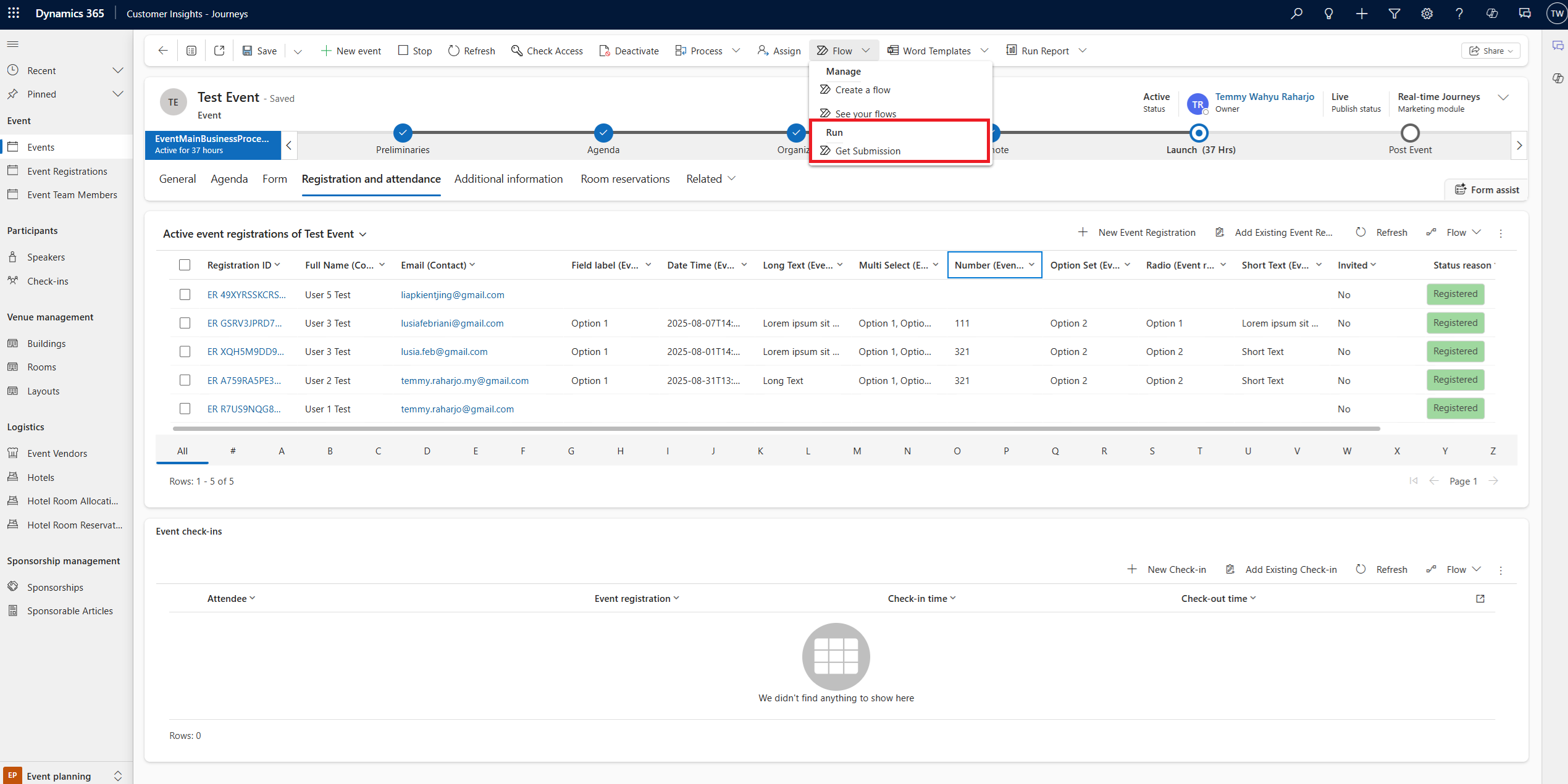
Execute the "Get Submission" flow
Here is the flow that I already prepared:
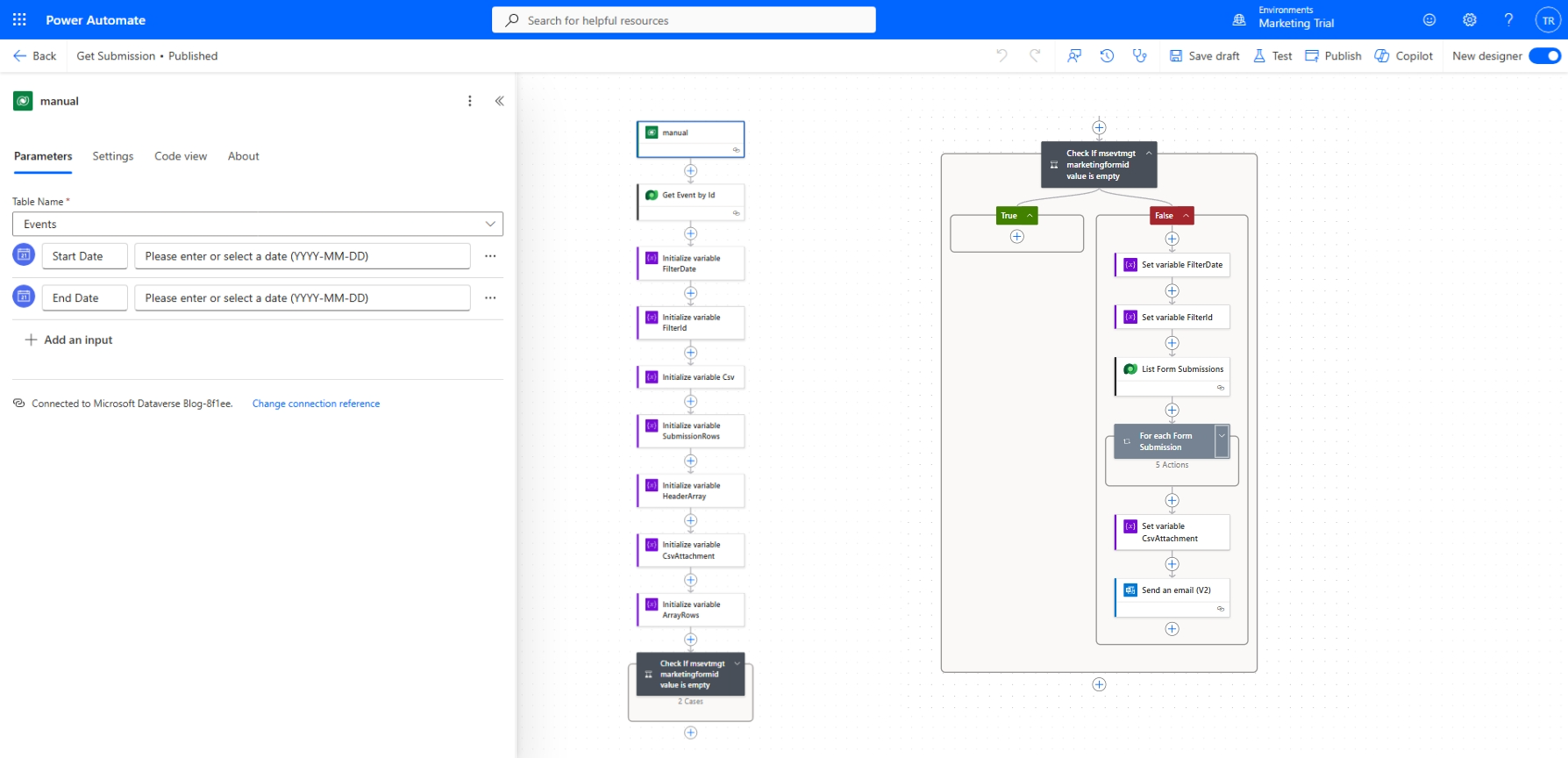
First: Get Submission flow
Here is the step-by-step based on the above diagram:
- Trigger manual: I added Start Date and End Date parameters to filter submissions (an extra feature).
- Get Event by Id: Dataverse retrieves the Events table by the Row ID (taken from the manual step - @triggerBody()?['entity']['msevtmgt_eventid']). Set the $select to _msevtmgt_marketingformid_value.
- All others step that begin with "Initialize" are just a bunch of variable initializations.
- Check If msevtmgt marketingformid value is empty: Condition checking if empty(body('Get_Event_by_Id')?['_msevtmgt_marketingformid_value']) is equal to true
- Set variable FilterDate: Dataverse retrieve multiple with this setup: Microsoft.Dynamics.CRM.Between(PropertyName='createdon',PropertyValues=['@{triggerBody()?['date']}','@{triggerBody()?['date_1']}'])
- Set variable FilterId: _msdynmkt_marketingformid_value eq @{body('Get_Event_by_Id')?['_msevtmgt_marketingformid_value']}
- List Form Submissions: Dataverse retrieve multiple with this setup:"entityName":"msdynmkt_marketingformsubmissions", "$select": "msdynmkt_marketingformsubmissionid", "$filter": "(@{variables('FilterId')} and @{variables('FilterDate')})"
Here is the detail of For each Field Submission:
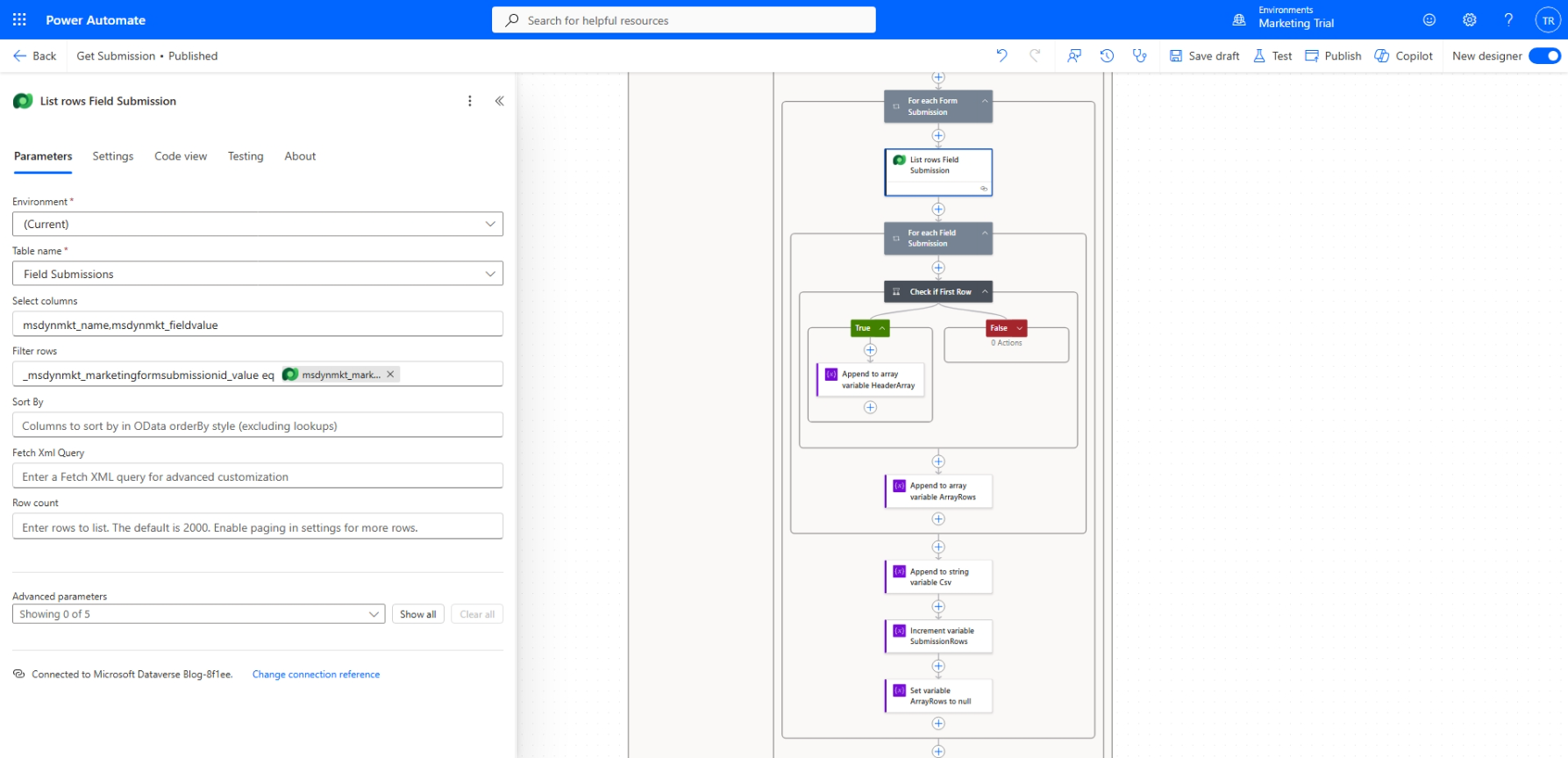
For each Field Submission
- List rows Field Submission: Dataverse retrieve multiple with this setup: "entityName": "msdynmkt_marketingfieldsubmissions", "$select": "msdynmkt_name,msdynmkt_fieldvalue", "$filter": "_msdynmkt_marketingformsubmissionid_value eq @{items('For_each_Form_Submission')?['msdynmkt_marketingformsubmissionid']}"
- Check if First Row: Because we want to get the header one time only, we need to check if the variable of SubmissionRows = 0 (later step will increment this variable)
- Append to array variable HeaderArray: append the variable of HeaderArray to @items('For_each_Field_Submission')?['msdynmkt_name']
- Append to array variable ArrayRows: append the variable ArrayRows with the value @items('For_each_Field_Submission')?['msdynmkt_fieldvalue']
- Append to string variable Csv: append the string variable of CSV using the value of join(variables('ArrayRows'), ';')
- Increment variable SubmissionRows: increment +1
- Set variable ArrayRows to null: set ArrayRows to [] (clear each submission)
- Set variable CsvAttachment: @{join(variables('HeaderArray'), ';')}\n@{variables('Csv')}\n
For the last step, for the demo I'm sending to static email + content:
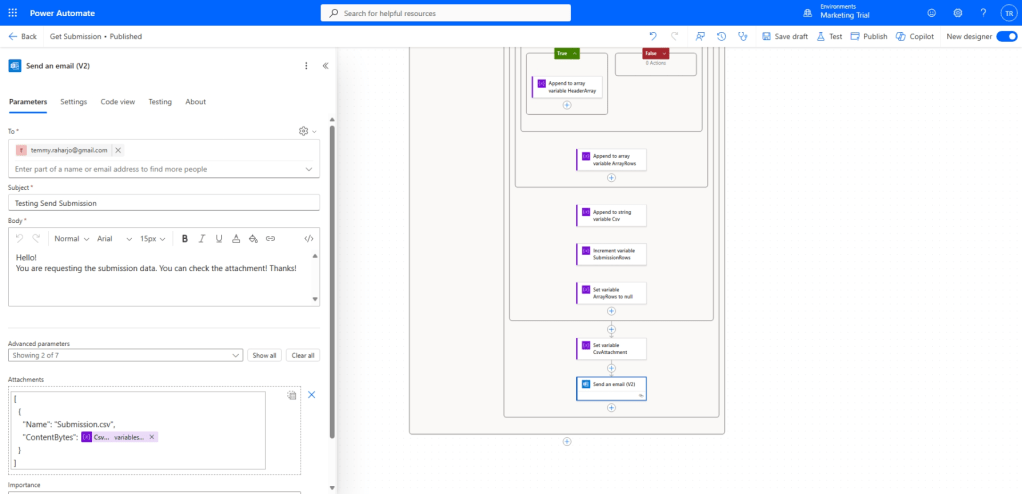
Send an email action
For the attachment, I use below formula (to convert the text to bytes): base64ToBinary(base64(variables('CsvAttachment'))).
And with this, the flow is ready to be tested, and here is the result of the attachment shown in the Google Sheet:
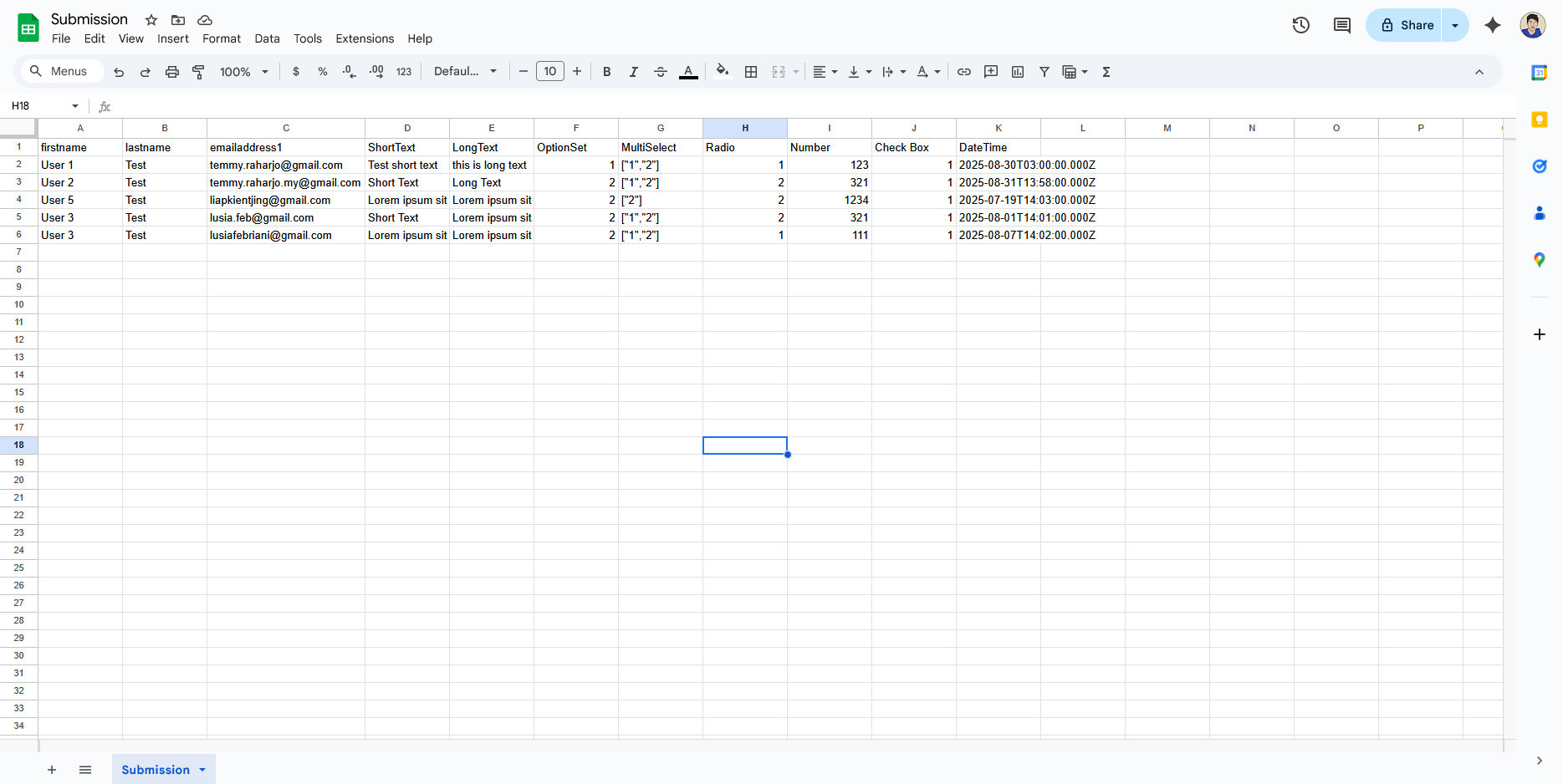
Attachment result
Hope this helps, and happy CRM-ing! 🚀
Leave a comment
Your comment is sent privately to the author and isn't published on the site.