Share File into Power Virtual Agents from Dataverse File data type
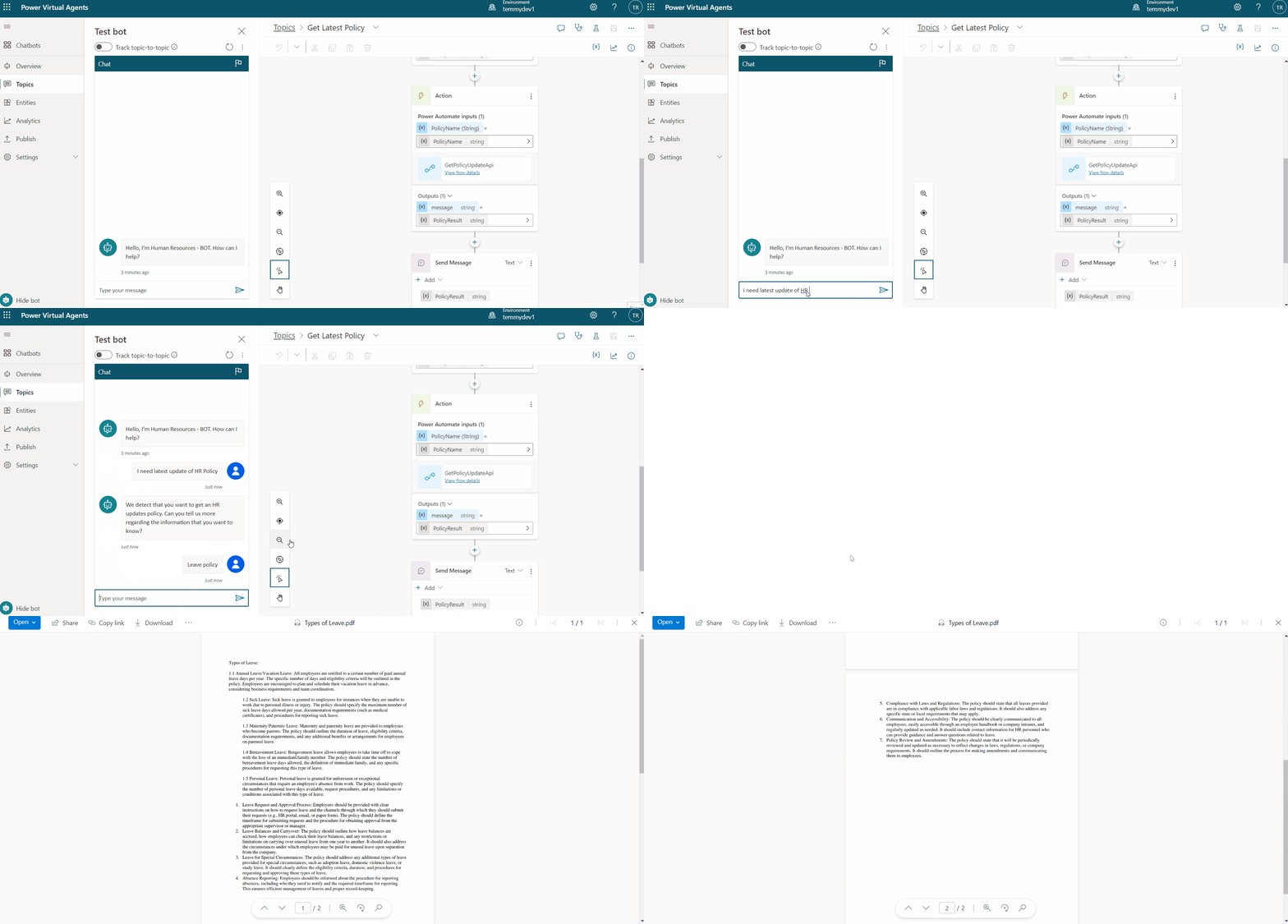
For example, you have a table in Dataverse and let the user upload a File into it. Then, when other users interact with PVA (Power Virtual Agent/Chat Bot), we will allow the user to see/download the file. The flow of the scenario will be like the below image:
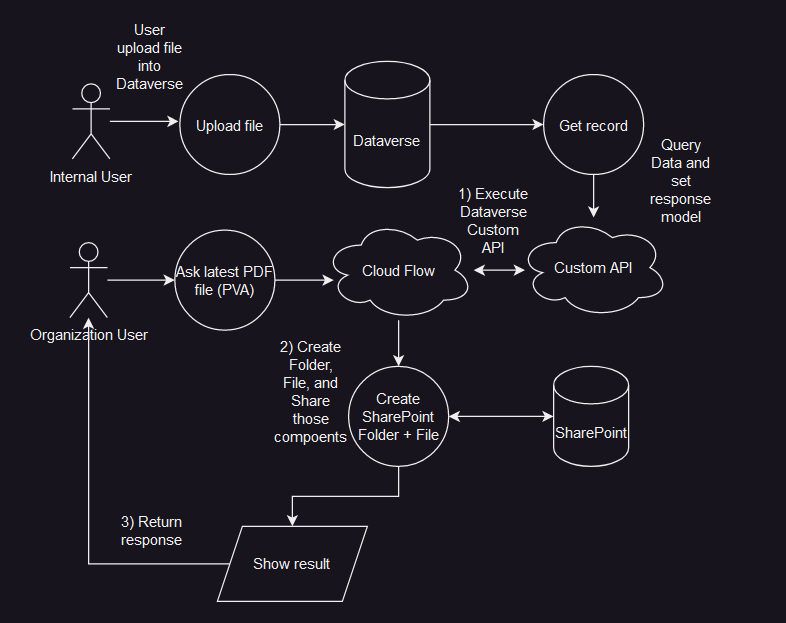
As you can see, we will use multiple technology stacks (Dataverse + SharePoint + Power Automate and also PVA) which are all under Power Platform technology. I think it is not really a good architecture as we set the source of the file in Dataverse (where we actually can use SharePoint). But, I just want to learn how we can use this design 😊.
Dataverse Side
So, I created the below table in Dataverse:
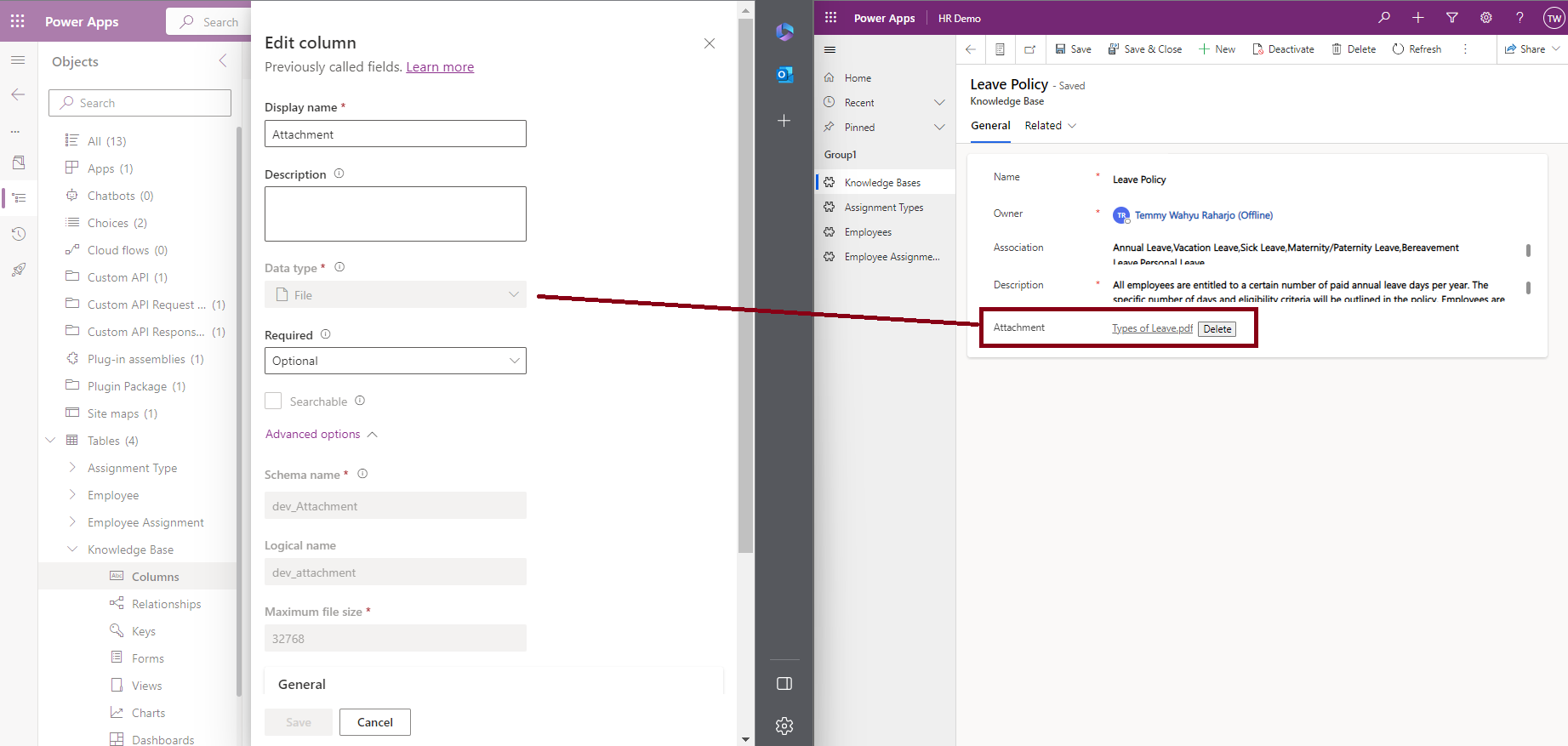
Then I prepare below Custom API code:
using Microsoft.Xrm.Sdk;
using System;
using System.Collections.Generic;
using System.IO;
using System.Linq;
using Microsoft.Crm.Sdk.Messages;
using Microsoft.Xrm.Sdk.Extensions;
using Microsoft.Xrm.Sdk.Query;
using Newtonsoft.Json;
namespace BotCustomApi
{
    public class GetPolicyUpdateApi : PluginBase
    {
        public class FileAttachmentModel
        {
            public string FileName { get; set; }
            public string Base64String { get; set; }
        }
        public class ResponseModel
        {
            public string Name { get; set; }
            public string Description { get; set; }
            public FileAttachmentModel FileDownload { get; set; }
        }
        private const string InputParameter = "PolicyName";
        private const string OutputParameter = "Result";
        public GetPolicyUpdateApi(string unsecureConfiguration, string secureConfiguration)
            : base(typeof(GetPolicyUpdateApi))
        {
        }
        protected override void ExecuteDataversePlugin(ILocalPluginContext localPluginContext)
        {
            if (localPluginContext == null)
            {
                throw new ArgumentNullException(nameof(localPluginContext));
            }
            var context = localPluginContext.PluginExecutionContext;
            var search = context.InputParameterOrDefault<string>(InputParameter);
            if (string.IsNullOrEmpty(search)) return;
            var policies = ToResponseModel(localPluginContext.PluginUserService,
                GetPolicies(localPluginContext.PluginUserService, search)).ToArray();
            if (!policies.Any()) return;
            var output = JsonConvert.SerializeObject(policies);
            context.OutputParameters[OutputParameter] = output;
        }
        public IEnumerable<ResponseModel> ToResponseModel(IOrganizationService service, dev_KnowledgeBase[] policies)
        {
            foreach (var policy in policies)
            {
                var response = new ResponseModel
                {
                    Name = policy.dev_Name,
                    Description = policy.dev_Description,
                };
                var req = new InitializeFileBlocksDownloadRequest
                {
                    Target = policy.ToEntityReference(),
                    FileAttributeName = "dev_attachment"
                };
                var res = (InitializeFileBlocksDownloadResponse)service.Execute(req);
                var valid = res != null && !string.IsNullOrEmpty(res.FileContinuationToken);
                if (!valid)
                {
                    yield return response;
                }
                var downloadReq = new DownloadBlockRequest { FileContinuationToken = res.FileContinuationToken };
                var downloadRes = (DownloadBlockResponse)service.Execute(downloadReq);
                var fileExtension = Path.GetExtension(res.FileName);
                var dataUri = GetDataUriFromExtension(fileExtension);
                var file = dataUri + ";base64," + Convert.ToBase64String(downloadRes.Data);

                response.FileDownload = new FileAttachmentModel
                {
                    FileName = res.FileName,
                    Base64String = file
                };
                yield return response;
            }
        }
        public string GetDataUriFromExtension(string extension)
        {
            switch (extension.ToLower())
            {
                case ".png":
                    return "data:image/png";
                case ".jpg":
                case ".jpeg":
                    return "data:image/jpeg";
                case ".gif":
                    return "data:image/gif";
                case ".pdf":
                    return "data:application/pdf";
                // Add more cases for other file extensions and their corresponding MIME types
                default:
                    return null; // Unknown extension
            }
        }
        private dev_KnowledgeBase[] GetPolicies(IOrganizationService service, string search)
        {
            var fetchXml = string.Format(@"<fetch xmlns:generator='MarkMpn.SQL4CDS'>
                          <entity name='dev_knowledgebase'>
                            <all-attributes />
                            <filter type='or'>
                              <condition attribute='dev_name' operator='like' value='%{0}%' />
                              <condition attribute='dev_association' operator='like' value='%{0}%' />
                            </filter>
                          </entity>
                        </fetch>", search);
            var result = service.RetrieveMultiple(new FetchExpression(fetchXml));
            return result.Entities?.Select(e => e.ToEntity<dev_KnowledgeBase>())?.ToArray() ??
                   new dev_KnowledgeBase[] { };
        }
    }
}
When we work with File columns, we need to use InitializeFileBlocksDownloadand DownloadBlockactions (thank you so much Nishant for your amazing blog post).
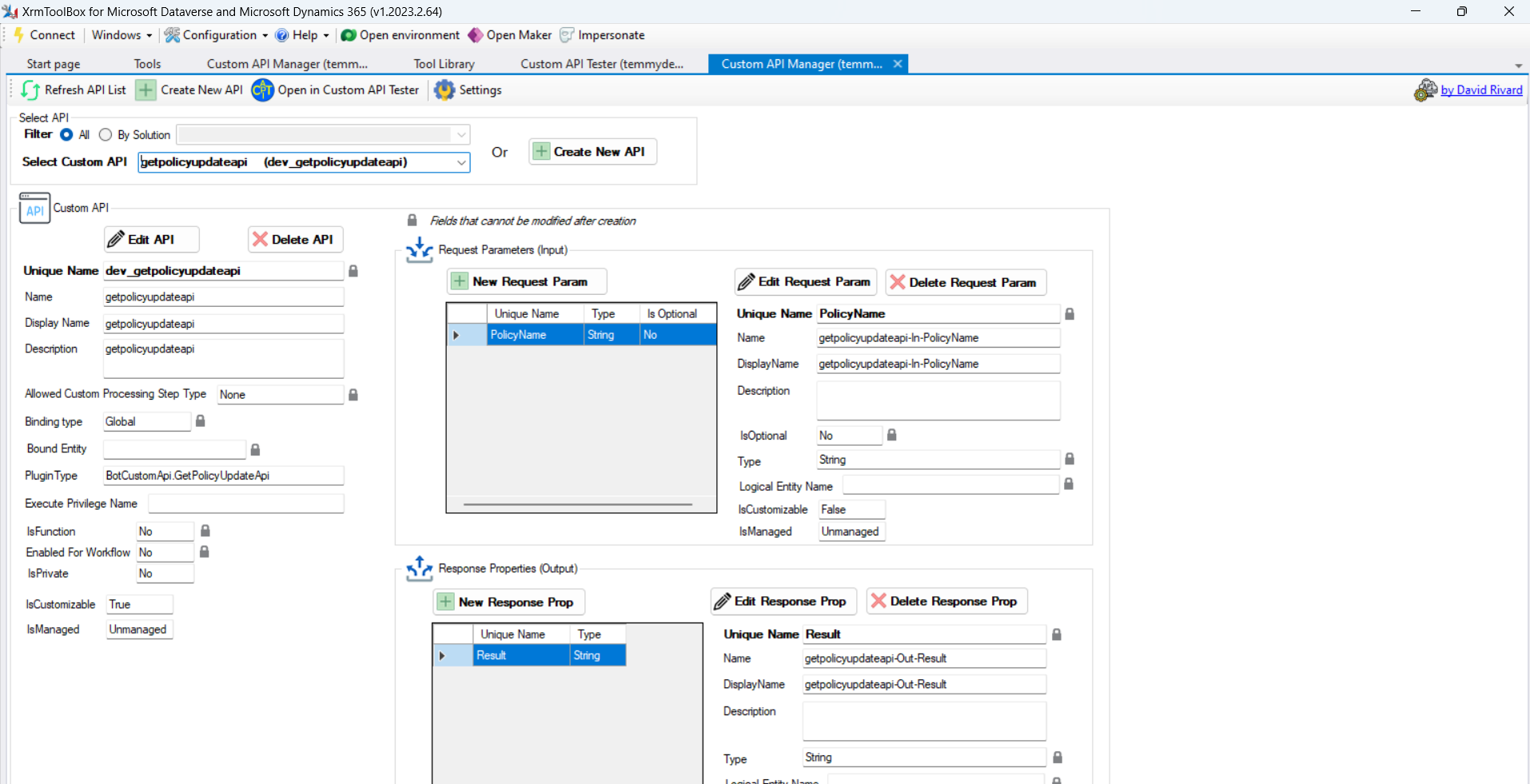
Once it is done, you can create the Custom API (I'm using our beloved XrmToolBox plugin - Custom API Manager by David Rivard):
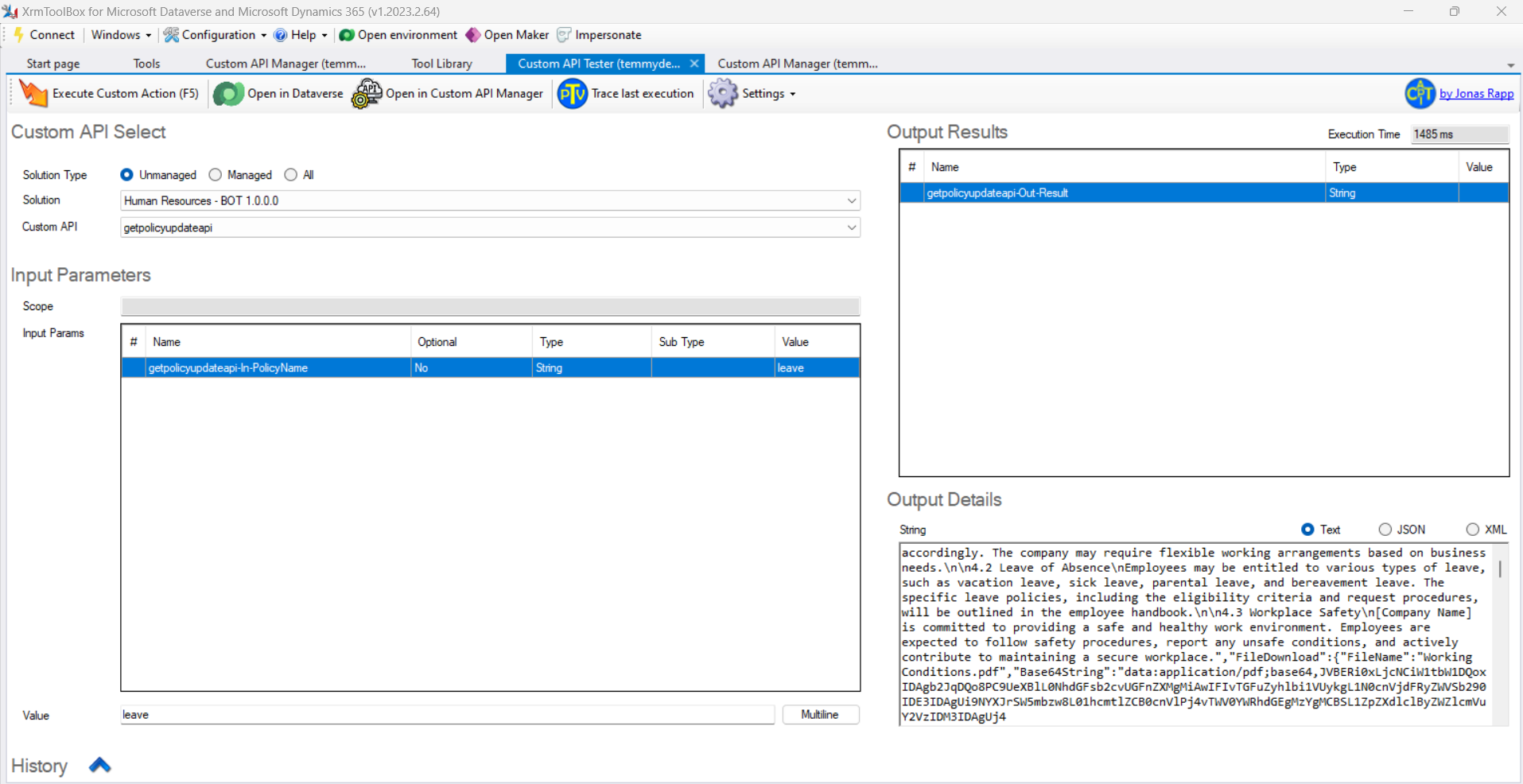
Then, to check the result. You can use Custom API Tester by Jonas Rapp:
SharePoint Side
For SharePoint, we just need to ensure to create a new Site (Create Site and wait until it is done):
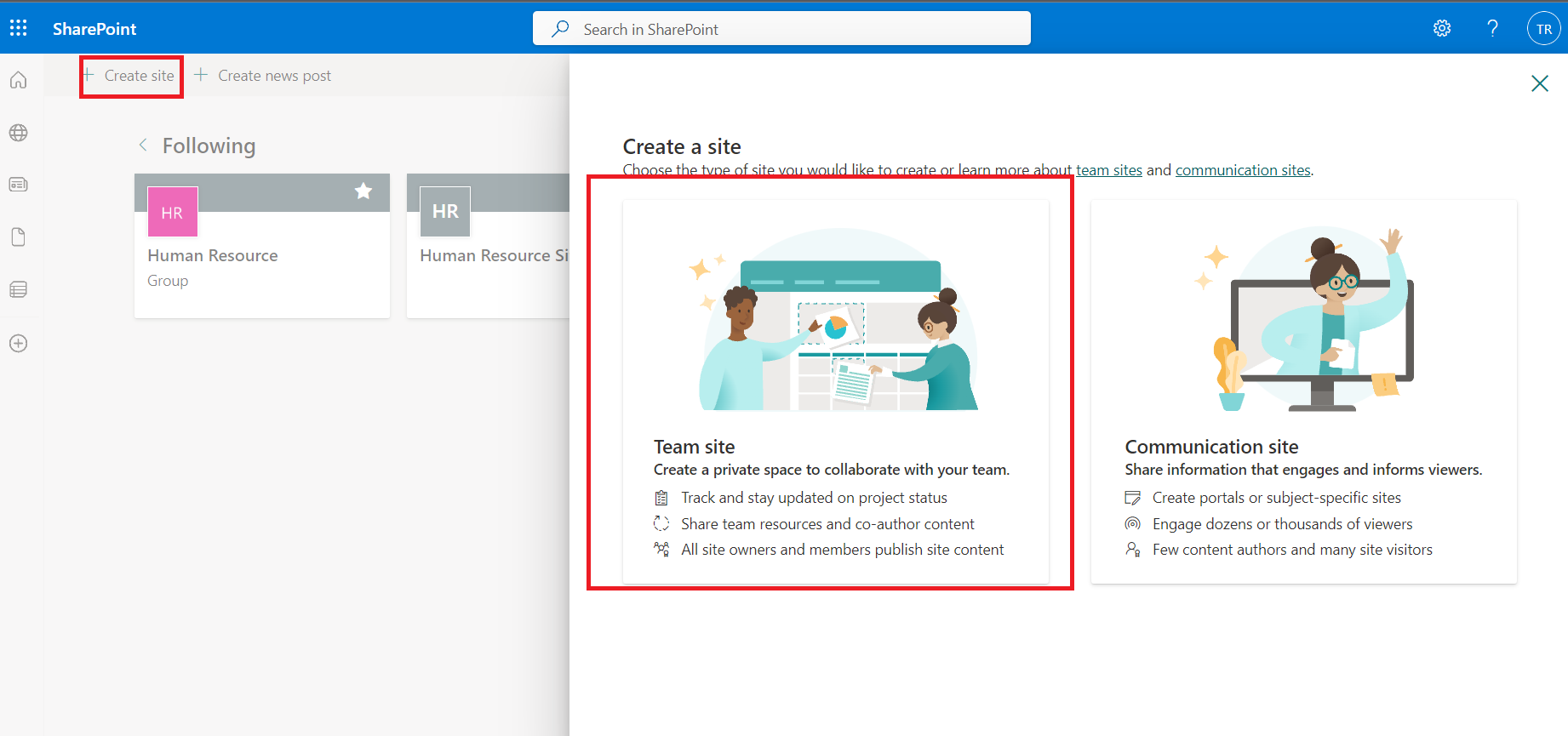
You can choose either to use the Team site/Communication site. But because I only want people in my Organization that can access the file, I choose the Team site.
Power Automate
There are so many steps that I created here. But let me just give you the important one:
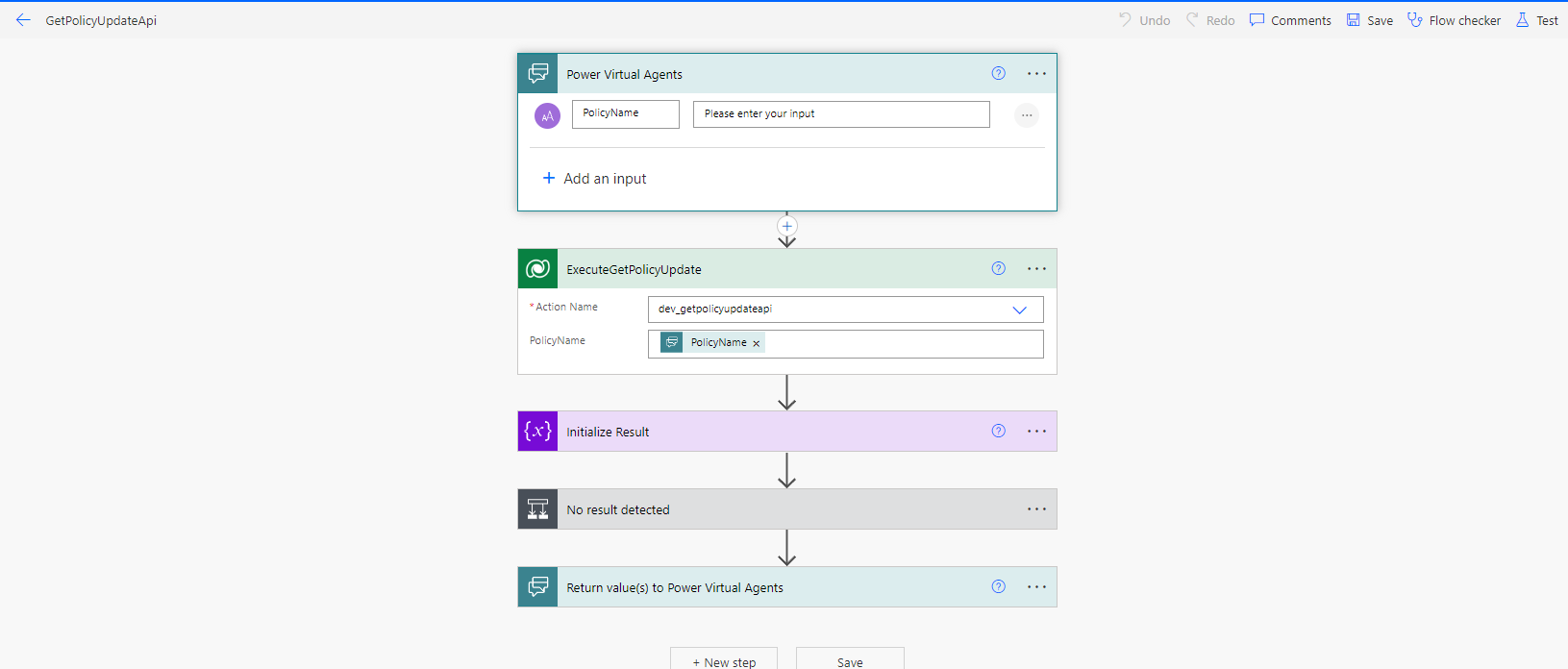
In the PVA, we will ask the user to give the PolicyName that he/she wants to search. Then, we will directly execute the Dataverse Custom API we created before.
The response of the Dataverse Custom API will be the array of objects which will be processed by the below steps:
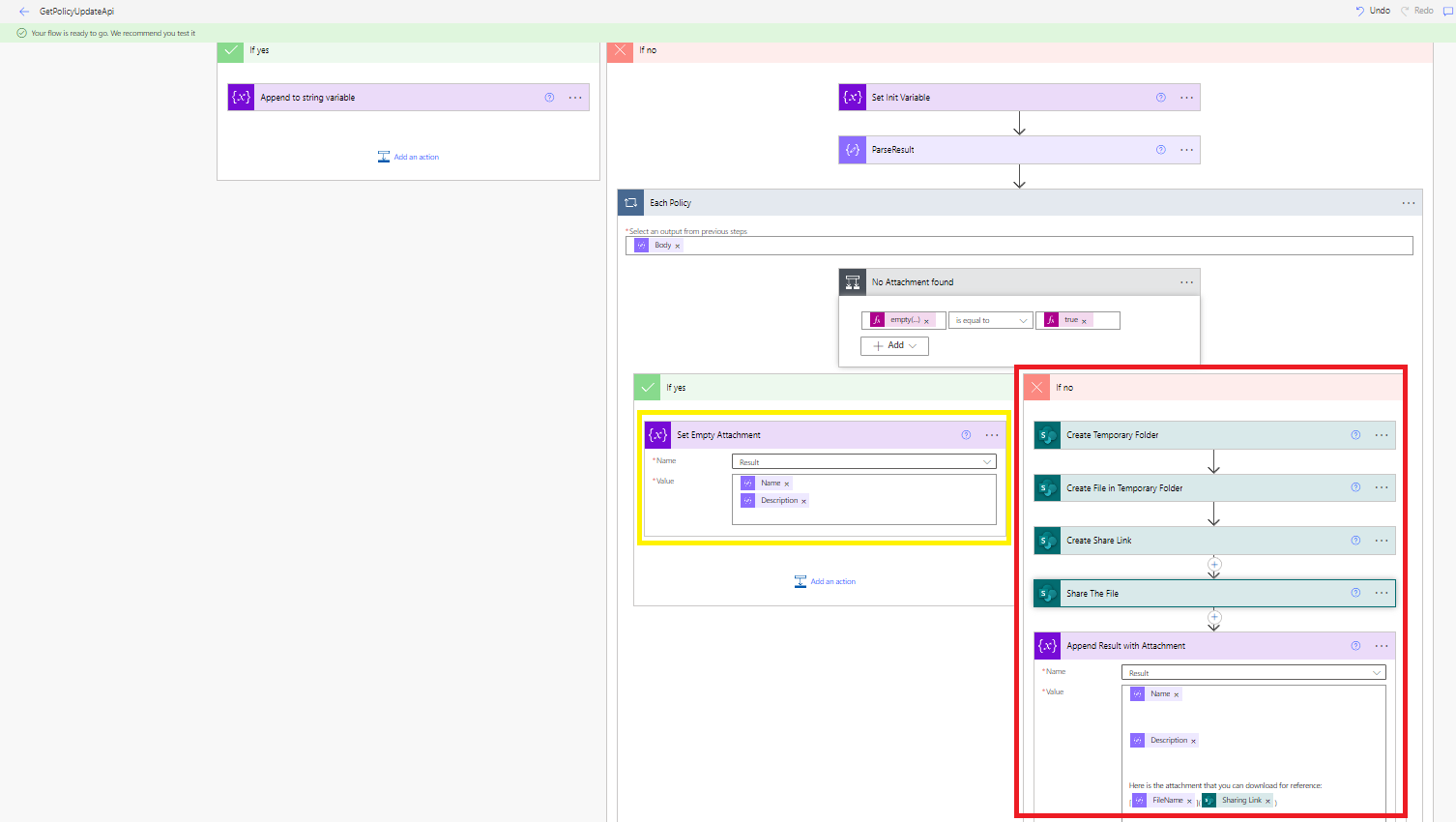
If the response does not contain a File Attachment, then we will go to the yellow box where we just need to display the Name and Description from the data that we get from Dataverse.
If the response contains File Attachment (red box), we need to create Temporary Table in SharePoint > Create the File based on Base64String given > Share the Folder > Share the File that we created. The last step will be to prepare the return message to PVA. For detailed steps, you can check this short youtube video.
Power Virtual Agent
Last, we only need to prepare the chatbot. Create the topic > Set the trigger phrases > Get the parameter we need:
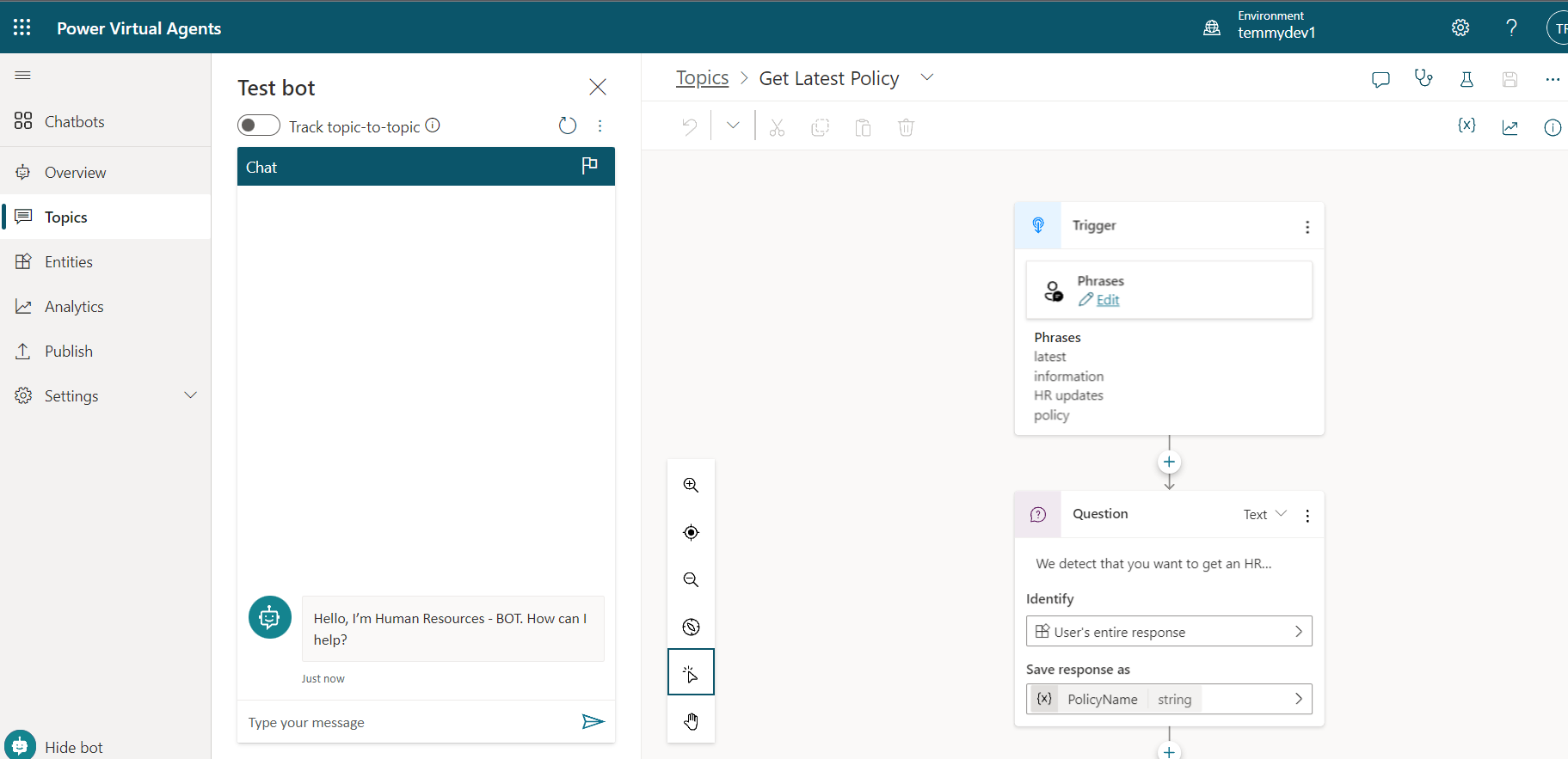
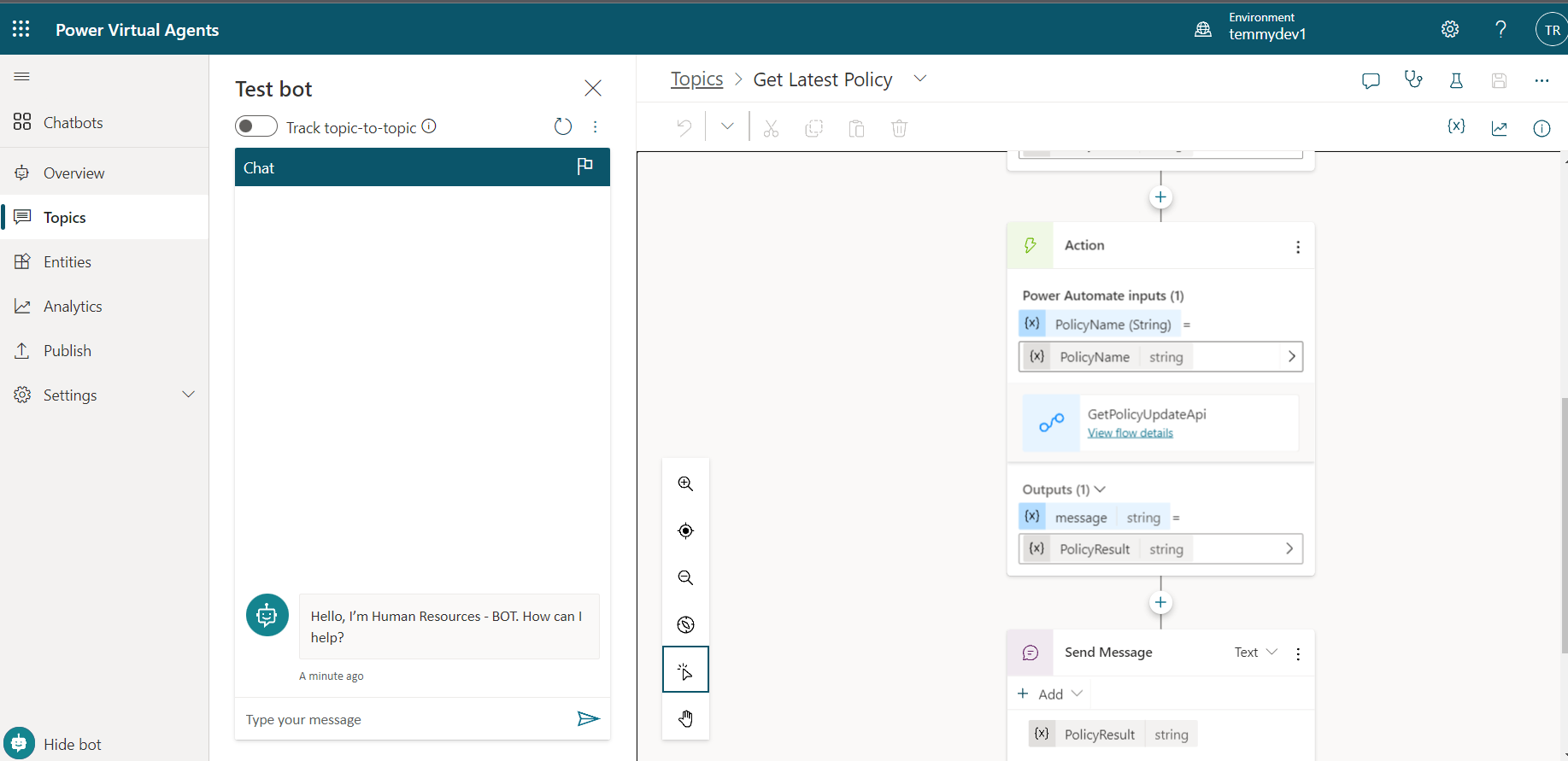
Next, call the Cloud Flow that we prepare before and display the result:
Demo:
Happy CRM-ing!
Leave a comment
Your comment is sent privately to the author and isn't published on the site.