Dynamics CRM: Setting ILogger With Different Azure Application Insight Subscription
The first time I saw this documentation (about sending Log to Azure Application Insight), I wanted to implement it in my environment. But when I tried to set it from the Data Export (Preview) blade, we must have a subscription in the same environment (if you subscribe to Dynamics CRM using xxx@xxx.onmicrosoft.com, then you also need to create an Azure Application Insight resource using the same username).
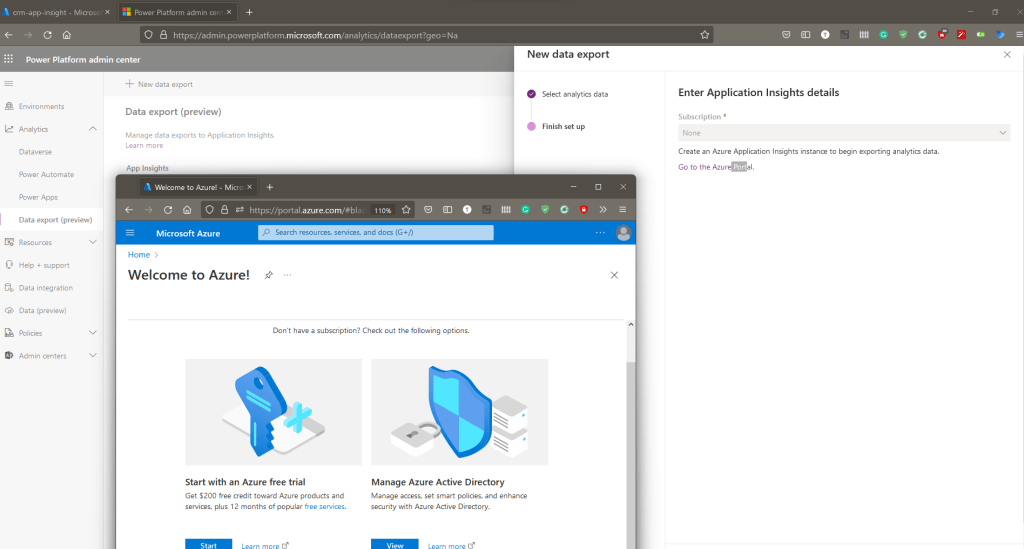 My Dynamics CRM account doesn't have an Azure Subscription
But before you try this in your organization. You must know that this one is not an official setting and is just for experimentation purposes!
Create Azure Application Insight
Login to portal.azure.com using your ID> go to Azure Application Insight > fill in all the information. For example, this is my setting:
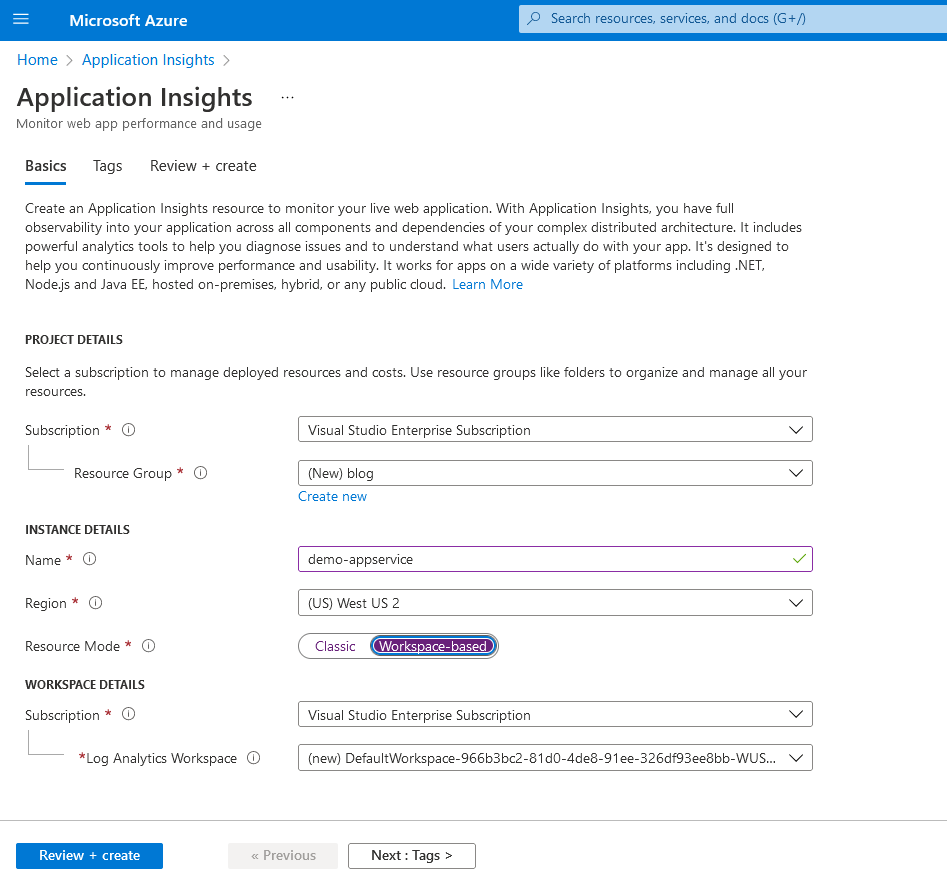 Create Azure Application Insight
Once you have done this, you can hit the Review + Create button and create the resource.
After the resource is created, you can go to Azure Application Insight > Overview blade > Copy the Instrumentation Key for later use.
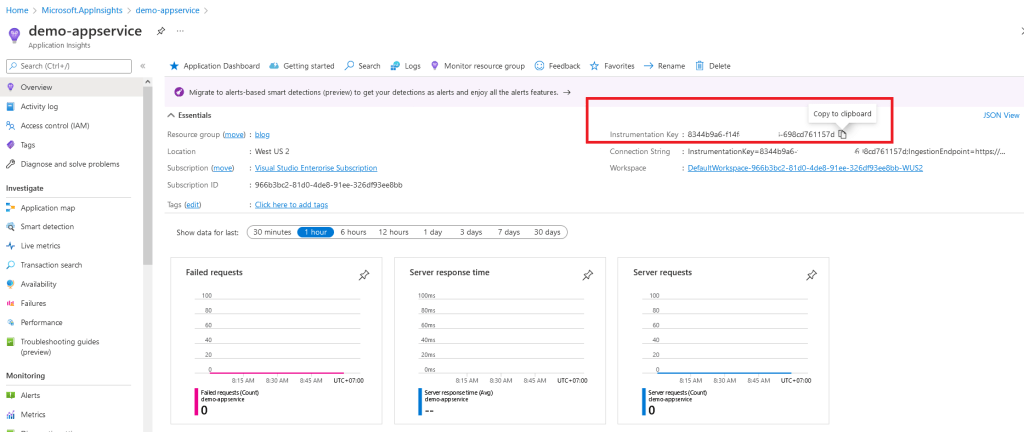 Copy The Instrument Key
Update The Organization Setting (CRM)
I create this simple exe to update the setting in my organization:
using System;
using System.Linq;
using System.Threading;
using System.Web.Configuration;
using Entities;
using Microsoft.Xrm.Sdk;
using Microsoft.Xrm.Sdk.Query;
using Microsoft.Xrm.Tooling.Connector;

namespace CrmCheck
{
    class Program
    {
        static void Main(string[] args)
        {
            var connectionString = WebConfigurationManager.AppSettings["connectionString"];
            var client = new CrmServiceClient(connectionString);

            var query = new QueryExpression(Organization.EntityLogicalName)
            {
                ColumnSet = new ColumnSet(true)
            };
            var result = client.RetrieveMultiple(query);

            var organization = result.Entities[0];
            var organizationUpdate = new Entity(Organization.EntityLogicalName) { Id = organization.Id };
            organizationUpdate["telemetryinstrumentationkey"] = "8344b9a6-xxx-xxxx-9558-698cd761157d";
            organizationUpdate["orginsightsenabled"] = true;
            client.Update(organizationUpdate);

            Console.WriteLine("Updated!");
            Console.ReadKey();
        }
    }
}
If you wondering what's the sample ConnectionString, here is my App.Config value:
<?xml version="1.0" encoding="utf-8" ?>
<configuration>
  <appSettings>  <add key="connectionString" value="AuthType=OAuth;Username=Temmy.Raharjo@xxx.com;Password=yourpassword;Url=https://xxxx.crm.dynamics.com/;AppId=51f81489-12ee-4a9e-aaae-a2591f45987d;RedirectUri=app://58145B91-0C36-4500-8554-080854F2AC97"/>
  </appSettings>
    <startup>
        <supportedRuntime version="v4.0" sku=".NETFramework,Version=v4.6.2" />
    </startup>
</configuration>
You can run it and wait for the code to run.
The Plugin Code + Demo
The last step is to create the plugin. Here is a sample of the plugin:
using Microsoft.Xrm.Sdk;
using Microsoft.Xrm.Sdk.PluginTelemetry;
using System;

namespace DemoPlugin
{
    public class Plugin1 : IPlugin
    {
        public void Execute(IServiceProvider serviceProvider)
        {
            var logger = (ILogger)serviceProvider.GetService(typeof(ILogger));
            var pluginExecutionContext = (IPluginExecutionContext)serviceProvider
                .GetService(typeof(IPluginExecutionContext));
            var target = (Entity)pluginExecutionContext.InputParameters["Target"];

            logger.LogInformation("From Plugin: " + target["name"]);
        }
    }
}
The code is so simple. We will get the ILogger object, then because, for the demo purpose, I will update the Account.Name, then we only need to get the Target["name"] to be logged.
Below is the plugin step that I registered for the Account table in the message Update:
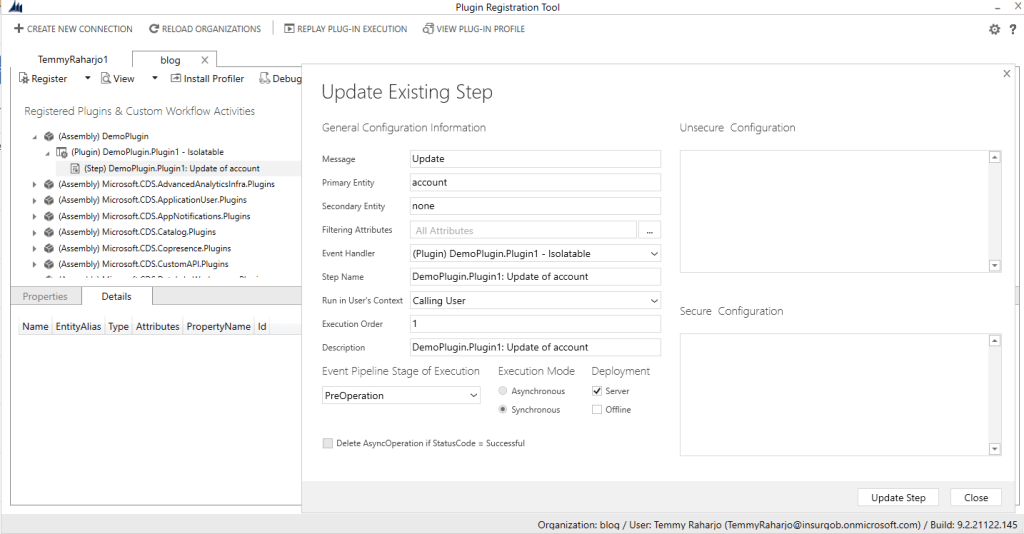 Create The Plugin Step
Here is the result (Application Log might get delayed so that is why I put it as a screenshot only):
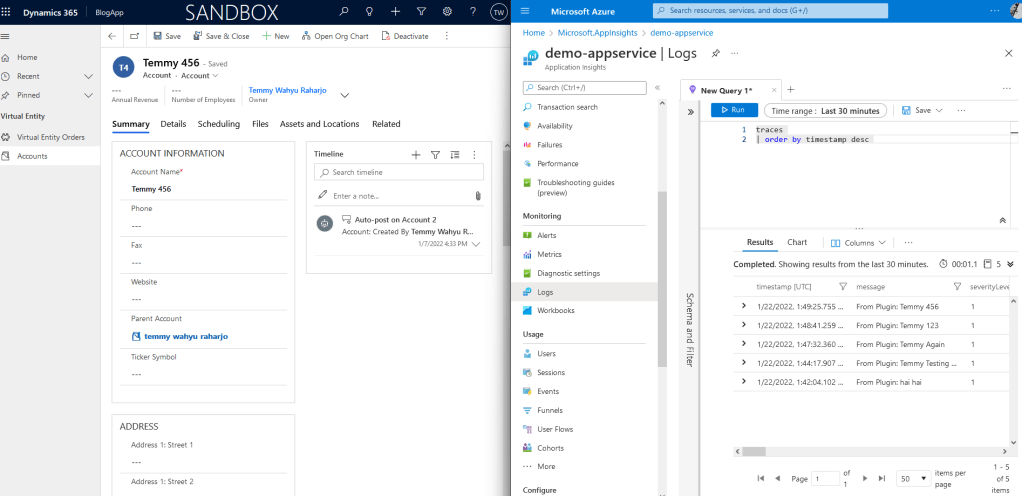 The Result
Happy CRM-ing!
Leave a comment
Your comment is sent privately to the author and isn't published on the site.