Power Automate: Renew App Registration Client Secret and Update Dataverse Environment Variable Value
Last week, we learned how to create an email notification to remind us if App Registration in Azure expires. Today, we will learn how to apply automation to generate a New Secret and update the Dataverse Environment Variable. In the flowchart, here are the steps that we will do:
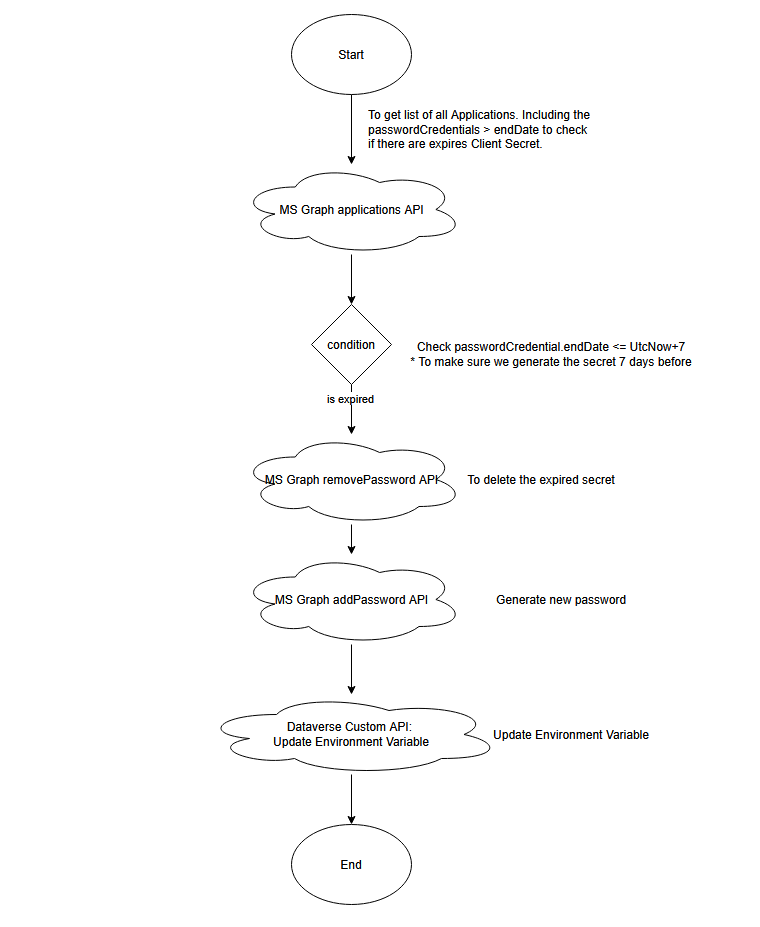
Today's demonstration
Before we begin, I need to tell you that the ideal scenario if you want to put it in production is to set any connection strings into Azure KeyVault. As my environment can't create Azure KeyVault, hence I'm using normal Dataverse Environment Variable to showcase possibility to do automation. Thank you!
Dataverse Custom API
First, I created the below Custom API:
using Microsoft.Xrm.Sdk;
using Microsoft.Xrm.Sdk.Extensions;
using Microsoft.Xrm.Sdk.Query;
using Newtonsoft.Json.Linq;
using System;
using System.Linq;

namespace BlogPackage
{
    public class UpdateSecretOnEnvironmentVariableApi : PluginBase
    {
        public readonly string EnvironmentVariableNameParam = "EnvironmentVariableName";
        public readonly string ClientSecretParam = "ClientSecret";

        public UpdateSecretOnEnvironmentVariableApi() : base(typeof(UpdateSecretOnEnvironmentVariableApi))
        {
        }

        protected override void ExecuteDataversePlugin(ILocalPluginContext localPluginContext)
        {
            var environmentVariableName = localPluginContext.PluginExecutionContext.InputParameterOrDefault<string>(EnvironmentVariableNameParam);
            if (string.IsNullOrEmpty(environmentVariableName))
            {
                throw new ArgumentNullException(EnvironmentVariableNameParam);
            }

            var clientSecret = localPluginContext.PluginExecutionContext.InputParameterOrDefault<string>(ClientSecretParam);
            if (string.IsNullOrEmpty(clientSecret))
            {
                throw new ArgumentNullException(ClientSecretParam);
            }

            var environmentVariable = GetData(localPluginContext.AdminService, environmentVariableName);
            if (environmentVariable == null) return;

            var schemaName = environmentVariable.GetAttributeValue<string>("schemaname");
            var currentValue = (environmentVariable.Contains("ev.value") ?
                environmentVariable.GetAttributeValue<AliasedValue>("ev.value")?.Value?.ToString() : null) ??
                environmentVariable.GetAttributeValue<string>("defaultvalue");

            var jsonObject = JObject.Parse(currentValue);
            jsonObject["ClientSecret"] = clientSecret;

            var newJson = jsonObject.ToString();

            var req = new OrganizationRequest("UpsertEnvironmentVariable")
            {
                ["DisplayName"] = environmentVariableName,
                ["SchemaName"] = schemaName,
                ["Type"] = 100000003, //JSON
                ["Value"] = newJson
            };
            localPluginContext.AdminService.Execute(req);
        }

        private Entity GetData(IOrganizationService service, string environmentVariableName)
        {
            var query = new QueryExpression("environmentvariabledefinition")
            {
                ColumnSet = new ColumnSet("defaultvalue", "schemaname"),
                TopCount = 1
            };
            query.Criteria.AddCondition("displayname", ConditionOperator.Equal, environmentVariableName);

            var childLink =
                query.AddLink("environmentvariablevalue", "environmentvariabledefinitionid", "environmentvariabledefinitionid", JoinOperator.LeftOuter);
            childLink.EntityAlias = "ev";
            childLink.Columns = new ColumnSet("value");
            childLink.Orders.Add(new OrderExpression("createdon", OrderType.Descending));

            var result = service.RetrieveMultiple(query);

            var data = result.Entities.Any()
                ? result.Entities.FirstOrDefault()
                : null;

            return data;
        }
    }
}
The logic of the above API is as follows:
- The API will require 2 information: the App Name and also the Client Secret.
- Retrieve the EnvironmentVariableDefinitionleft join with EnvironmentVariableValue. As you can see in line 37, we get the value/default value.
- Replace the current value with the updated value. The assumption here is all the Environment Variableswill use a standard format:
{
 "ClientID": "client_id",
 "TenantID": "tenant_id",
 "ClientSecret": "client_secret"
}
So that's why as you can see in lines 41 - 45, I can replace the value using JObject (Newtonsoft).
- We use the out-of-the-box action called UpsertEnvironmentVariable to update the EnvironmentVariable Value. We need to pass several mandatory attributes such as DisplayName (if you did not pass this, the Display Name will be replaced with null), SchemaName, Type, and Value.
For the demonstration, I created 3 Environment Variables for 3 App Registrations for which the secret expired:
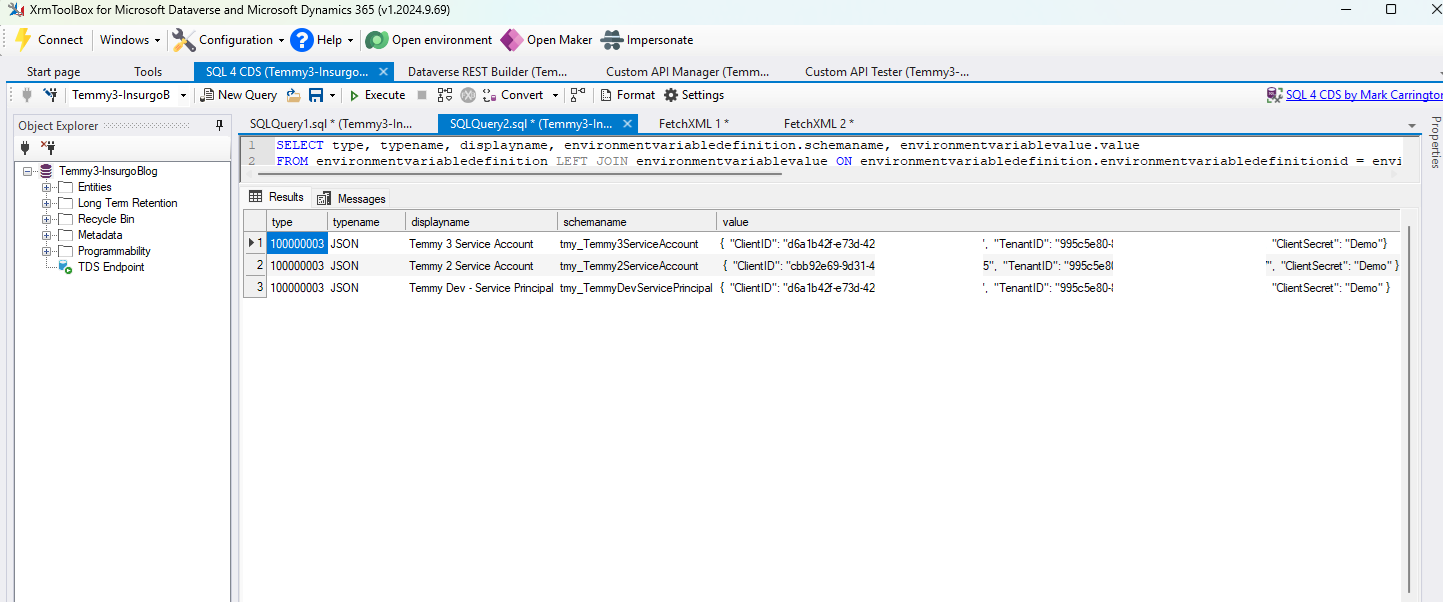
Targeted Environment Variables
Once the code is ready and you deployed the Package, we need to create a new Custom API in Dataverse:
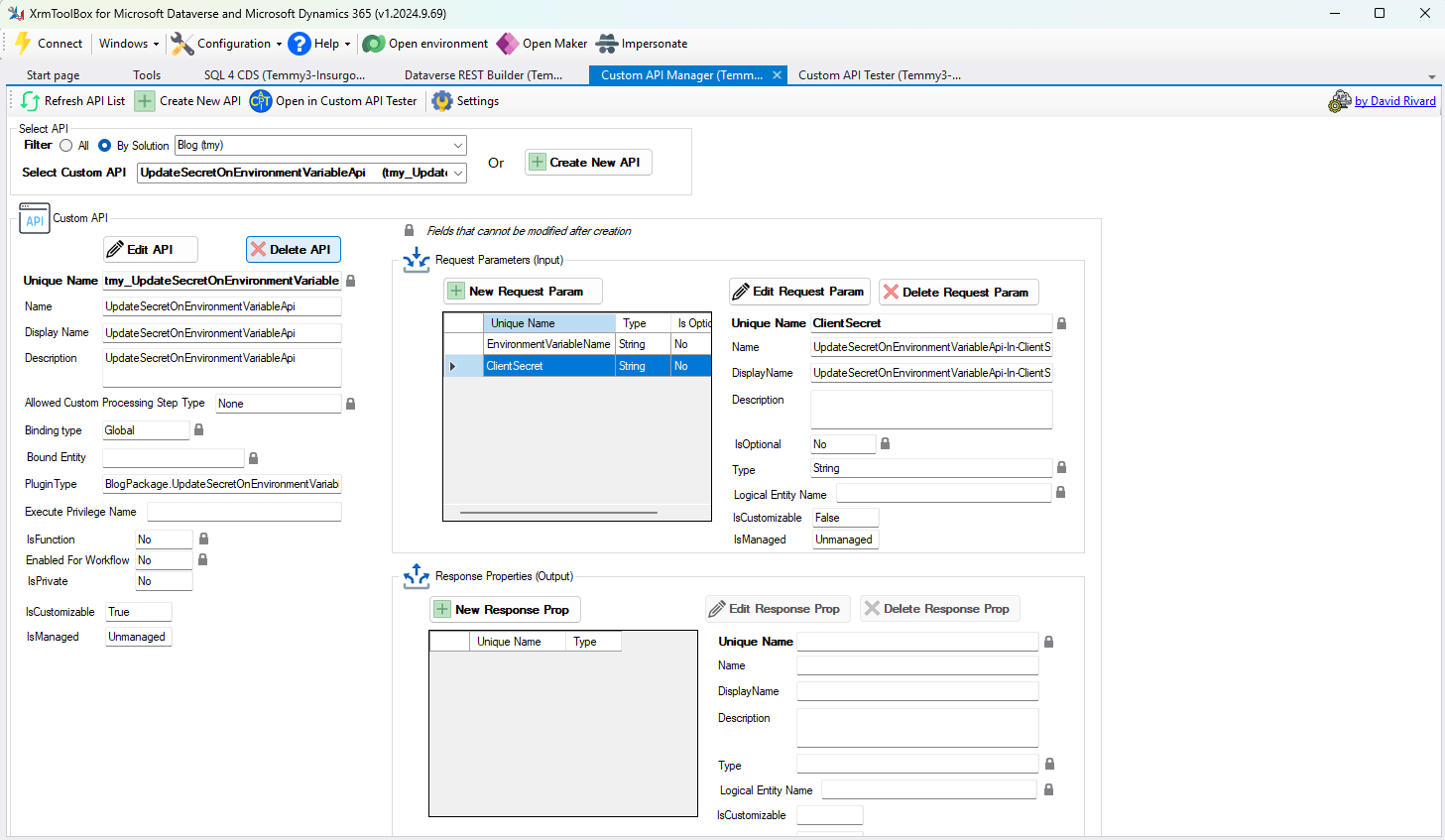
Dataverse Custom API
Add Privilege to The Application User
As you know, we need to invoke the Flow with a specific Application (same as last week). Hence, because we want to generate the secret programmatically. We need to add more API permissions. Go to your App > API Permissions > Add Permission and add Application.ReadWrite.All:
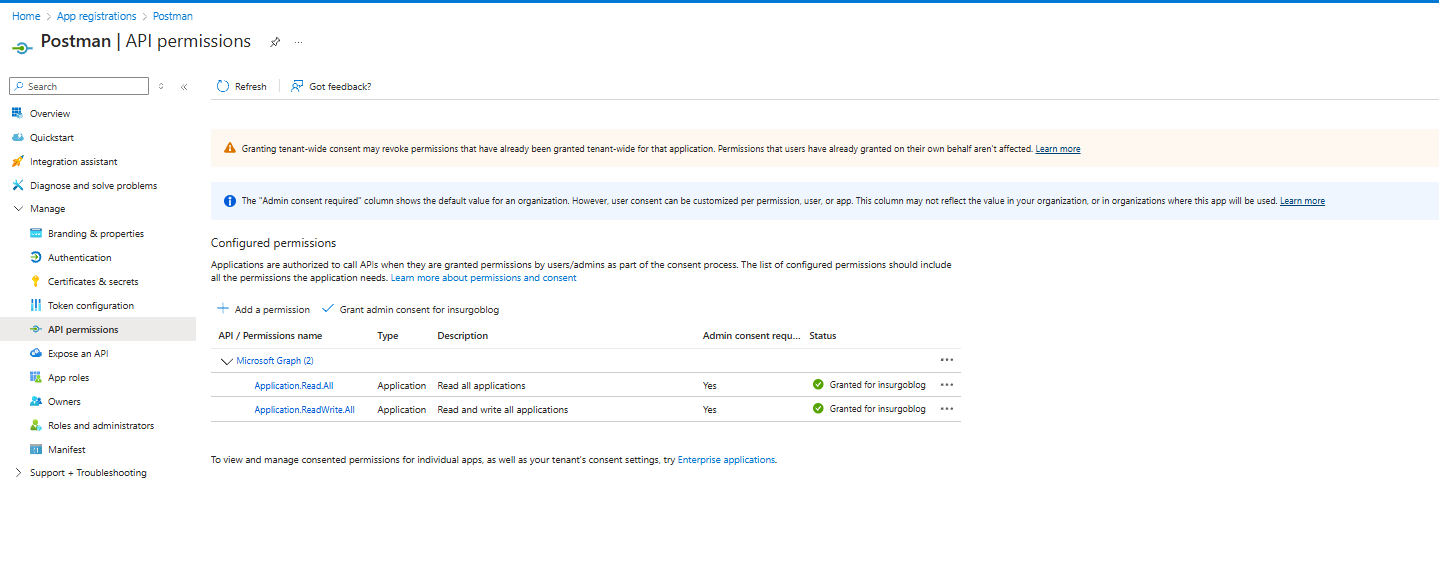
Add new permission
Power Automate Flow
Next, we need to create the Custom API. For this demonstration, I'll be using a manual trigger.
First, we need to get the access token and we need TenantId, ClientId, and also Client Secret (I pass this in the manual trigger - you can store this information using key-vault which is more secure).
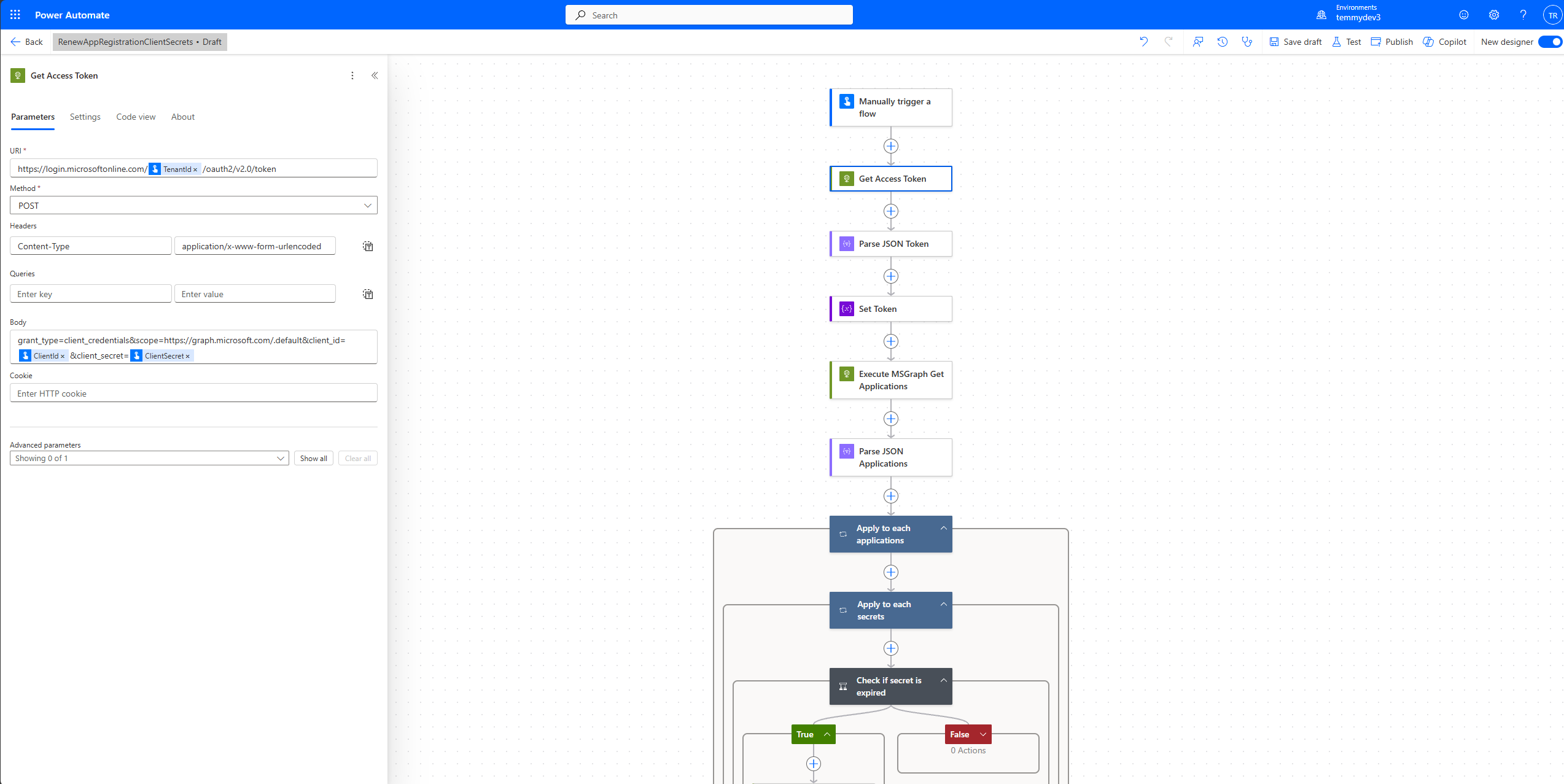
Get Access Token
I also provide you the Code view so you can refer to this action easily:
{
  "type": "Http",
  "inputs": {
    "uri": "https://login.microsoftonline.com/@{triggerBody()?['text']}/oauth2/v2.0/token",
    "method": "POST",
    "headers": {
      "Content-Type": "application/x-www-form-urlencoded"
    },
    "body": "grant_type=client_credentials&scope=https://graph.microsoft.com/.default&client_id=@{triggerBody()?['text_1']}&client_secret=@{triggerBody()?['text_2']}"
  },
  "runAfter": {},
  "runtimeConfiguration": {
    "contentTransfer": {
      "transferMode": "Chunked"
    }
  },
  "metadata": {
    "operationMetadataId": "da49e565-4db5-498b-979b-725286a11cf8"
  }
}
Next, we need to parse the response body to get the token by using the Parse JSON action:
{
    "type": "object",
    "properties": {
        "token_type": {
            "type": "string"
        },
        "expires_in": {
            "type": "integer"
        },
        "ext_expires_in": {
            "type": "integer"
        },
        "access_token": {
            "type": "string"
        }
    }
}
We can store the token for all MS Graph Action into a single variable named Token.
Then, we need to execute MS Graph applications API which will return all the applications:
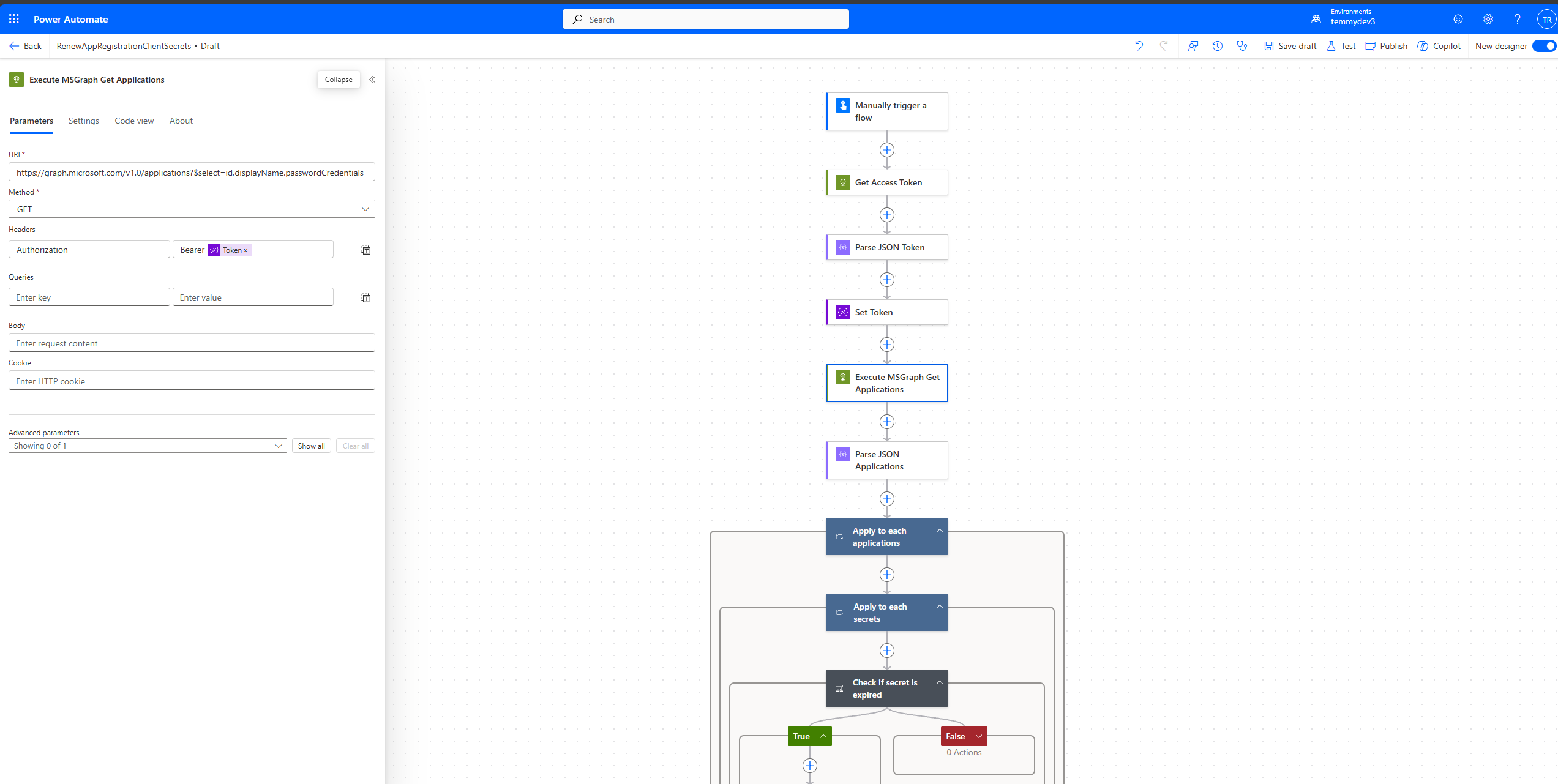
Execute MS Graph applications API
Here is the code view for the above action:
{
  "type": "Http",
  "inputs": {
    "uri": "https://graph.microsoft.com/v1.0/applications?$select=id,displayName,passwordCredentials",
    "method": "GET",
    "headers": {
      "Authorization": "Bearer @{variables('Token')}"
    }
  },
  "runAfter": {
    "Set_Token": [
      "Succeeded"
    ]
  },
  "runtimeConfiguration": {
    "contentTransfer": {
      "transferMode": "Chunked"
    }
  },
  "metadata": {
    "operationMetadataId": "3b5ead14-6941-440d-9f69-8435c6bb4188"
  }
}
For your information, the above action will return the below response (I take the sample JSON from graph-explorer):
{
    "@odata.context": "https://graph.microsoft.com/v1.0/$metadata#applications(id,displayName,passwordCredentials)",
    "value": [
        {
            "id": "acc848e9-e8ec-4feb-a521-8d58b5482e09",
            "displayName": "apisandboxproxy",
            "passwordCredentials": [
                {
                    "customKeyIdentifier": null,
                    "displayName": "secret",
                    "endDateTime": "2299-12-31T08:00:00Z",
                    "hint": "3/x",
                    "keyId": "331279dc-2868-4757-a744-e9649280cd4b",
                    "secretText": null,
                    "startDateTime": "2020-02-13T21:14:36.14Z"
                }
            ]
        },
        {
            "id": "cfa98ac0-a32c-4b4c-a78b-94c9912ed7b2",
            "displayName": "EduPopulationHelper",
            "passwordCredentials": [
                {
                    "customKeyIdentifier": "QwBsAGkAZQBuAHQAUwBlAGMAcgBlAHQA",
                    "displayName": null,
                    "endDateTime": "2299-12-31T08:00:00Z",
                    "hint": null,
                    "keyId": "208e4476-5dbe-4df2-8e26-56c7f709c4bf",
                    "secretText": null,
                    "startDateTime": "2018-03-27T02:49:01.2317856Z"
                }
            ]
        },
        {
            "id": "d6dbf9e0-98a4-4eea-b4c1-df8695277868",
            "displayName": "permissions-scraper-app",
            "passwordCredentials": [
                {
                    "customKeyIdentifier": null,
                    "displayName": "permissions-scraper",
                    "endDateTime": "2299-12-30T21:00:00Z",
                    "hint": "yC-",
                    "keyId": "1bada3aa-61b5-44f6-ad6e-9e75425f2e70",
                    "secretText": null,
                    "startDateTime": "2020-07-24T08:04:15.778Z"
                }
            ]
        }
    ]
}
Basically, we need to loop through the value and also the passwordCredentials objects:
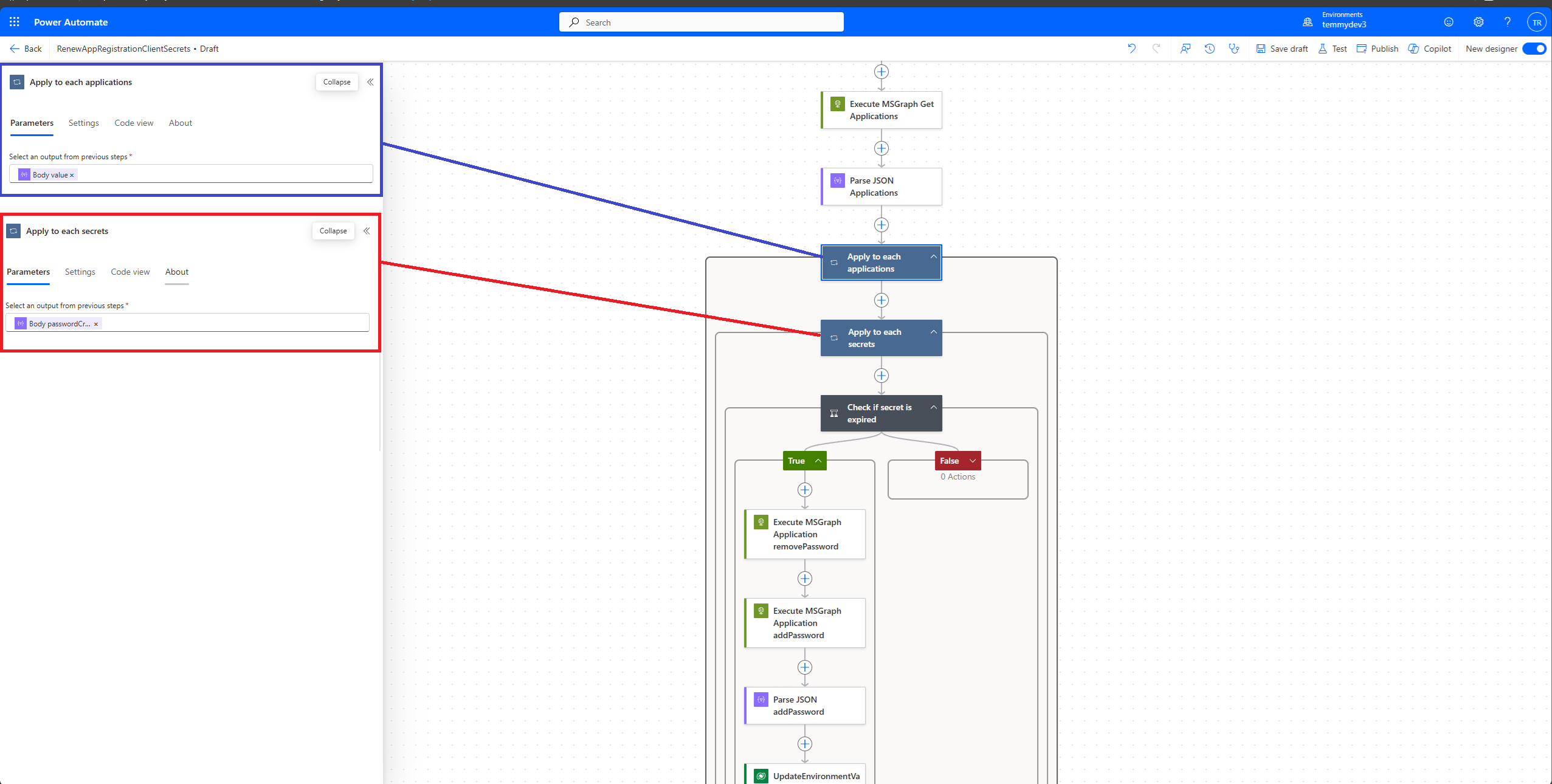
Loop the value and the passwordCredentials
For the condition checking, I'm comparing the passwordCredential.endDateTime less equal utcNow + 7 days:
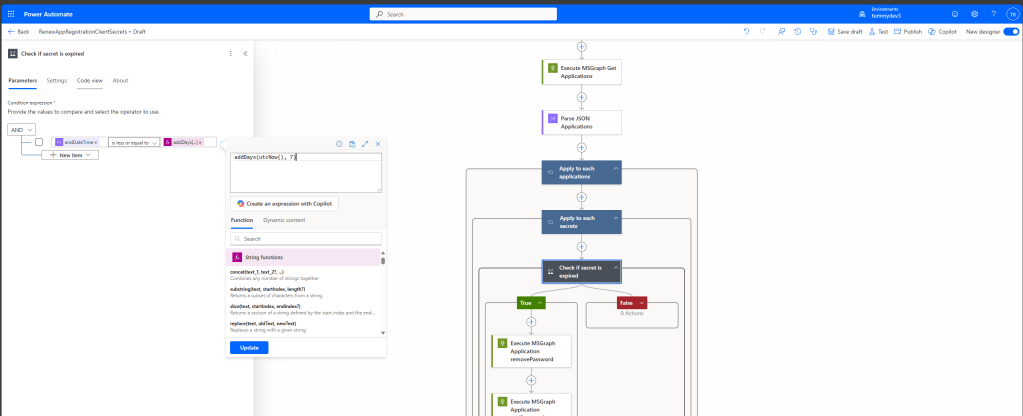
Check if the client's secret is less than utcNow + 7 days
If the condition is true, then we need to call MS Graph *removePassword*API:
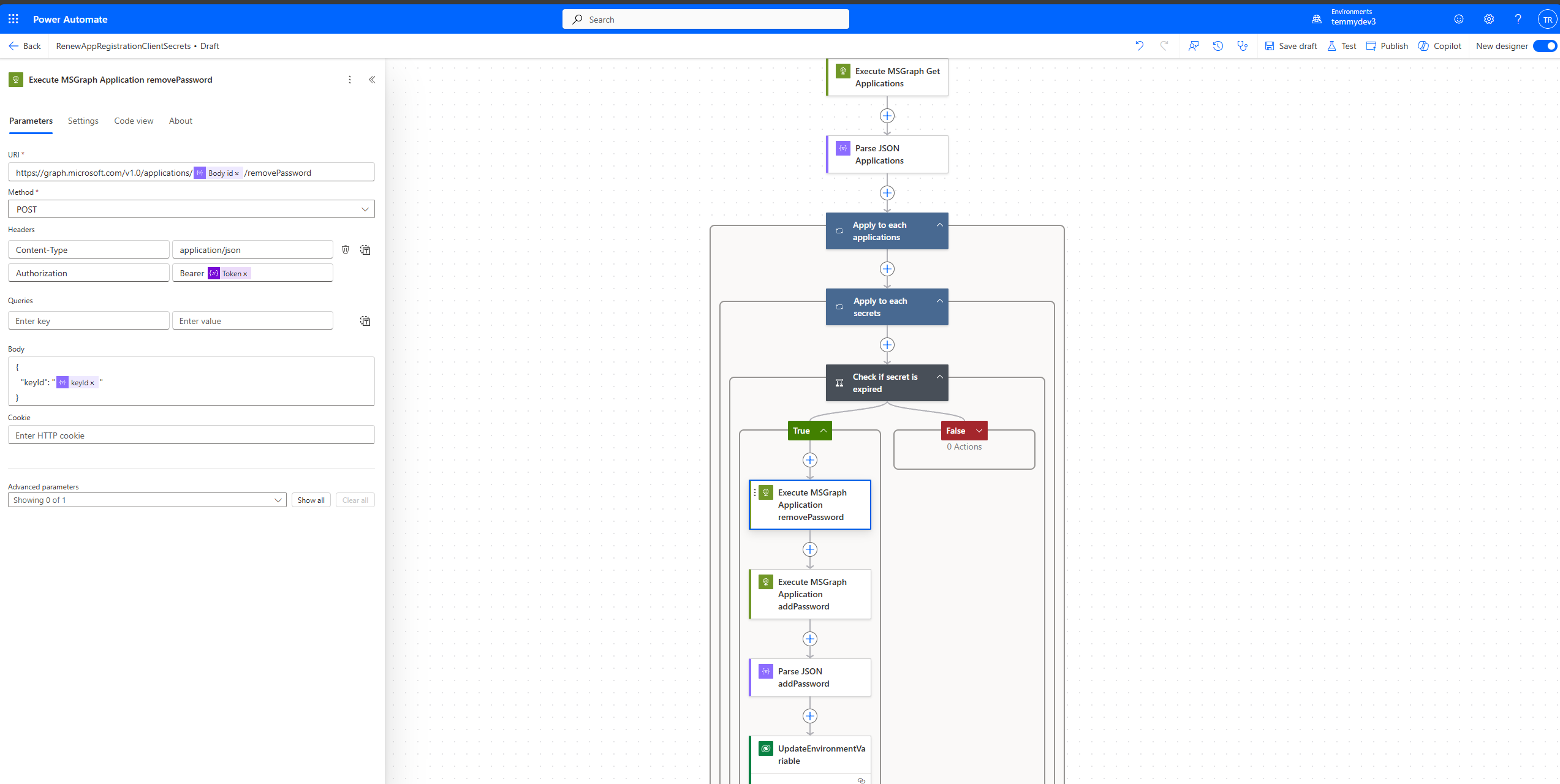
Execute *removePassword*API
Next, we need to trigger the addPasswordAPI:
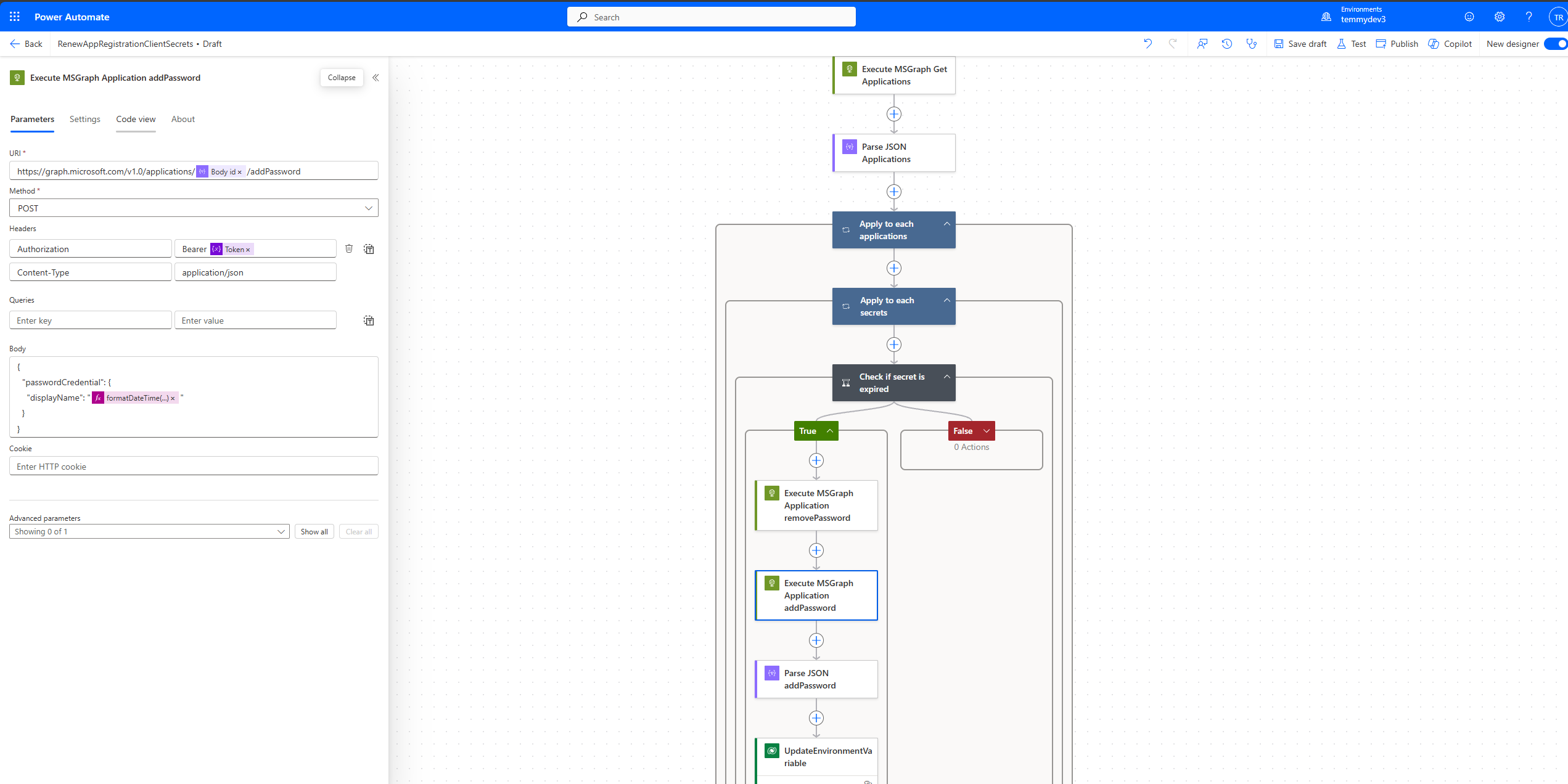
Execute addPasswordAPI
When executing the addPassword API, we will get this response:
{
    "@odata.context": "https://graph.microsoft.com/v1.0/$metadata#microsoft.graph.passwordCredential",
    "customKeyIdentifier": null,
    "displayName": "testexpired 1",
    "endDateTime": "2025-02-22T13:08:59.999Z",
    "hint": "uS6",
    "keyId": "0e565910-164d-4946-820b-d4b04b528975",
    "secretText": "secret-text",
    "startDateTime": "2025-02-22T13:05:44.6Z"
}
We need to call Parse JSON and get the secretText for the next step.
Last, we only need to call the Custom API that we prepared in the above:
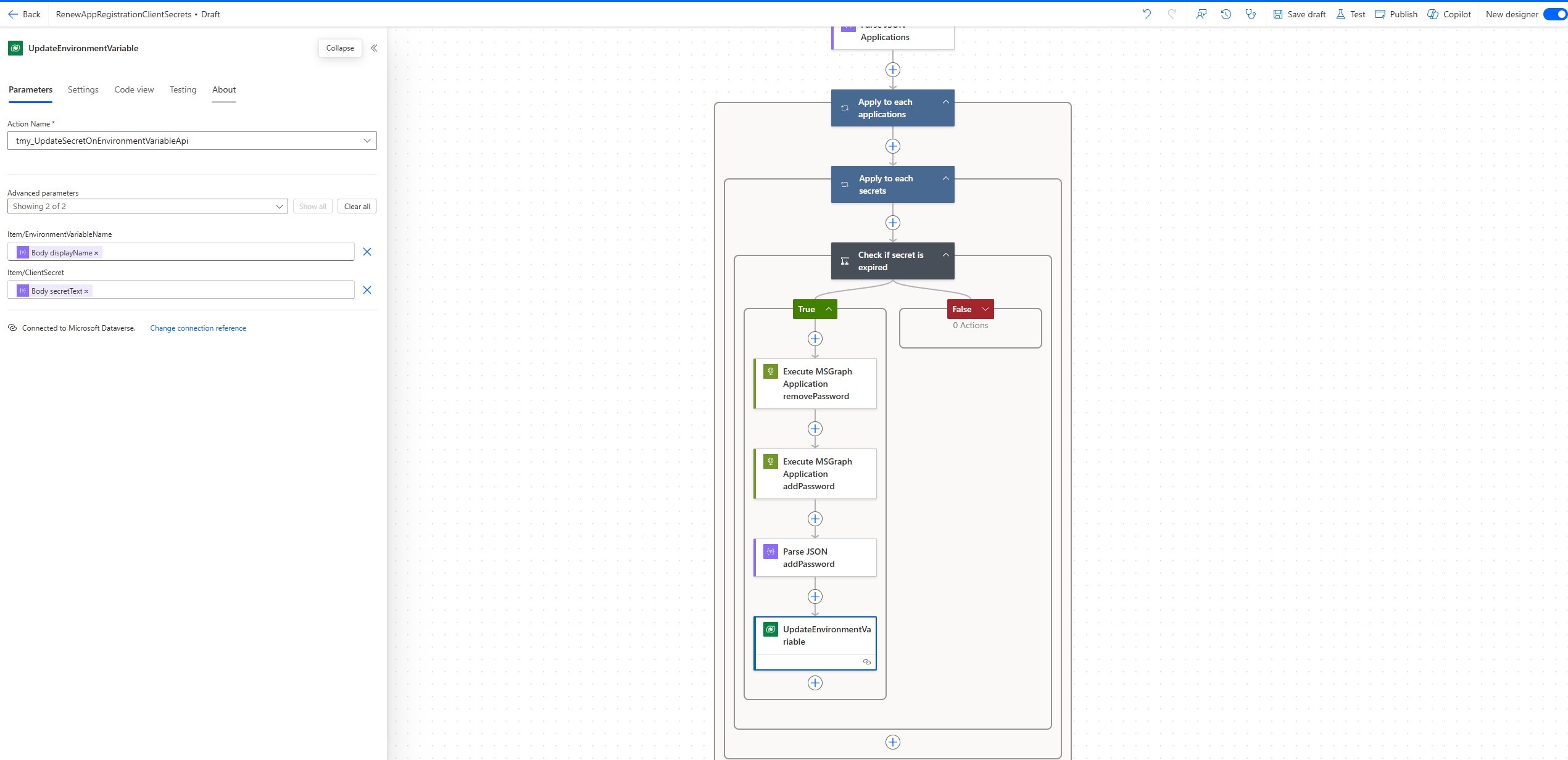
Execute Custom API and pass App Registration Name + secretText
The full operation from the Apply to each applications until the end of the flow will be as follows:
{
  "type": "Foreach",
  "foreach": "@body('Parse_JSON_Applications')?['value']",
  "actions": {
    "Apply_to_each_secrets": {
      "type": "Foreach",
      "foreach": "@items('Apply_to_each_applications')?['passwordCredentials']",
      "actions": {
        "Check_if_secret_is_expired": {
          "type": "If",
          "expression": {
            "and": [
              {
                "lessOrEquals": [
                  "@items('Apply_to_each_secrets')?['endDateTime']",
                  "@addDays(utcNow(), 7)"
                ]
              }
            ]
          },
          "actions": {
            "Execute_MSGraph_Application_addPassword": {
              "type": "Http",
              "inputs": {
                "uri": "https://graph.microsoft.com/v1.0/applications/@{items('Apply_to_each_applications')?['id']}/addPassword",
                "method": "POST",
                "headers": {
                  "Authorization": "Bearer @{variables('Token')}",
                  "Content-Type": "application/json"
                },
                "body": {
                  "passwordCredential": {
                    "displayName": "@{formatDateTime(utcNow(), 'yyyyMMdd')}"
                  }
                }
              },
              "runAfter": {
                "Execute_MSGraph_Application_removePassword": [
                  "Succeeded"
                ]
              },
              "runtimeConfiguration": {
                "contentTransfer": {
                  "transferMode": "Chunked"
                }
              }
            },
            "Parse_JSON_addPassword": {
              "type": "ParseJson",
              "inputs": {
                "content": "@body('Execute_MSGraph_Application_addPassword')",
                "schema": {
                  "type": "object",
                  "properties": {
                    "@@odata.context": {
                      "type": "string"
                    },
                    "customKeyIdentifier": {},
                    "displayName": {
                      "type": "string"
                    },
                    "endDateTime": {
                      "type": "string"
                    },
                    "hint": {
                      "type": "string"
                    },
                    "keyId": {
                      "type": "string"
                    },
                    "secretText": {
                      "type": "string"
                    },
                    "startDateTime": {
                      "type": "string"
                    }
                  }
                }
              },
              "runAfter": {
                "Execute_MSGraph_Application_addPassword": [
                  "Succeeded"
                ]
              }
            },
            "Execute_MSGraph_Application_removePassword": {
              "type": "Http",
              "inputs": {
                "uri": "https://graph.microsoft.com/v1.0/applications/@{items('Apply_to_each_applications')?['id']}/removePassword",
                "method": "POST",
                "headers": {
                  "Content-Type": "application/json",
                  "Authorization": "Bearer @{variables('Token')}"
                },
                "body": {
                  "keyId": "@{items('Apply_to_each_secrets')?['keyId']}"
                }
              },
              "runtimeConfiguration": {
                "contentTransfer": {
                  "transferMode": "Chunked"
                }
              }
            },
            "UpdateEnvironmentVariable": {
              "type": "OpenApiConnection",
              "inputs": {
                "parameters": {
                  "actionName": "tmy_UpdateSecretOnEnvironmentVariableApi",
                  "item/EnvironmentVariableName": "@items('Apply_to_each_applications')?['displayName']",
                  "item/ClientSecret": "@body('Parse_JSON_addPassword')?['secretText']"
                },
                "host": {
                  "apiId": "/providers/Microsoft.PowerApps/apis/shared_commondataserviceforapps",
                  "connection": "shared_commondataserviceforapps-1",
                  "operationId": "PerformUnboundAction"
                }
              },
              "runAfter": {
                "Parse_JSON_addPassword": [
                  "Succeeded"
                ]
              }
            }
          },
          "else": {
            "actions": {}
          }
        }
      }
    }
  },
  "runAfter": {
    "Parse_JSON_Applications": [
      "Succeeded"
    ]
  }
}
Demo
Here is the result of the execution of the Flow:
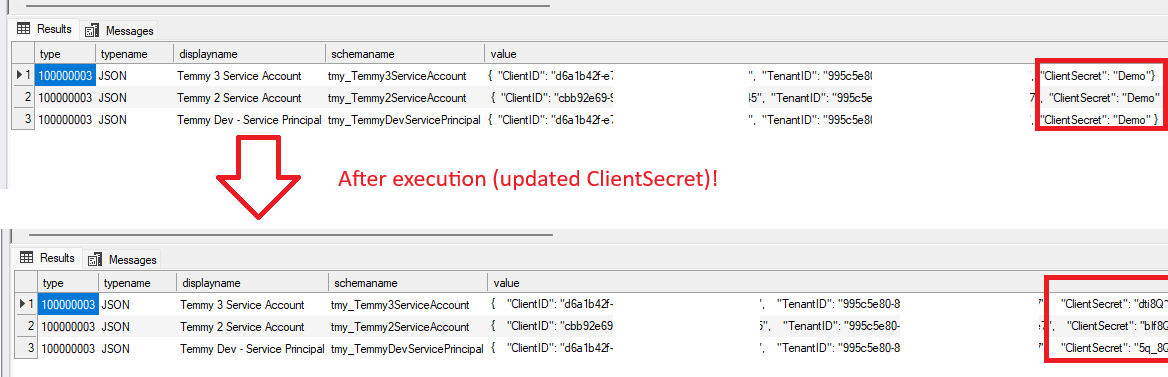
Result
Happy CRM-ing! 🚀😁
Leave a comment
Your comment is sent privately to the author and isn't published on the site.