How to prevent uploading a malicious file to Dataverse
Today, we will learn how to make a simple (a low-code approach) way to do prevention of uploading malicious files into Dataverse using SharePoint! Did you know that, by default, all the files that we upload to SharePoint will be scanned automatically using Microsoft Defender for Office 365? After the file is scanned by the system, if we go to the UI and check the file, SharePoint will block some actions if it is flagged as malicious (Open, Share, Download, and other commands). So, let's learn how to create, and I will cover the weak point of this solution as well!
The Flow (Power Automate)
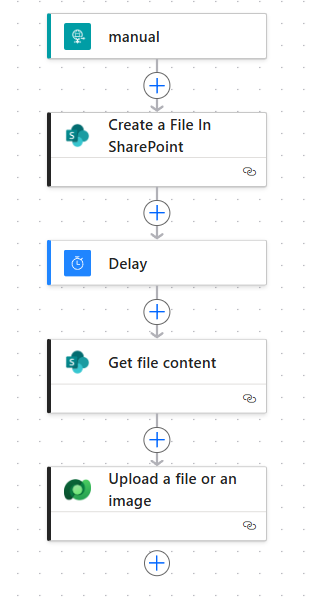
The full flow
HTTP Trigger
We will create an HTTP Trigger - Power Automate, which accepts several necessary parameters:
- Filename: Data.xlsx, File.txt, etc.
- Entity: contacts, accounts, etc.
- Id: GUID of the record which will be targeted.
- AttributeName: the File attribute name.
- Base64String: the content of the file in Base64String.
The reason we need those parameters is to make the solution generic and reusable. So, whenever we need to upload the file, we need to call the Power Automate Flow. If the file is clean, then it will be uploaded to the specified entity/table record and the attribute.
Here is a sample of the payload:
{
    "FileName": "DemoBlog.txt",
    "Entity": "contacts",
    "Id": "483d6a5f-7039-f011-8c4d-002248ed0dee",
    "AttributeName": "tmy_fileupload",
    "Base64String": "Q2xlYW4gZmlsZWVlZQ=="
}
Create a File In SharePoint - SharePoint
The creation of the file in SharePoint is pretty straightforward. You just need to have the SharePoint site and select it in the Site Address > select the Folder Path that you want to use > set the File Name > set the File Content (base64String), and you are set!
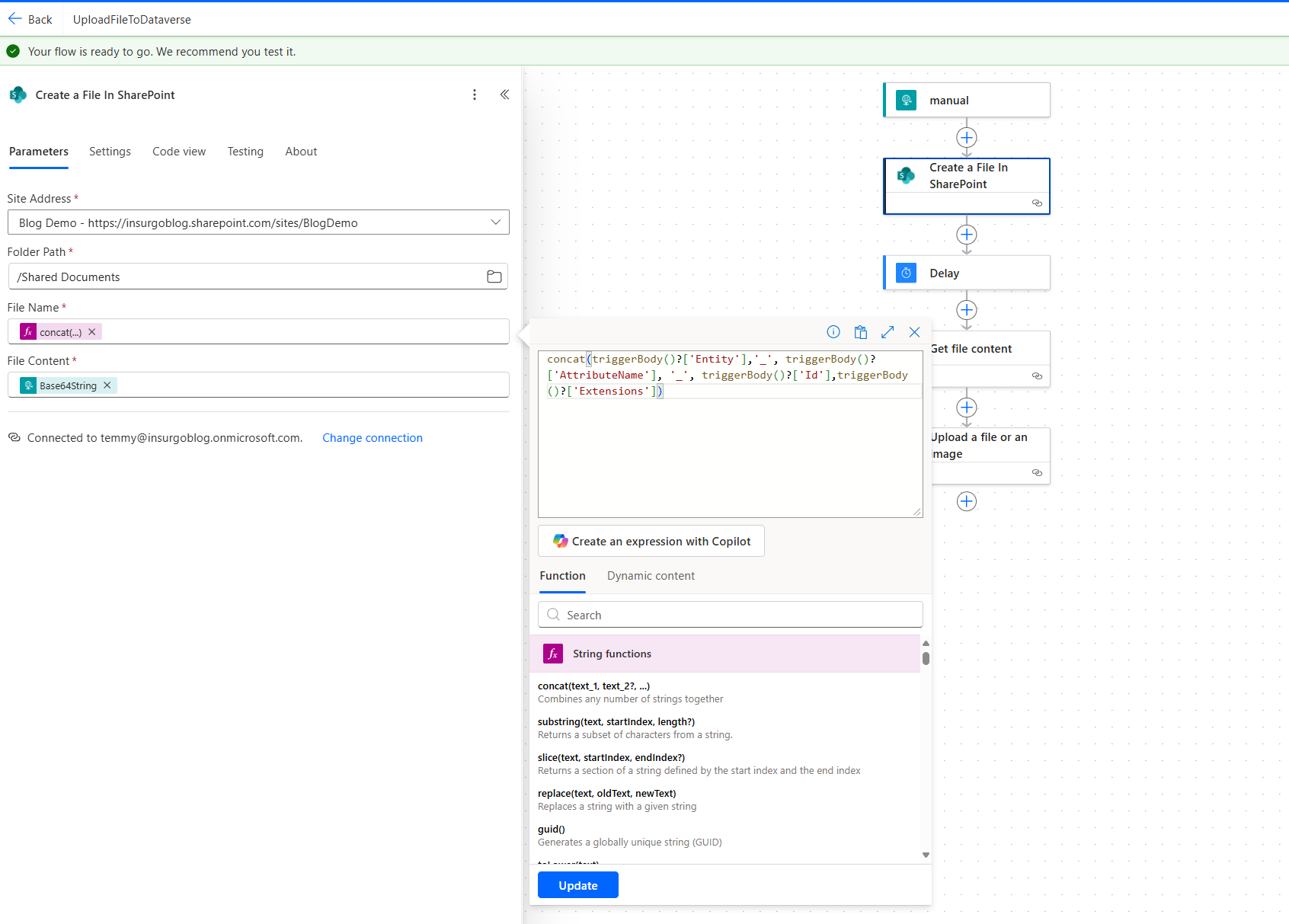
Create a File In SharePoint
If you see the above screenshot, I added a simple logic for naming the file to ensure uniqueness in SharePoint.
Delay.. Why?
Next, we need to know how the behavior of SharePoint behaves when receiving a malicious file. If you take a closer look at this article, it states:
The Microsoft 365 virus detection engine scans files asynchronously (at some time after upload). If a user tries to download a file in a web browser or from Microsoft Teams that hasn't been scanned, a scan is triggered before the download is allowed. All files are not automatically scanned. Anti-malware heuristics determine the files to scan. When a file is found to contain a virus, the file is flagged as containing malware.
Based on my interpretation of the above statements, basically, once we finish uploading the file, we still need to wait for the engine to start scanning. Because of that, we need to add "Delay". How long the delay timing, I believe will depend on how big the file is. For this demonstration, I found 1 minute is sufficient, as the file that I used for testing is just a couple of bytes.
Get file content - SharePoint
To know if the file is clean, we need to invoke "Get file content" after the engine has scanned the file (that's why you still need to have "Delay"). If the file is not cleaned, then you will get the following error:
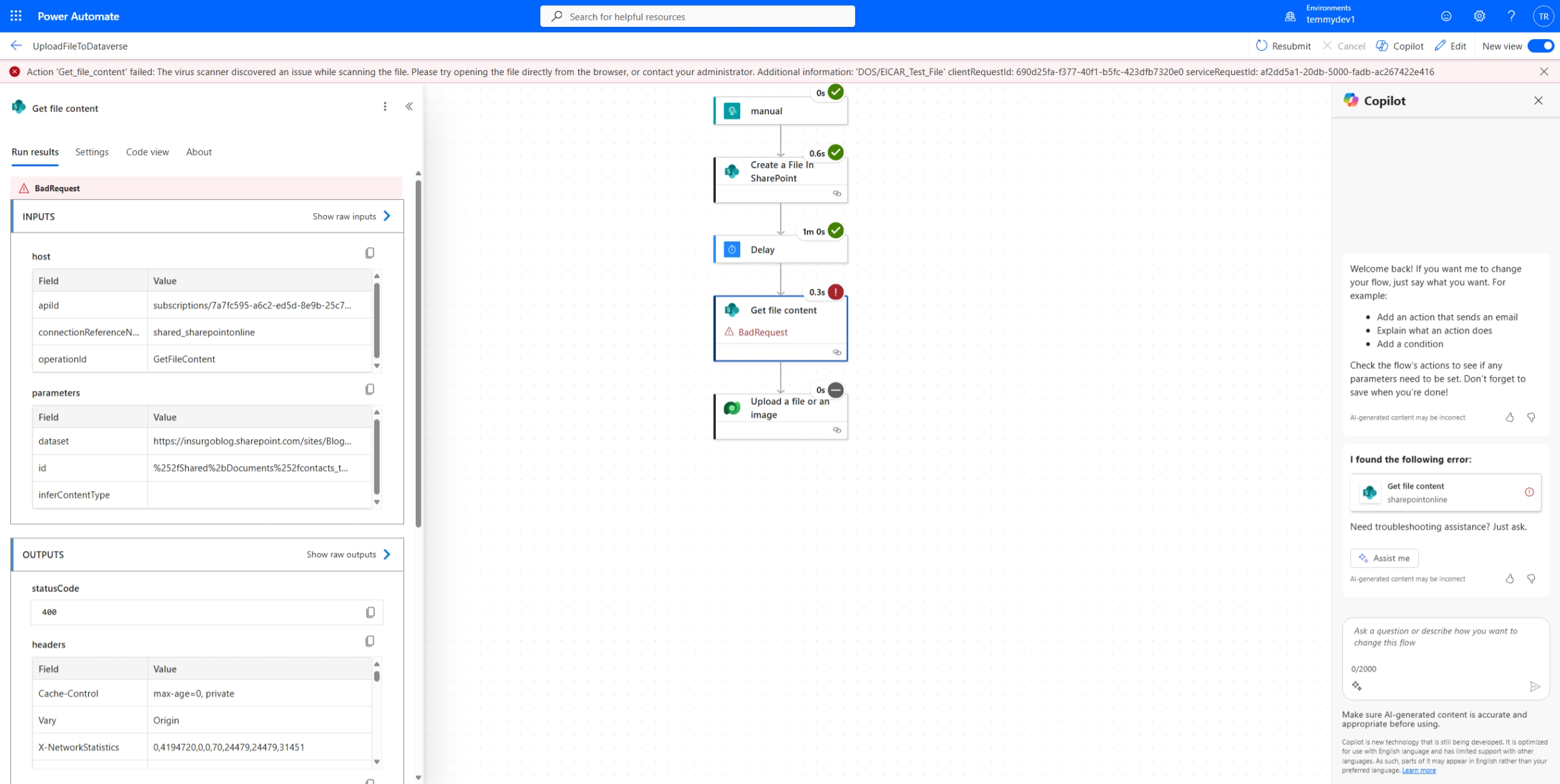
If the file is not cleaned, then you will get an error when trying to retrieve it
Upload a file or an image
Last, we just need to upload the file back to Dataverse:
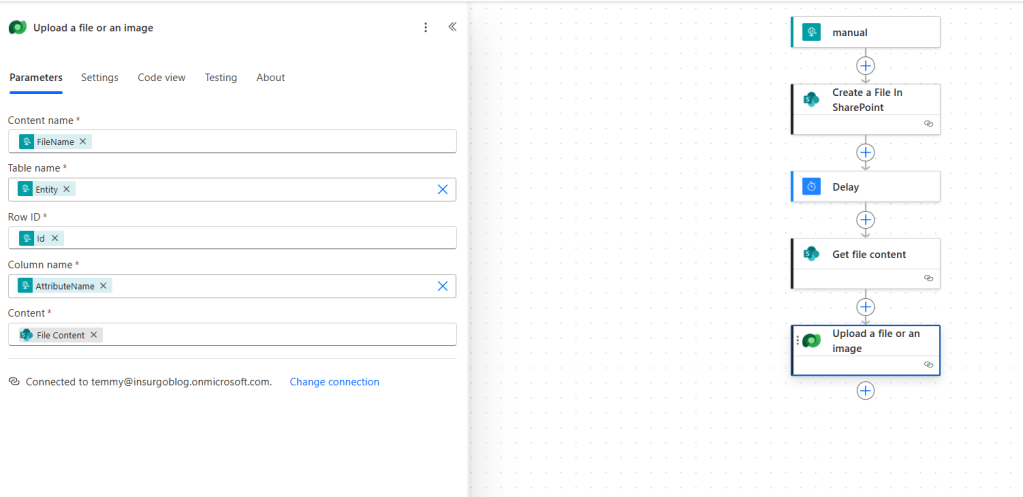
Upload the file to Dataverse
As you can see, we just need to set all the "dynamics" parameters into the action.
Demo
For demonstration purposes, you can download the file (it is not a real virus file) or create a .txt file based on the instructions on the site. Once the file is ready, you can get the Base64String using this site.
Then, for testing, I copied and pasted the Flow URL into Postman and triggered it:
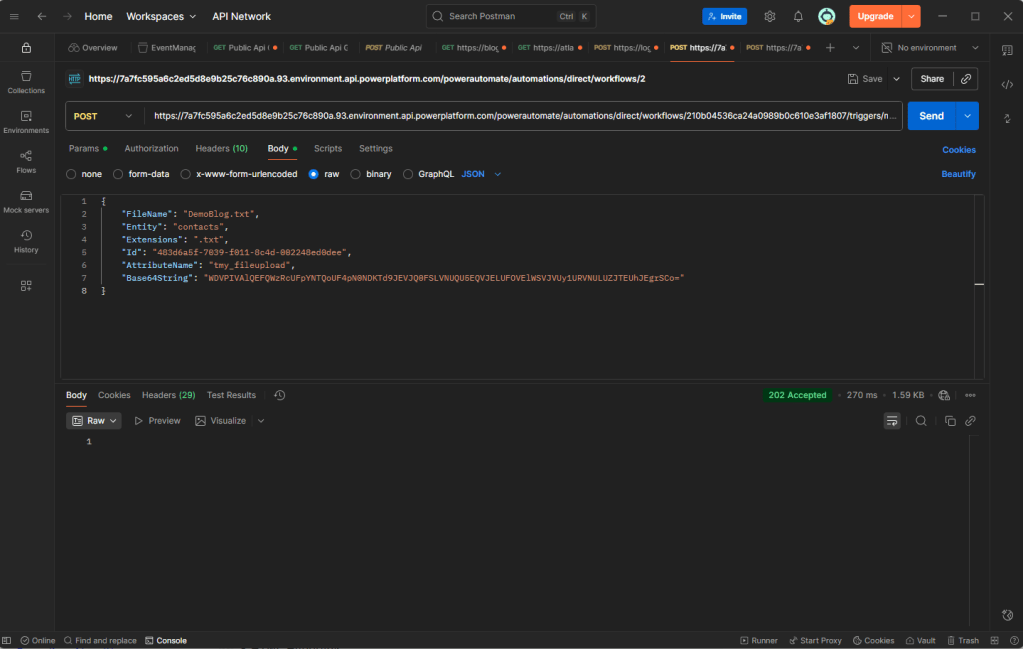
Trigger the Power Automate via Postman
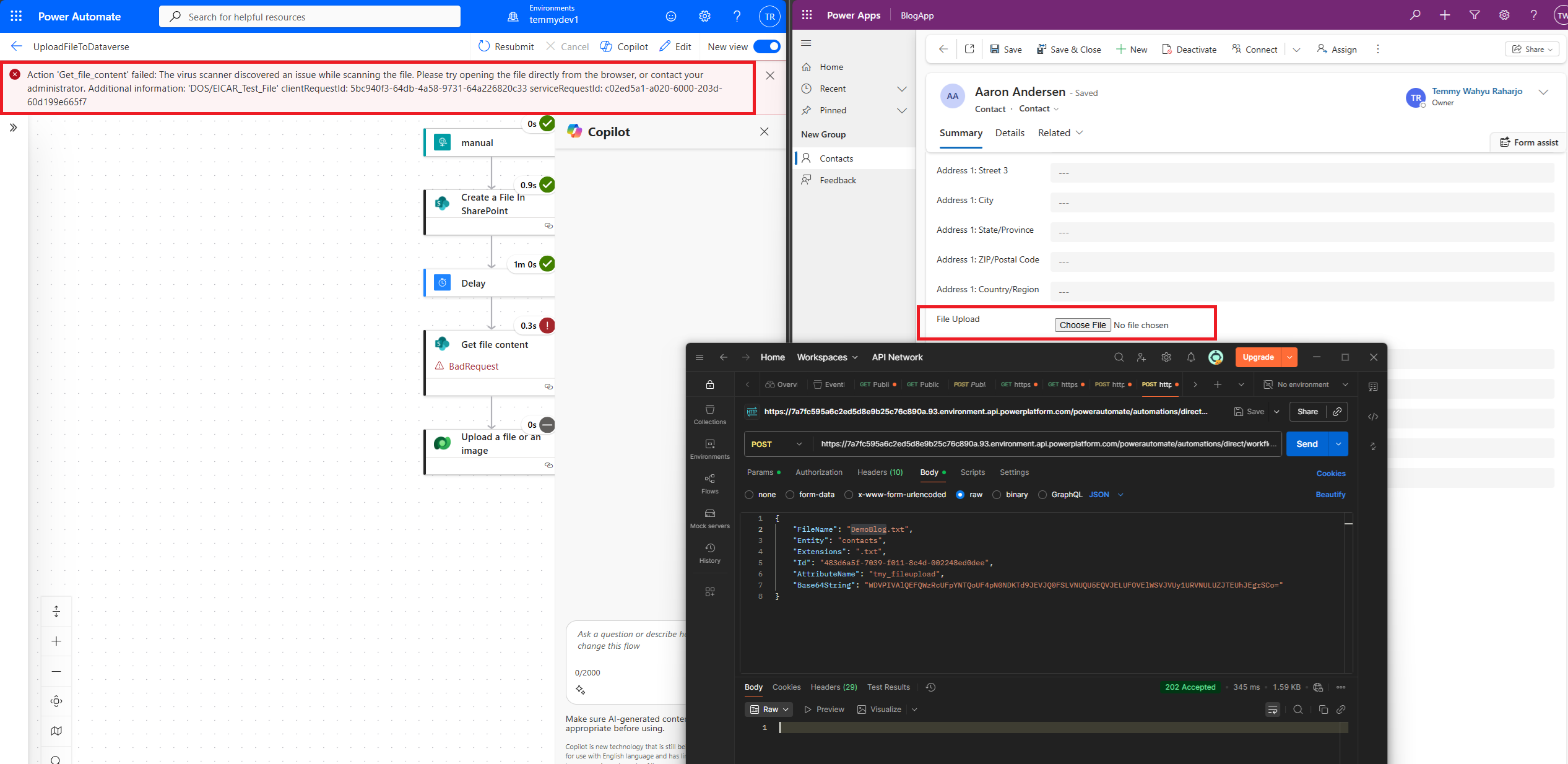
Failed demo
If the file is infected, then the Flow will fail, and the file attribute will be empty.
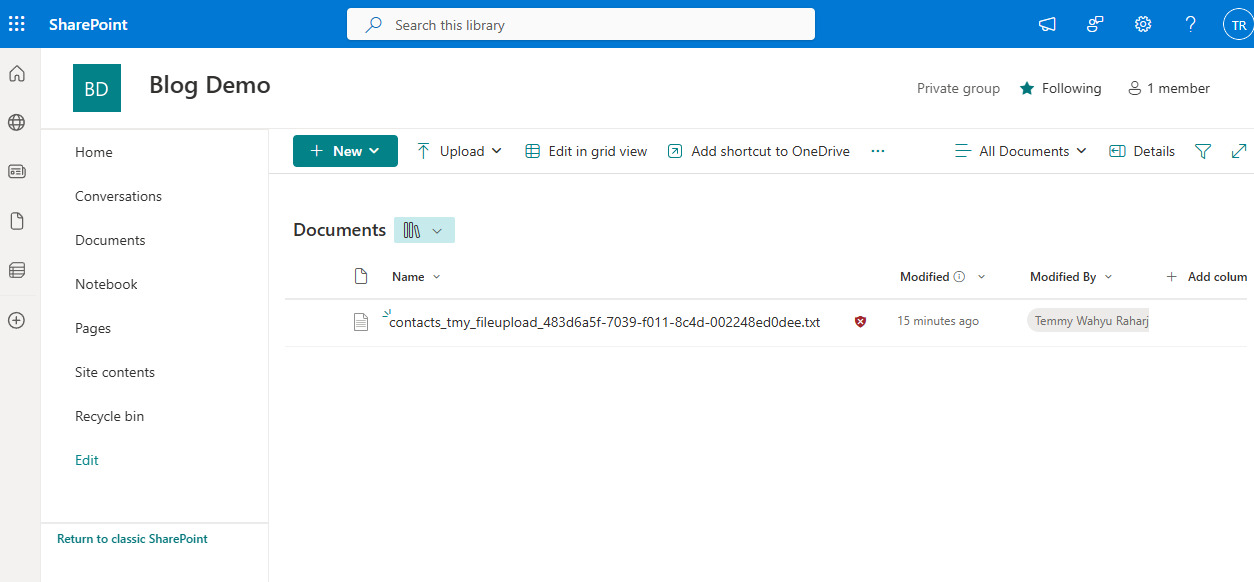
SharePoint showed the file as "Malware" detected.
If you open the SharePoint, then you will see that the file is flagged as Malware Detected.
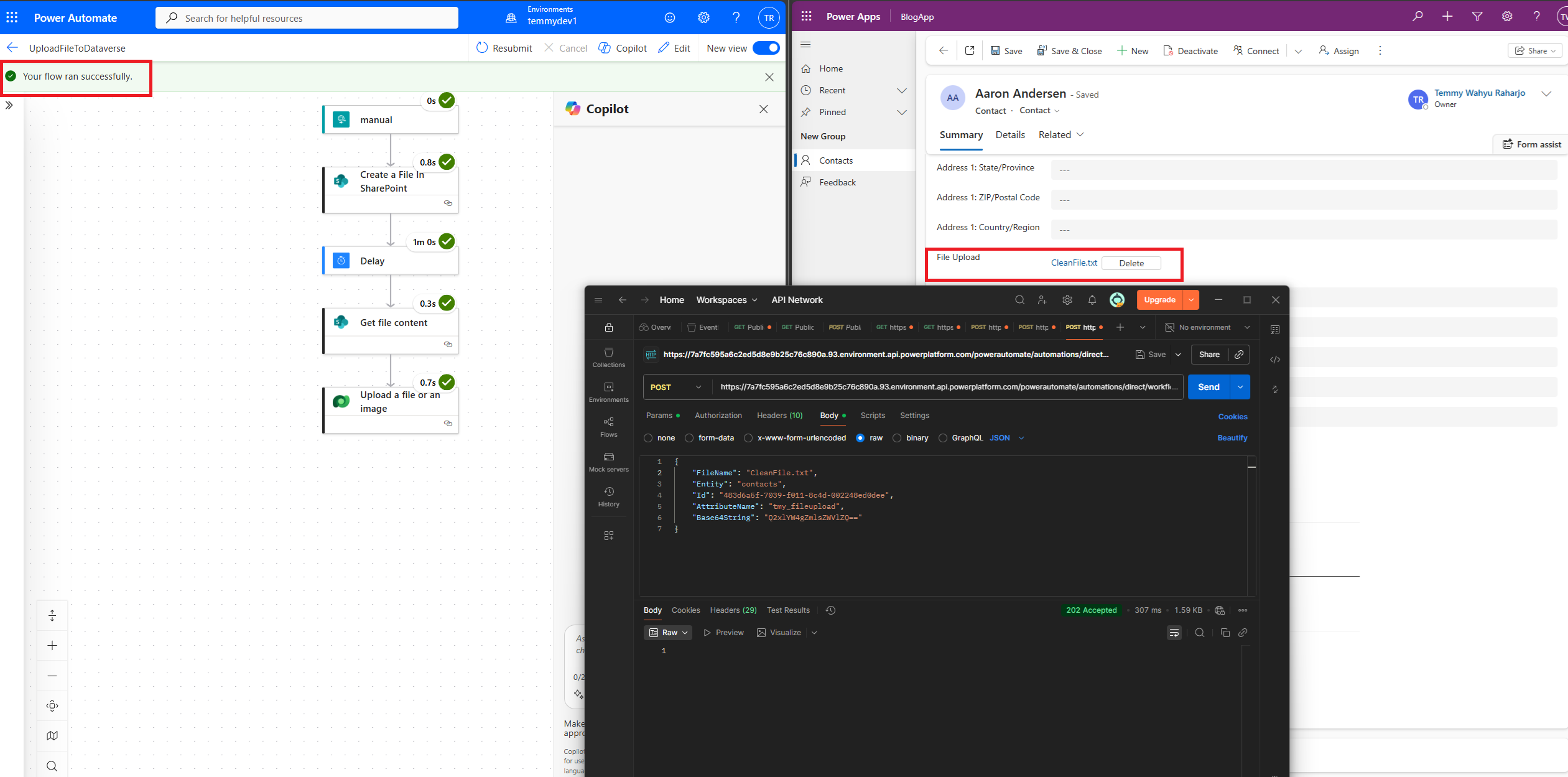
Success demo
If the file is good, then the system will upload it to the file attribute of the record.
Summary
- The not-so-good part of this solution is that we are using the "Delay" mechanism to predict if the engine finished scanning the file (better add a longer "Delay").
- If you don't want to use "Delay", then you can use another logic to run the daily flow, which takes xx time for the new files.
- And hey, I learned new things that SharePoint has a virus scan capability!
What do you think about this solution, and which part that you think you can improve? Happy CRM-ing!
Leave a comment
Your comment is sent privately to the author and isn't published on the site.