Dataverse: How to call Custom API in classic Workflow
In architecting a solution, we have lots of ways to do it. Specifically, in the Power Platform world, we can combine Dataverse (Dynamics CRM) with Power Platform to do integration/whatever scenarios that we need. But, what if we want to implement the generic integration with only Dataverse?
For today's blog post, we need to implement a way to write record history changes to an Excel online. The scope of which table that needs to be set will be dynamics (for now, we only need to work on the Contact table). That is why we need to create a Custom API and let the Business Analyst configure the workflow later. To accomplish the requirement, we will use several components: Custom API, Classic Workflows, and an integration API using Power Automate (please bear with me, this is because I'm too lazy to create an API from scratch 🤣).
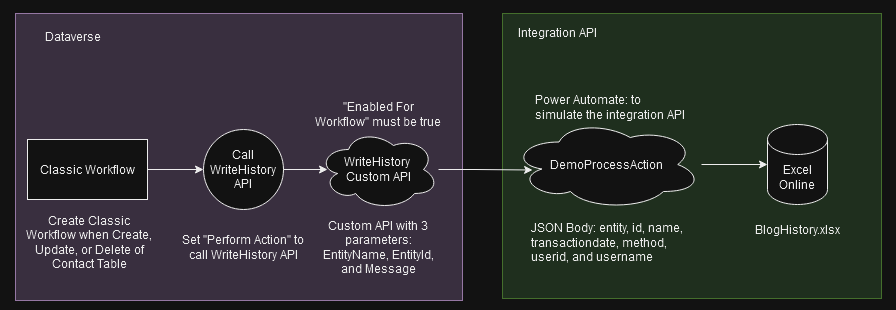
Diagram components that we will create today
Prepare The Integration API (Power Automate)
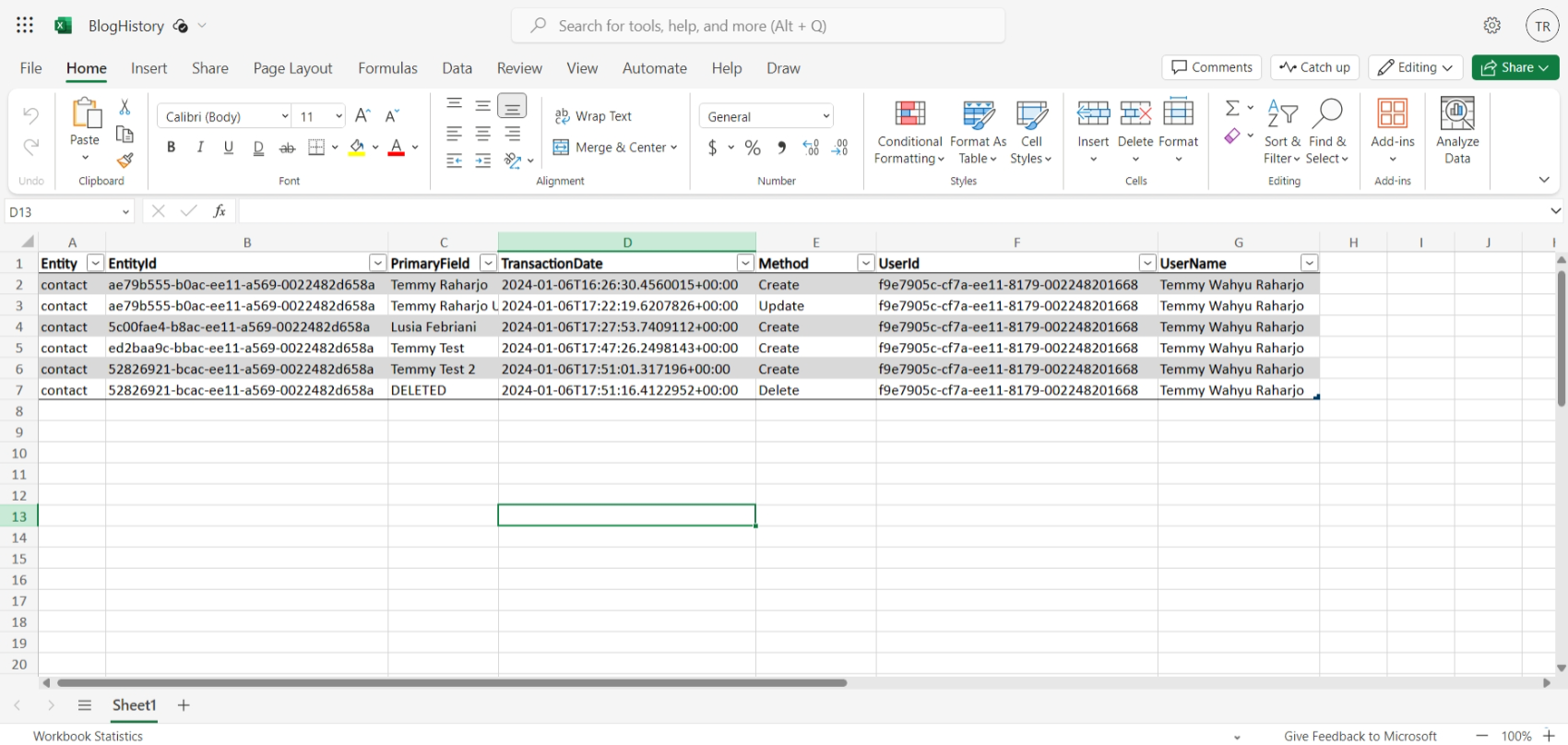
First, I prepare the below Excel with this table in my Sharepoint site:
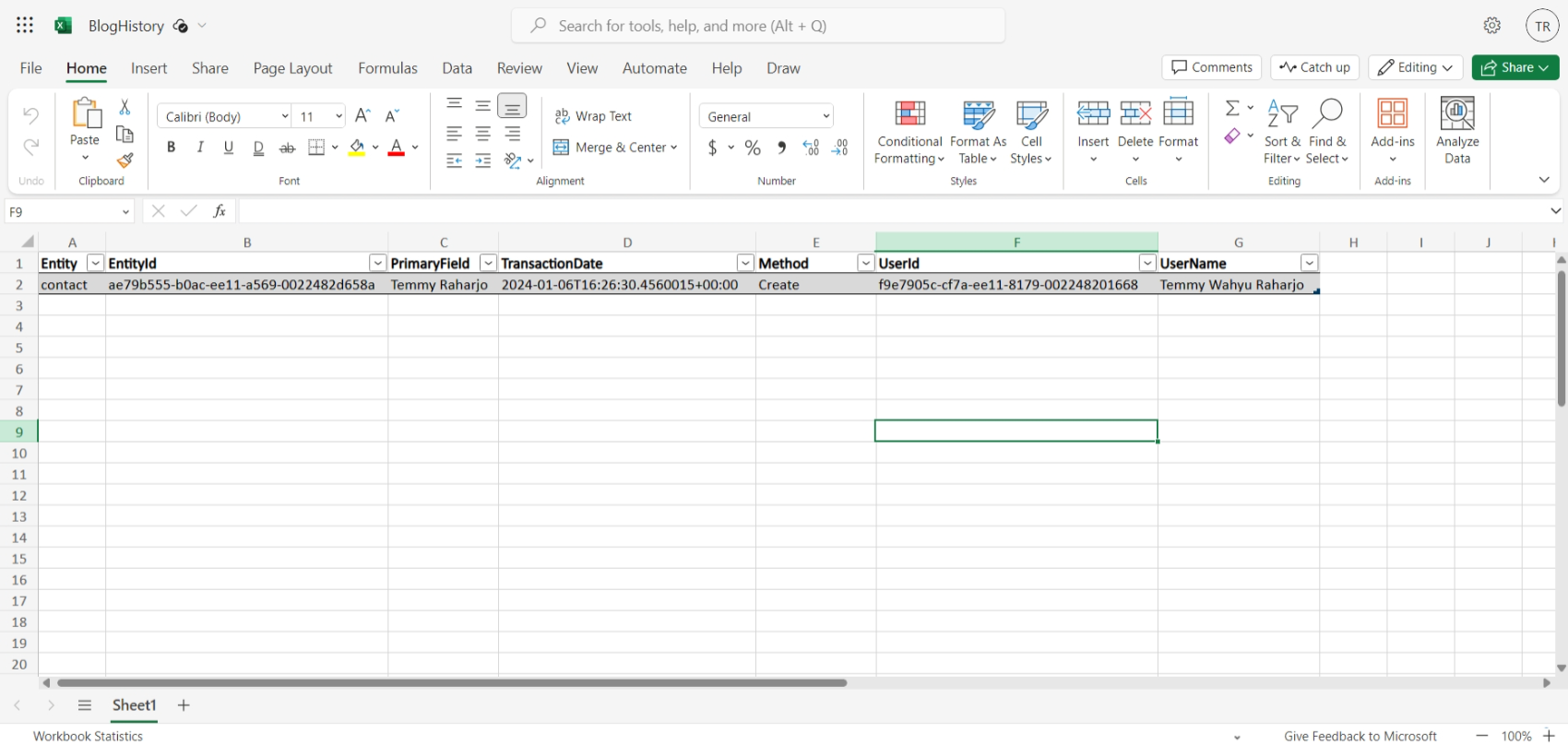
Then, here is the flow that I created:
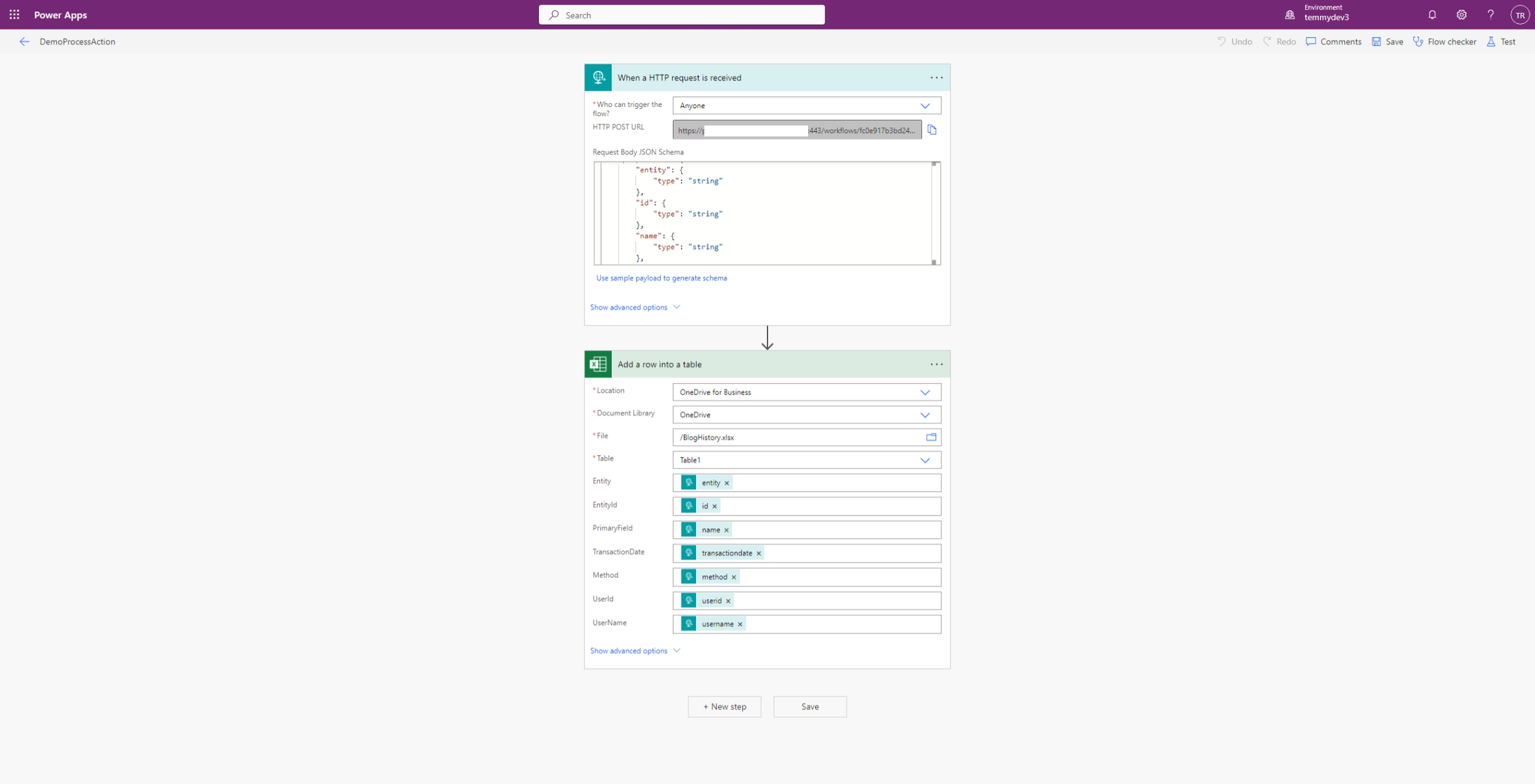
For the JSON Body, I use the below structure:
{ "entity": "test", "id" : "guid", "name": "test", "transactiondate": "2024-01-06", "method": "Create", "userid": "123456", "username": "temmy" }
When you save the below flow, you can get the URL to be called in the Classic Workflow later. But, to make it a bit fancy, I store this URL in Environment Variable:
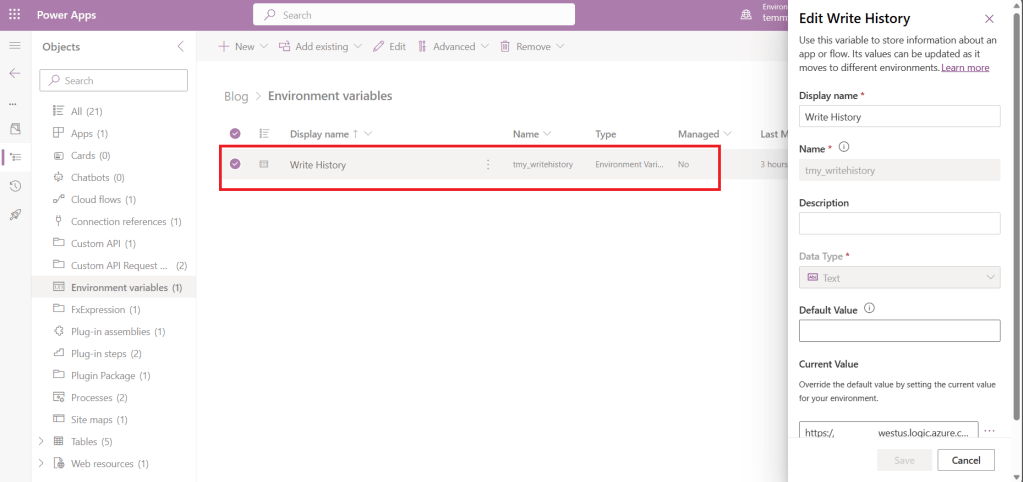
Custom API
Here is the final code for the Custom API:
using BlogPackage;
using Microsoft.Xrm.Sdk;
using Microsoft.Xrm.Sdk.Extensions;
using Microsoft.Xrm.Sdk.Messages;
using Microsoft.Xrm.Sdk.Query;
using RestSharp;
using System;
using System.Linq;
public class WriteHistory : PluginBase
{
    public WriteHistory() : base(typeof(WriteHistory))
    {
    }
    public const string EntityNameParameter = "EntityName";
    public const string EntityIdParameter = "EntityId";
    public const string MessageParameter = "Message";
    protected override void ExecuteDataversePlugin(ILocalPluginContext localPluginContext)
    {
        var adminSvc = localPluginContext.OrgSvcFactory.CreateOrganizationService(null);
        var url = GetUrl(adminSvc);
        if (string.IsNullOrEmpty(url)) return;
        var entityId = new Guid(localPluginContext.PluginExecutionContext.InputParameterOrDefault<string>(EntityIdParameter));
        var entityName = localPluginContext.PluginExecutionContext.InputParameterOrDefault<string>(EntityNameParameter);
        var message = localPluginContext.PluginExecutionContext.InputParameterOrDefault<string>(MessageParameter);
        var name = "DELETED";
        if (message.ToLower() != "delete")
        {
            var primaryNameAttribute = GetPrimaryNameAttribute(adminSvc, entityName);
            var retrieve = adminSvc.Retrieve(entityName, entityId, new ColumnSet(primaryNameAttribute));
            name = retrieve.GetAttributeValue<string>(primaryNameAttribute);
        }
        var user = adminSvc.Retrieve("systemuser", localPluginContext.PluginExecutionContext.InitiatingUserId, new ColumnSet("fullname"));
        var body = new
        {
            entity = entityName,
            id = entityId,
            name = name,
            transactiondate = DateTime.Now,
            method = message,
            userid = user.Id,
            username = user.GetAttributeValue<string>("fullname")
        };
        var uri = new Uri(url);
        var baseUrl = uri.GetLeftPart(UriPartial.Authority);
        var restClient = new RestClient(baseUrl);
        var req = new RestRequest(uri, Method.Post);
        req.AddJsonBody(body);
        restClient.Post(req);
    }
    private string GetPrimaryNameAttribute(IOrganizationService service, string entityName)
    {
        var result = (RetrieveEntityResponse)service.Execute(
            new RetrieveEntityRequest { LogicalName = entityName, EntityFilters = Microsoft.Xrm.Sdk.Metadata.EntityFilters.Entity });
        return result.EntityMetadata.PrimaryNameAttribute;
    }
    private string GetUrl(IOrganizationService service)
    {
        var query = new QueryExpression("environmentvariabledefinition")
        {
            ColumnSet = new ColumnSet("defaultvalue")
        };
        query.Criteria.AddCondition("displayname", ConditionOperator.Equal, "Write History");
        var childLink =
            query.AddLink("environmentvariablevalue", "environmentvariabledefinitionid", "environmentvariabledefinitionid");
        childLink.EntityAlias = "ev";
        childLink.Columns = new ColumnSet("value");
        var result = service.RetrieveMultiple(query)?.Entities.Select(entity =>
            new { Value = entity.GetAttributeValue<AliasedValue>("ev.value")?.Value as string, DefaultValue = entity.GetAttributeValue<string>("defaultvalue") }).ToArray();
        var value = result?.FirstOrDefault(e => !string.IsNullOrEmpty(e.Value))?.Value ?? "";
        var defaultValue = result?.FirstOrDefault(e => !string.IsNullOrEmpty(e.DefaultValue))?.DefaultValue ?? "";
        return string.IsNullOrEmpty(value) ? defaultValue : value;
    }
}
As you can see in the above code, the WriteHistory API will need 3 string parameters: EntityName, EntityId, and Message. The logic itself is not too complicated. We just need to get the Integration URL from Environment Variable (we need to join between the ***environmentvariabledefinition***and environmentvariablevalue- GetUrl method).
Next, as long as it is not a Delete scenario, we will retrieve the Entity Metadata to know the PrimaryNameAttributeof the Entity selected (to optimize the query) using RetrieveEntityRequest. The other needed data is about the UserId and UserName of the calling user which we can take from PluginExecutionContext.InitiatingUserId. Once the needed data is collected, we just need to call the HTTP request using the POST method and pass the JSON object in the body. To simplify the process, I'm adding the RestSharp NuGet package and calling the Integration API (lines 53-56).
Once the API is ready, you can deploy the Plugin Package and create the Custom API with below definition:
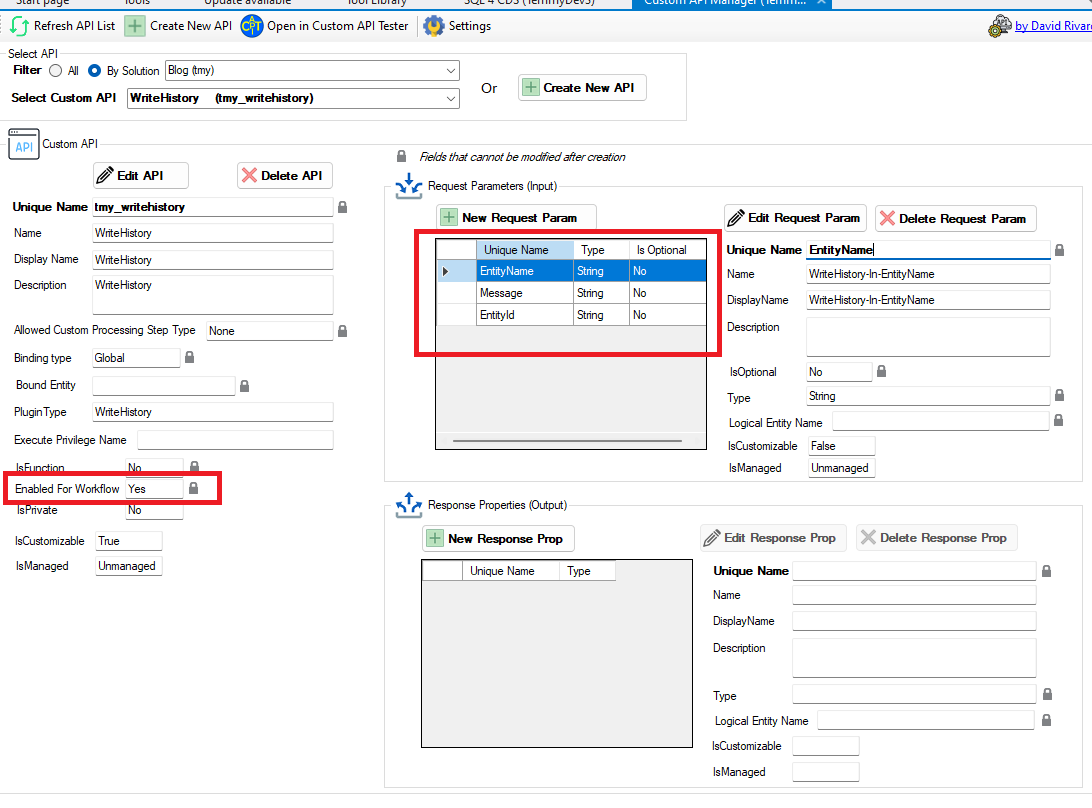
As you can see in the above picture, the most important setting is the "Enabled For Workflow" needs to be set to True if we want the Custom API to be used in Classic Workflow action. The rest is to create three required parameters.
Classic Workflow
We come to the last part! 😎The challenge here is regarding the EntityId. I'm not really sure if there's a product defect or not. Based on what I read, we are supposed able to use the GUID parameter in the Custom API to be called in Classic Workflow action. Unfortunately, the UI does not load the GUID attribute (the ContactId) which makes me find an alternative way that will be explained after this:
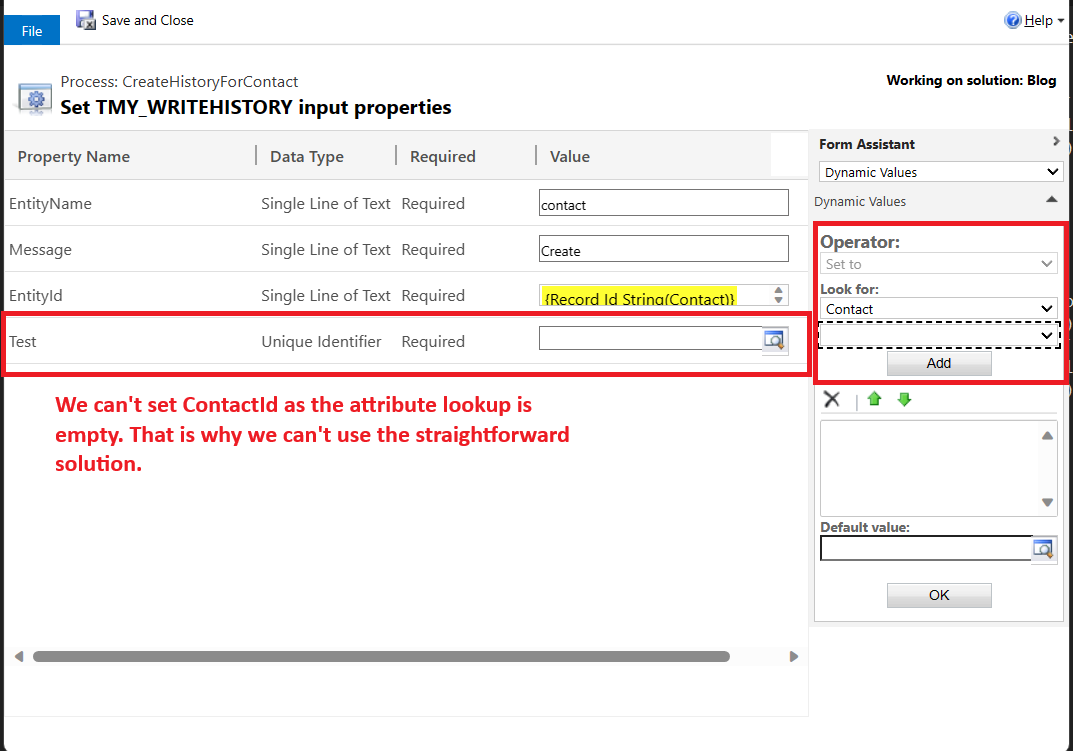
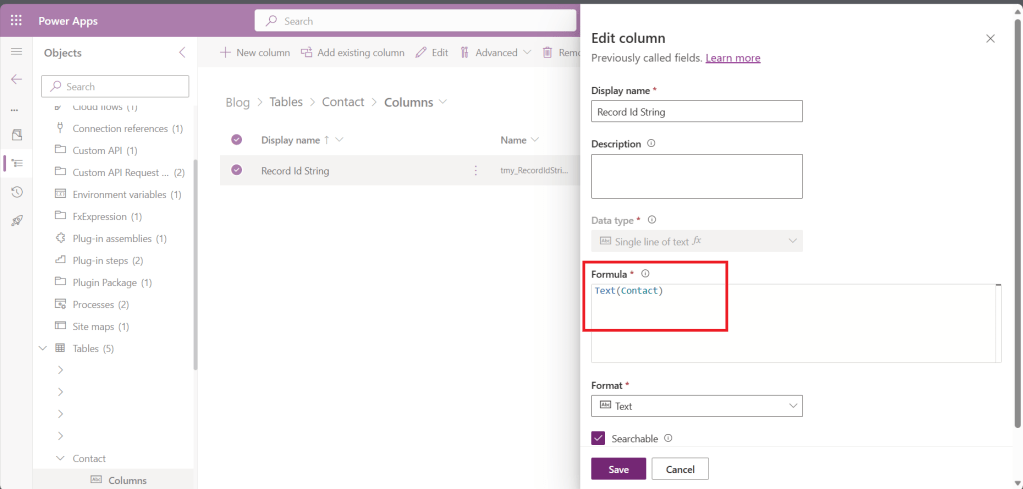
The easiest implementation to supply the EntityId is to use Formula Column which I implemented below:
Next, we just need to create Classic Workflow on Create, Update, or Delete > Add Step > Perform Action:
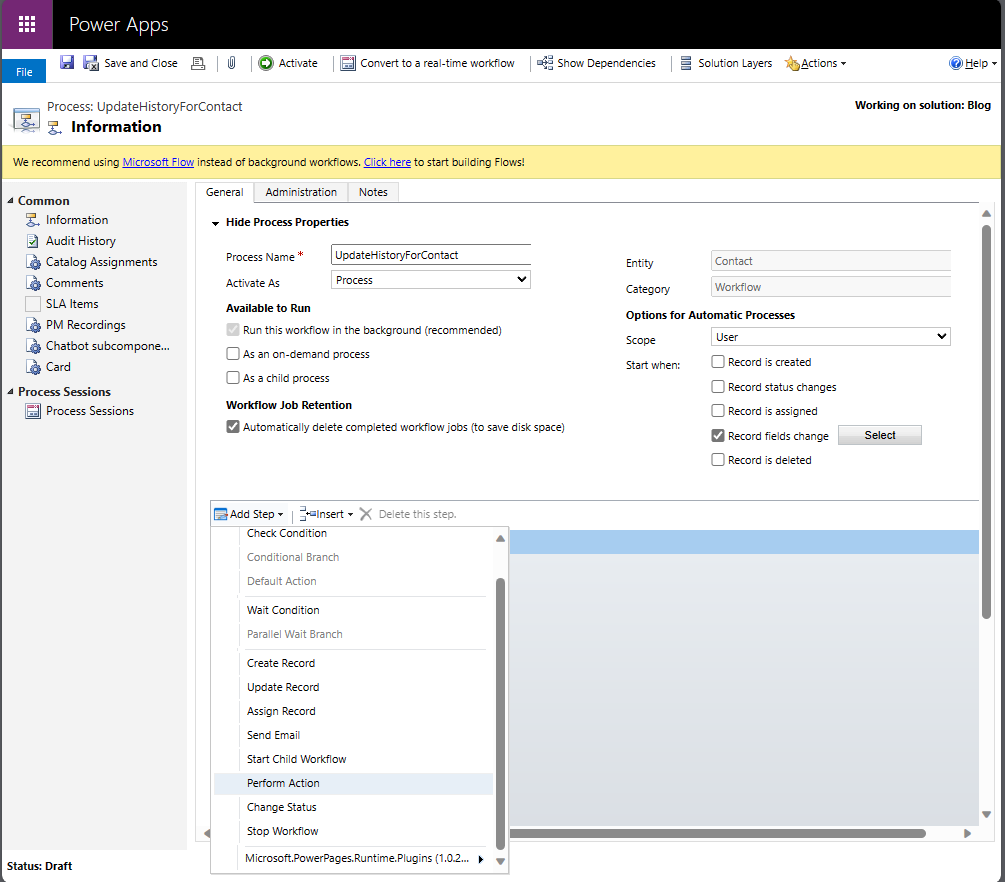
Select from the list your Custom API (for mine is tmy_writehistory):
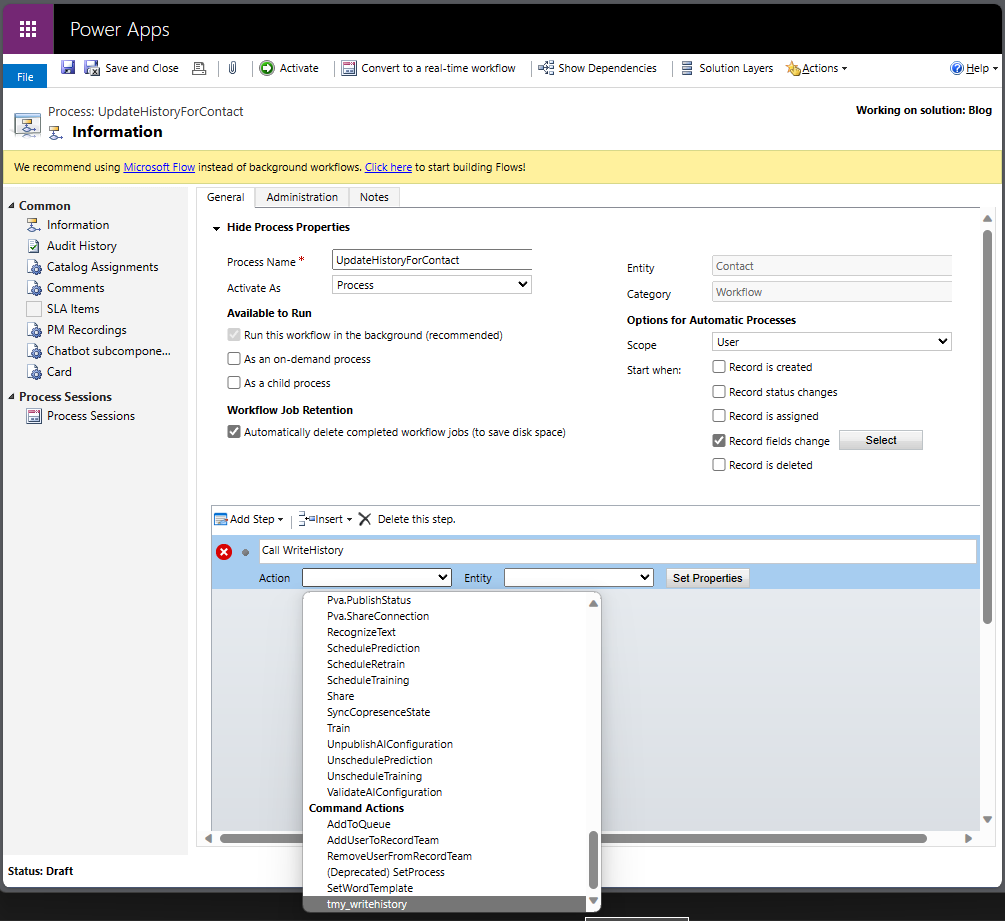
Last, you only need to set the Parameters. Click the Set Properties > fill in the parameters:
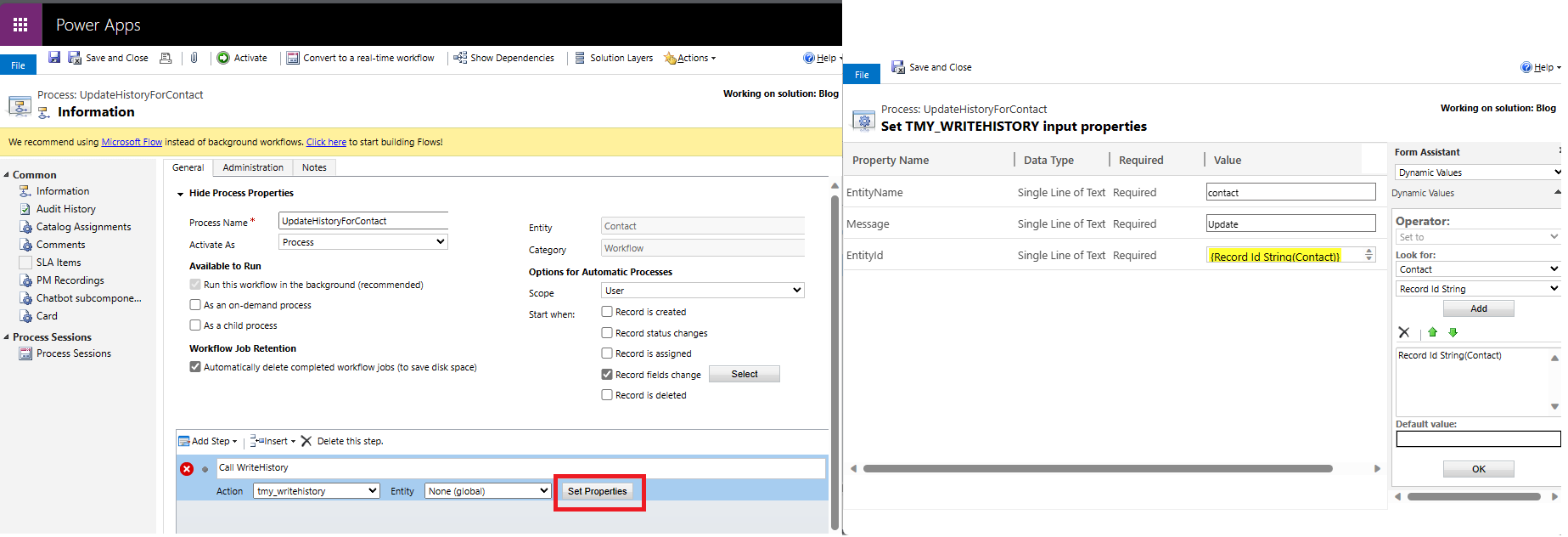
Once you are ready, click Save and Activate the Workflow!
You can repeat for all the Messages that you want to implement. Here is the demo result of my testing:
Happy CRM-ing!
Leave a comment
Your comment is sent privately to the author and isn't published on the site.