Create Plugin using Power Platform Tools for VS 2022
Finally, Power Platform Tools for VS 2022 have been released for quite some time now! Now it's the time to revisit what're the changes that I can spot and share them with you guys.
Power Platform Tools for VS 2022
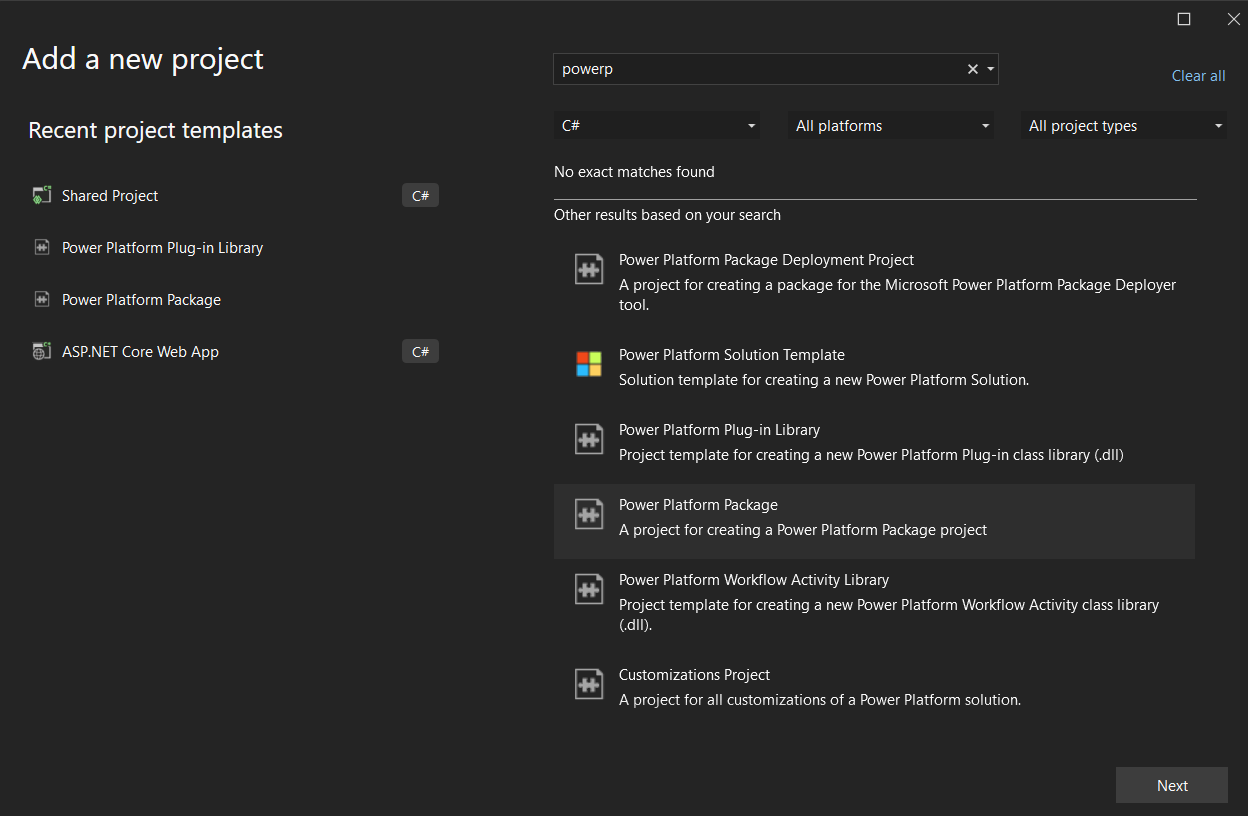
After you install the extension in your VS 2022, you can directly create the solution > Add new project and search for "Power Platform Package" > name the project as what you like and don't forget to choose .NET Framework 4.6.2:
For the first time, you need to connect to your Dataverse Environment. You can go to the Tools menu > Connect to Dataverse > fill in the information (the same process when you are log-in in using Plugin Registration Tools) > select the solutions that you will use if there's something you deploy later on.
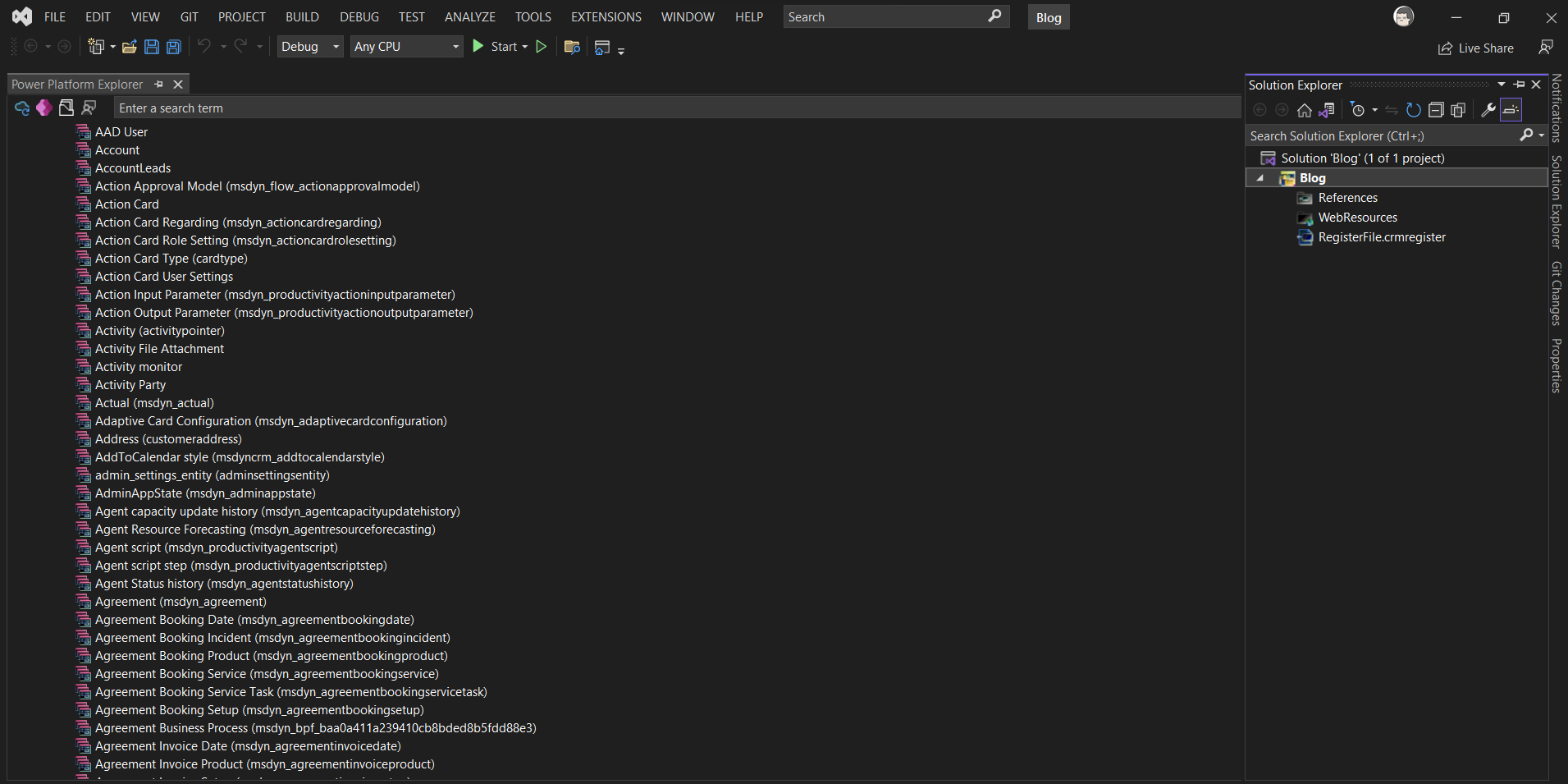
Next, create the "Power Platform Plug-in Library" > name it as what you like and select the .NET Framework as 4.6.2 also. You are done preparing the projects.
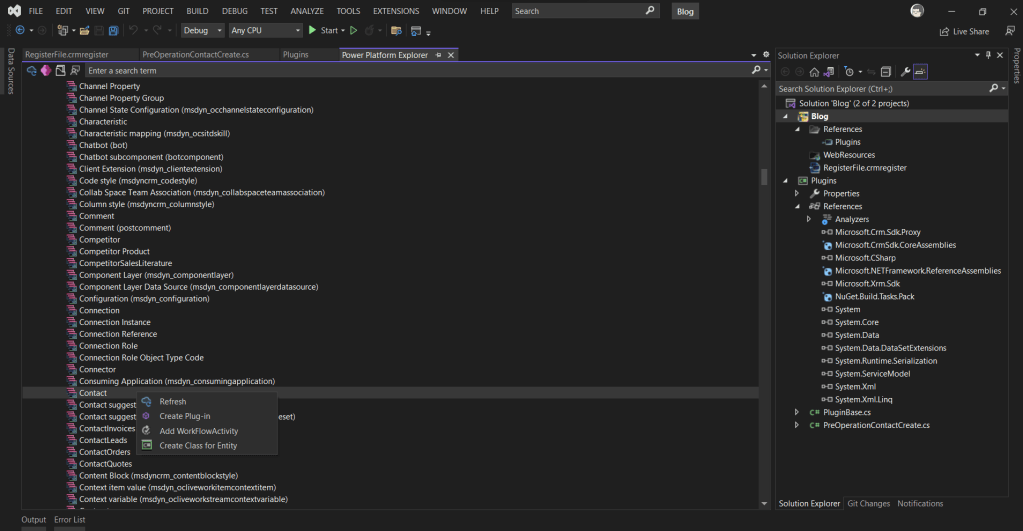
Go to the Power Platform Explorer, and find the entity (under the Tables) which you want to custom > right click > then several options can be found (Create Class for Entity (Early bound class), Plugin, or WorkflowActivity):
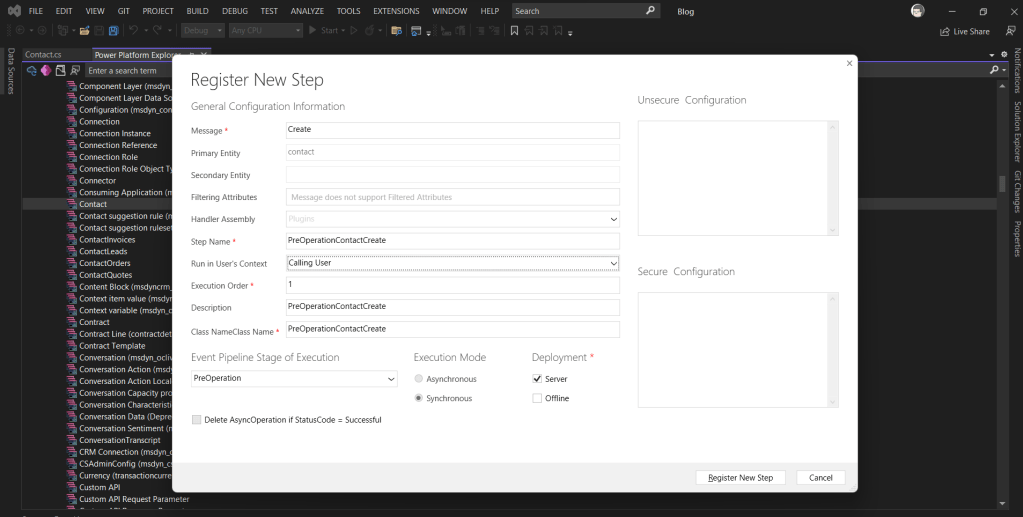
The next thing I do is to "Create Plug-in" with the below setting:
Once created, I also "Create Class for Entity" to generate an early bound for the Contact entity (Later on I moved the generated file to the Entities folder). Below is the testing logic that I want to apply:
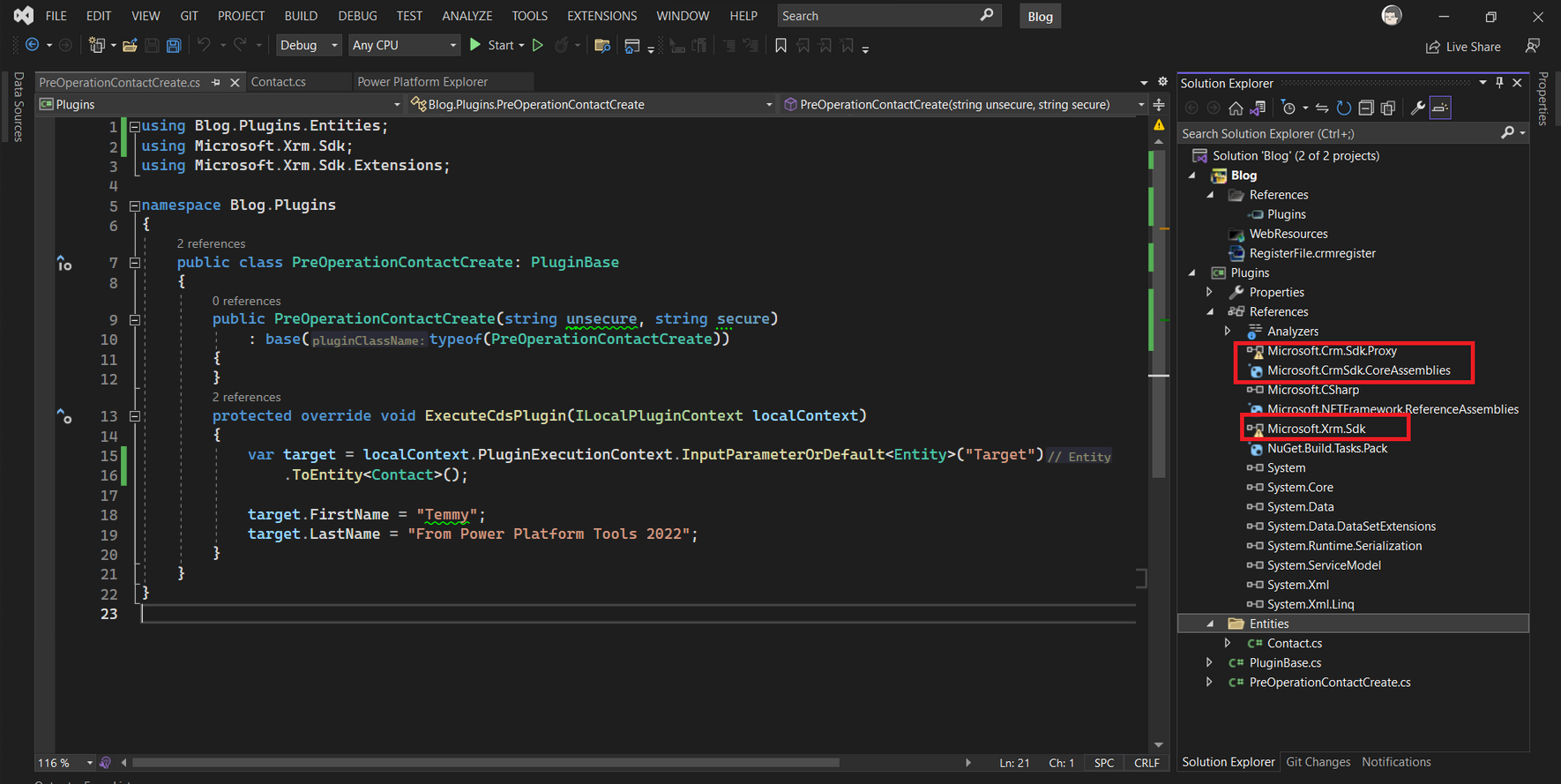
As you can see, when generating the plugin project. The project will reference Microsoft.CRM.SdkProxy and also Microsoft.Xrm.Sdk from supposed to be the local folder which can't be found. But also install Microsoft.CrmSdkCoreAssemblies NuGet package:
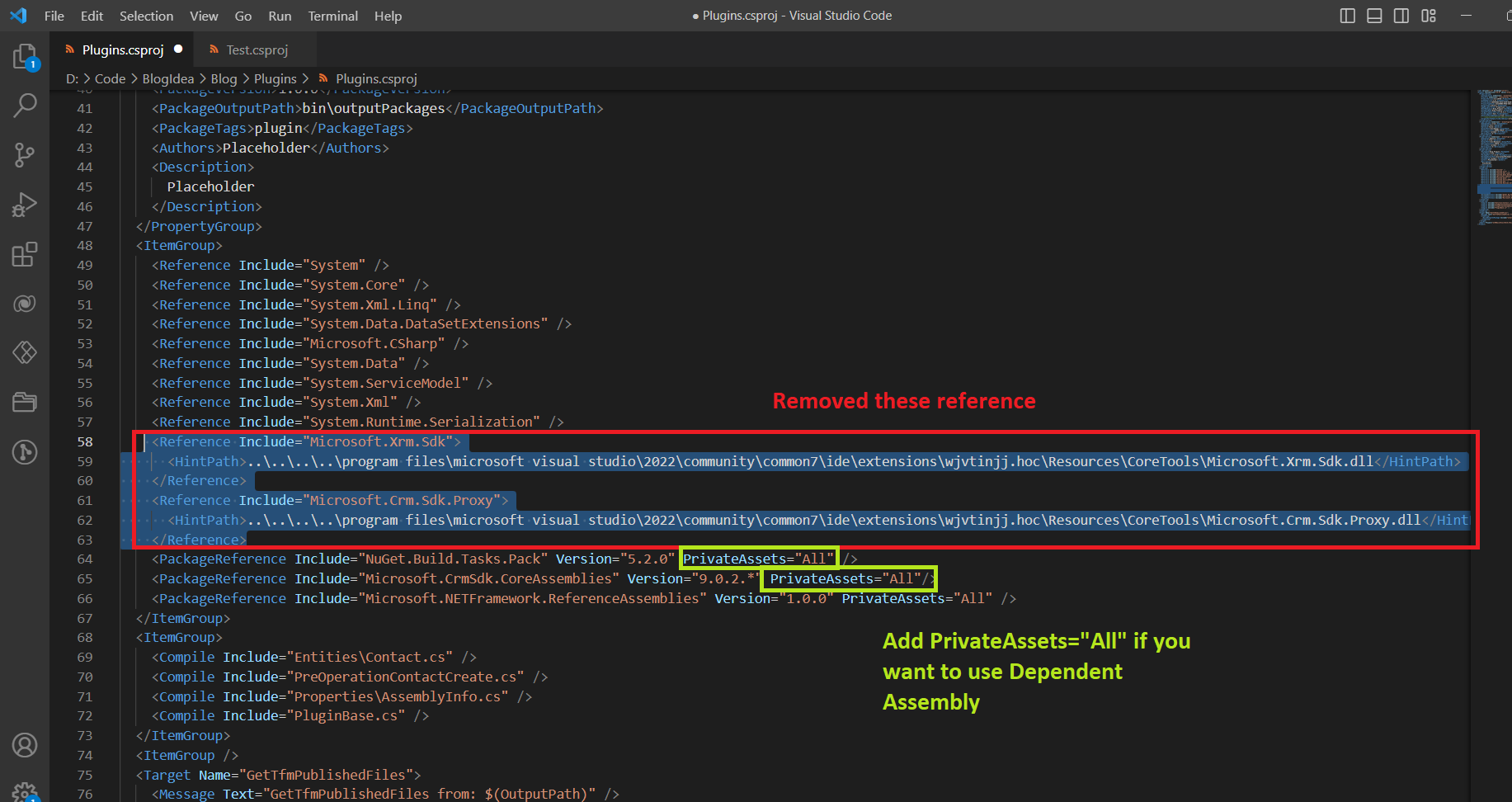
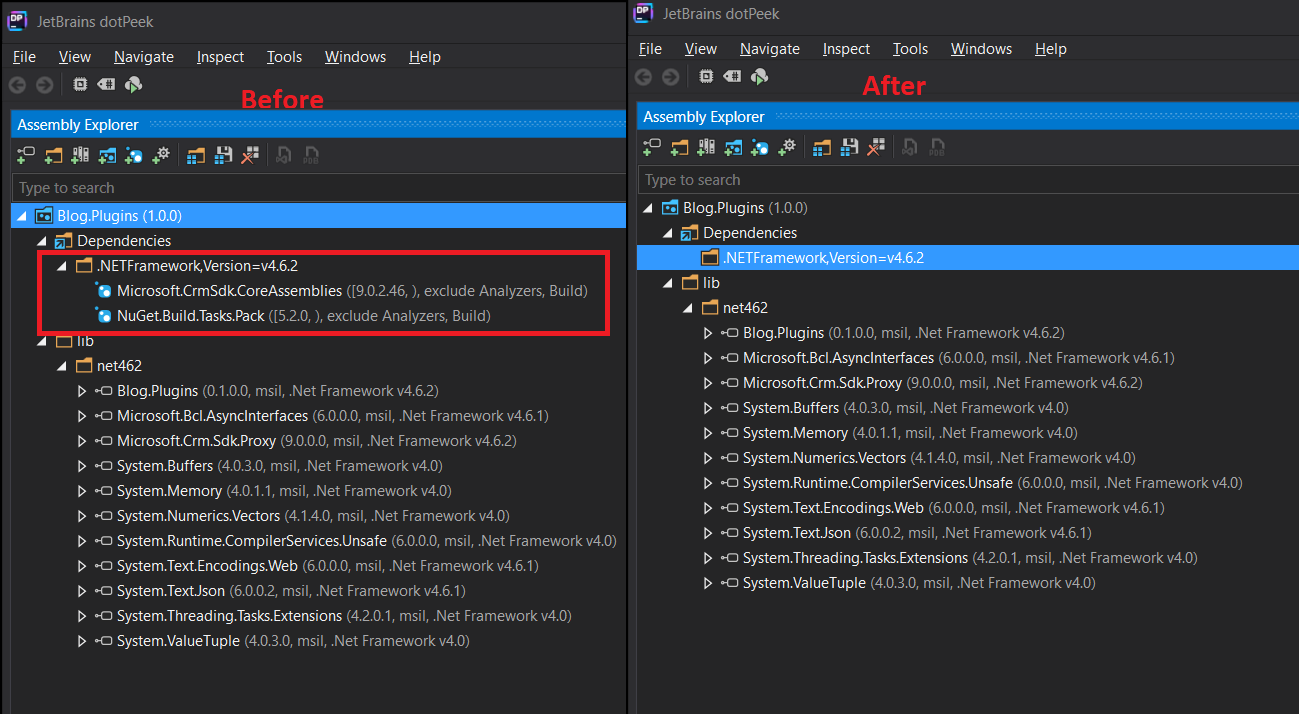
Because those DLLs are automatically installed when we use Microsoft.CrmSdkCoreAssemblies NuGet package, so we can remove the reference from Microsoft.CRM.SdkProxy and also Microsoft.Xrm.Sdk. We also need to add PrivateAssets="All" to those NuGet references. The reason is to not include those assemblies in the NuPkg file:
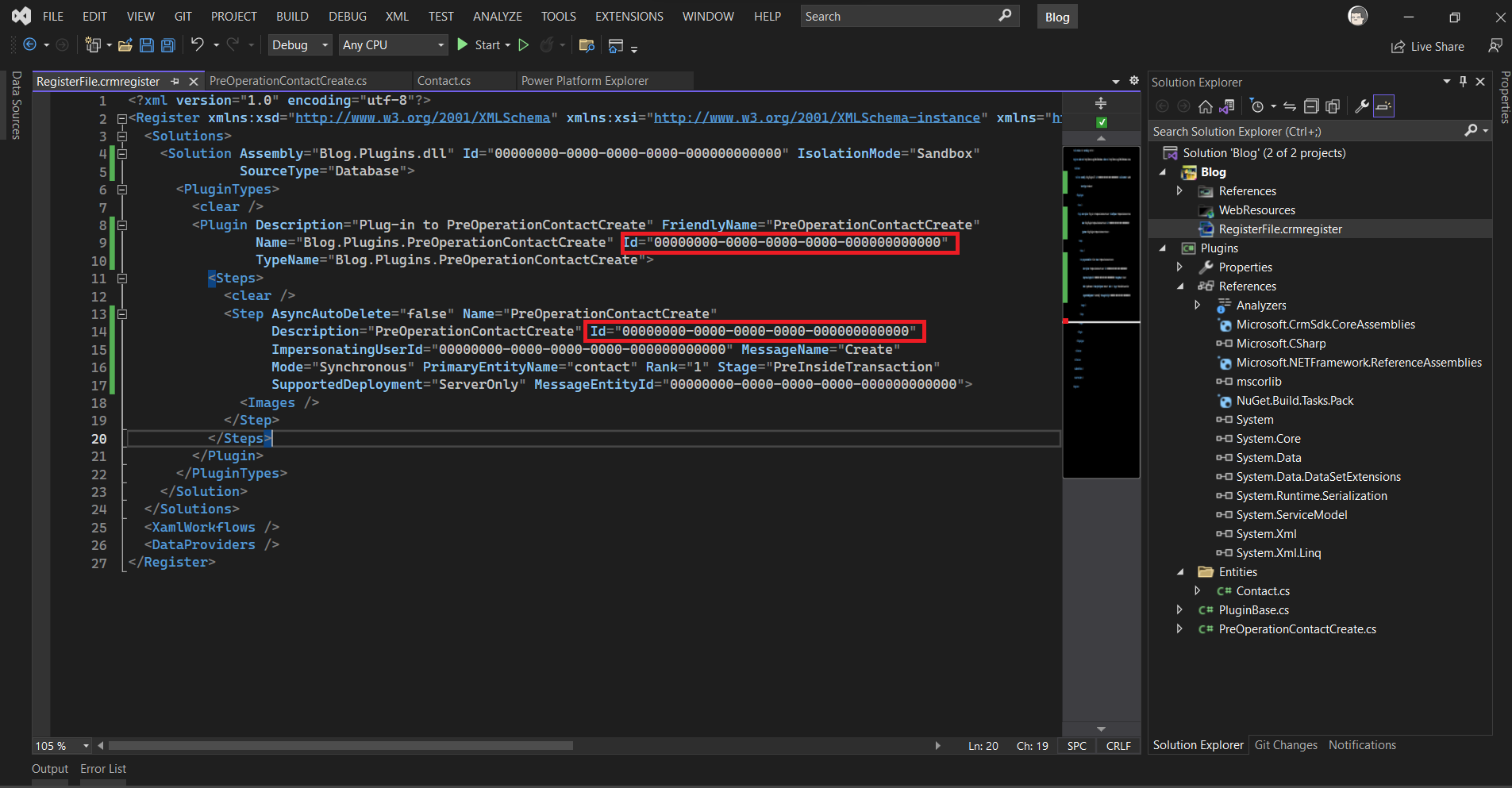
Next, let's check the Power Platform Package project > RegisterFile.crmregister file. This file will be recorded all the definitions of the Plugin/Workflow or the WebResources that you need to deploy to CRM. When you just created the plugin or the plugin step like what we did so far, you can see that all the GUID will be empty:
When we installed the Power Platform Tools for VS 2022, we can see what are the options available for the extension from Visual Studio > Tools > Options > Power Platform Tools > General:
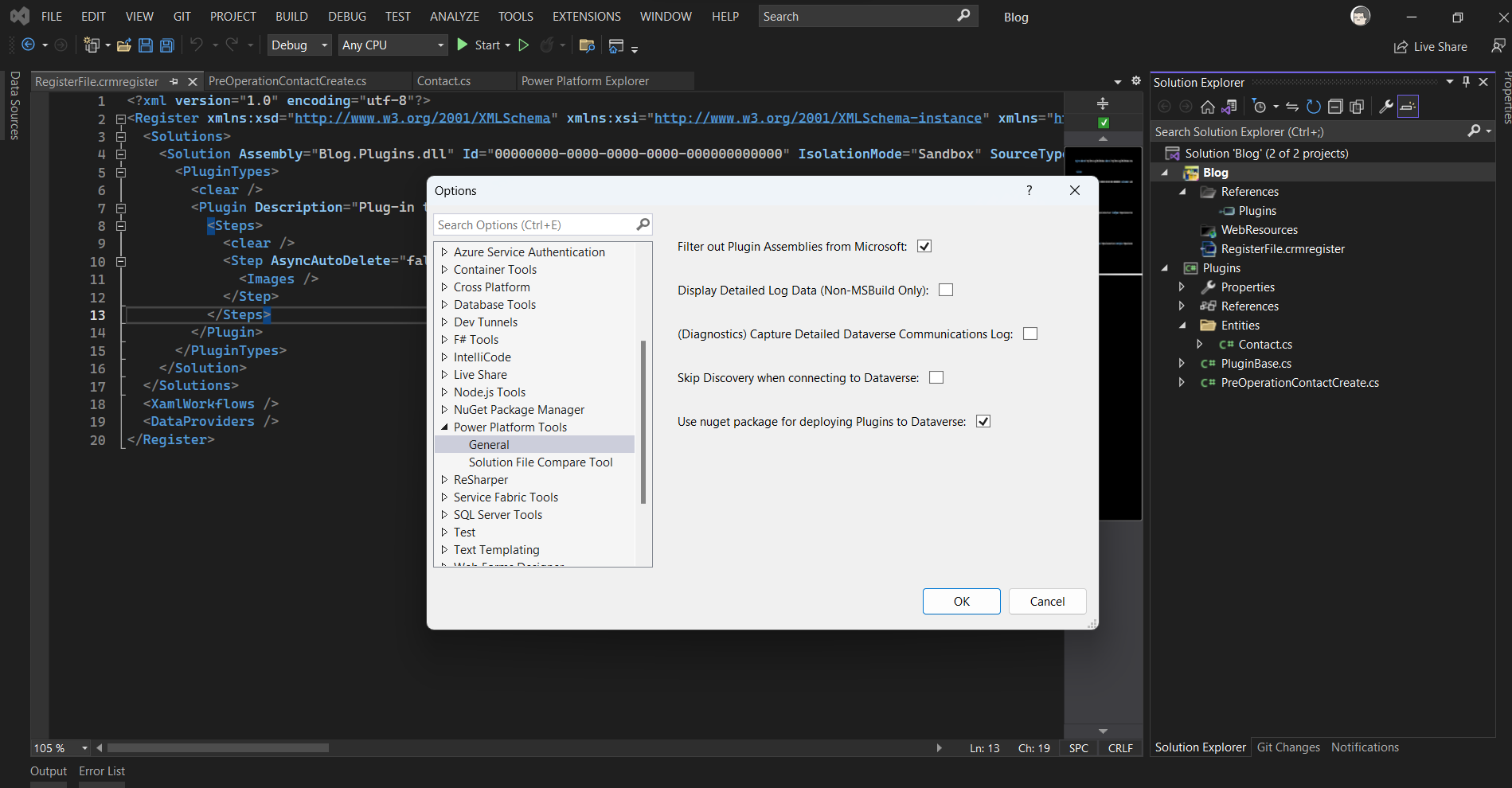
If we tick the "Use nuget package for deploying Plugins to Dataverse", then when we deploy the plugin/workflow project. It will be using Plugin Dependent Assemblies.
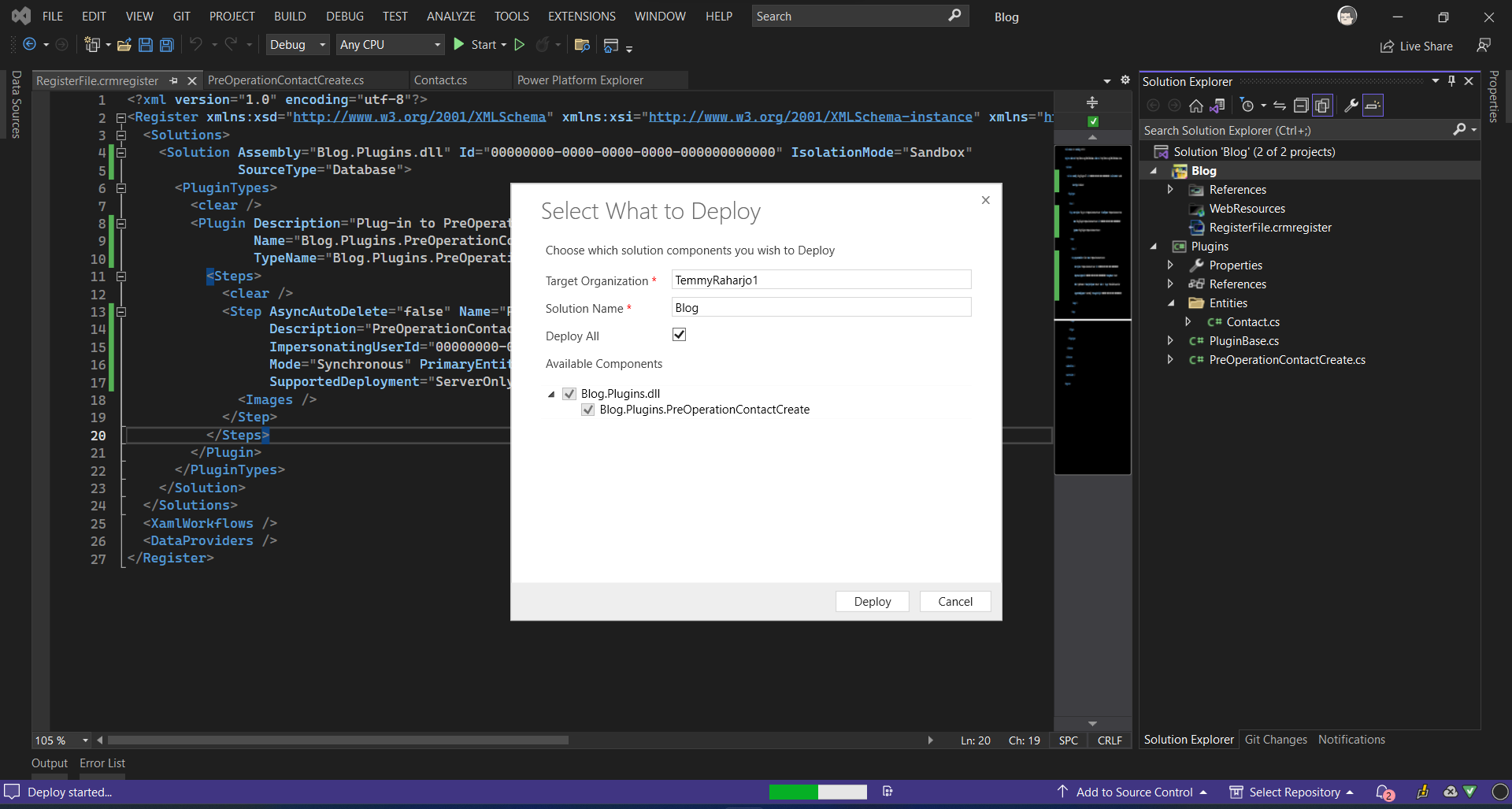
Once this is done, we can rebuild the solution > right-click on the Power Platform Package Project > Deploy. The dialog to deploy will appear and you can select whatever component that you need to deploy:
If you got a notification that your deployment success. Then you can check in Plugin Registration Tool and see if the Plugin step was created:
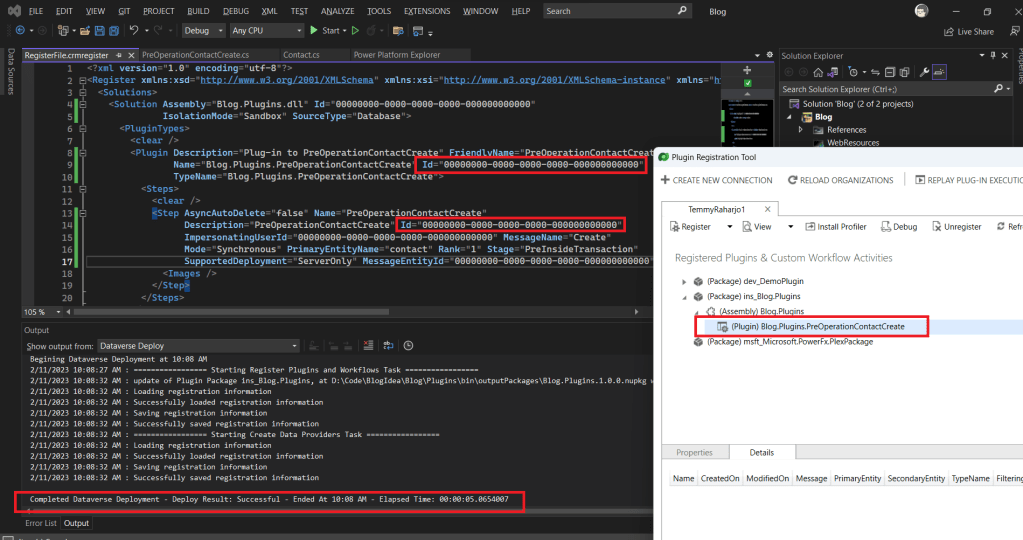
As you can see, even though the deployment is successful, the RegisterFile.crmregister is not updated with the correct Id (or this is by design?). Checking further from the Plugin Registration Tool, the Dependent Assembliesis created, but the plugin step is not created.
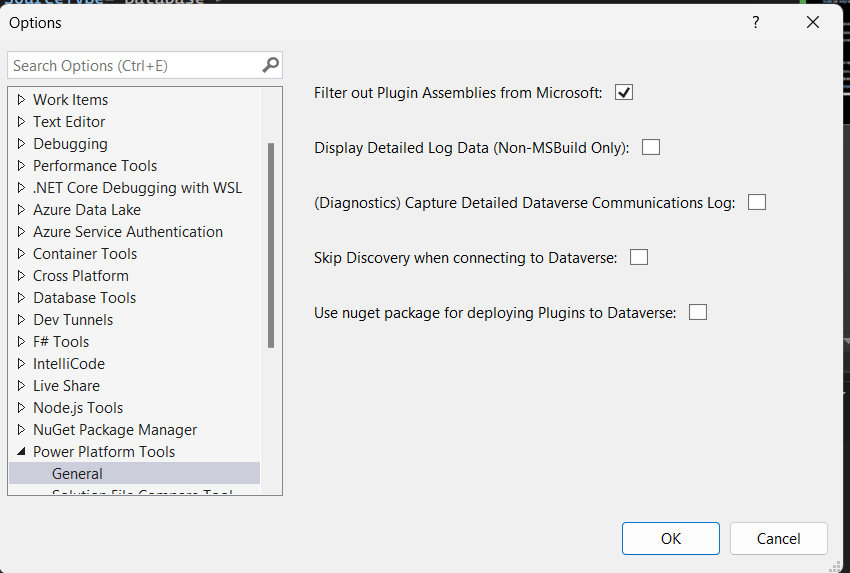
Because of this issue (the Plugin step is not created), I think for now we can't use the Dependent Assemblies and needs to re-route to the old way. To make the deployment use the old way, we need to go to Visual Studio > Tools > Options > uncheck the "Use nuget package for deploying Plugins to Dataverse" > Ok:
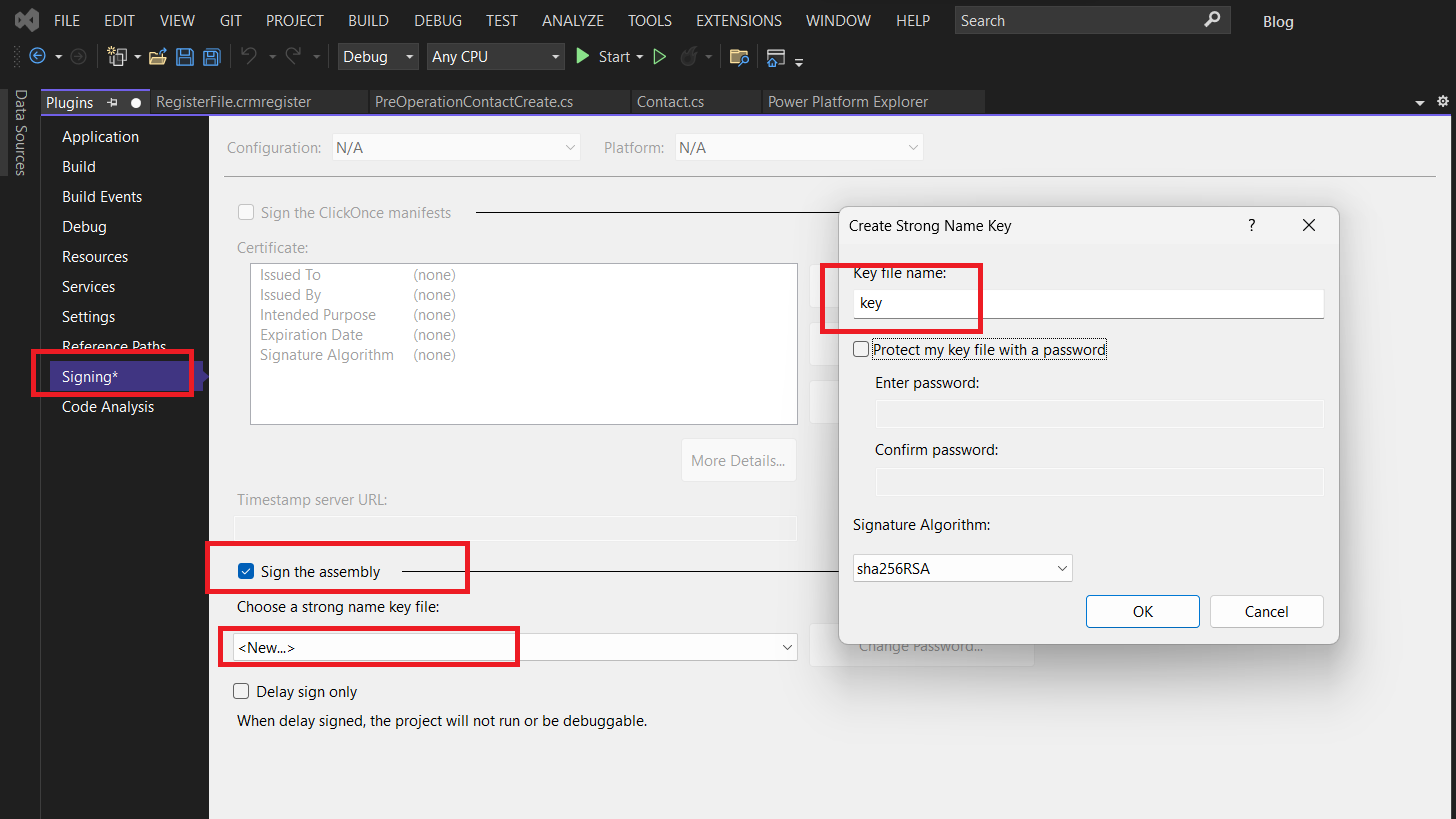
After that, the one I realized the generated plugin project using Power Platform Tools for VS 2022, does not sign by default (.snk). So we need to do it by ourselves. Go to your plugin project > right-click > Properties > go to Signing tab > check the Sign the assembly > create a new file (I named it key) and then click ok and save.
Once we did this, we can rebuild the solution one more time > go to Power Platform Package Project > deploy.
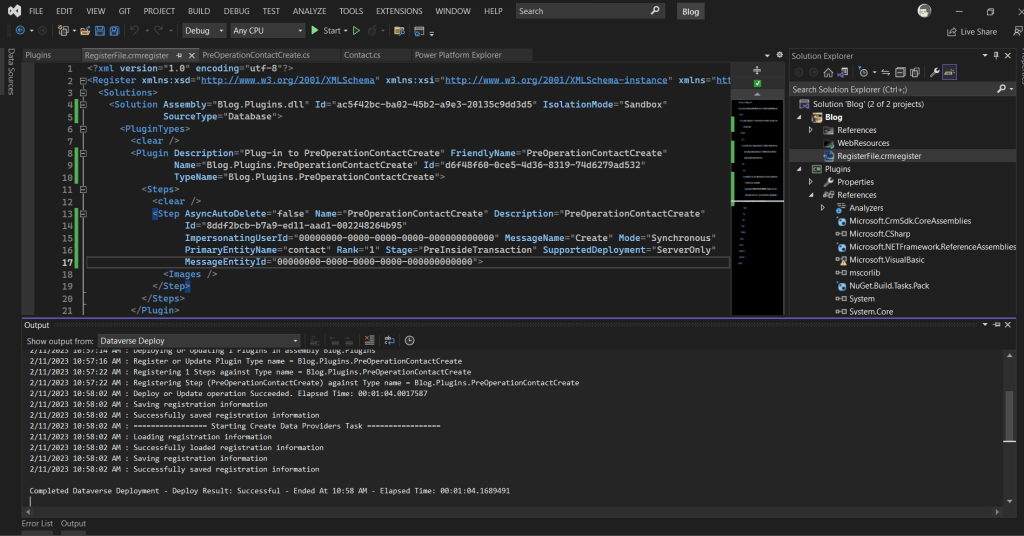
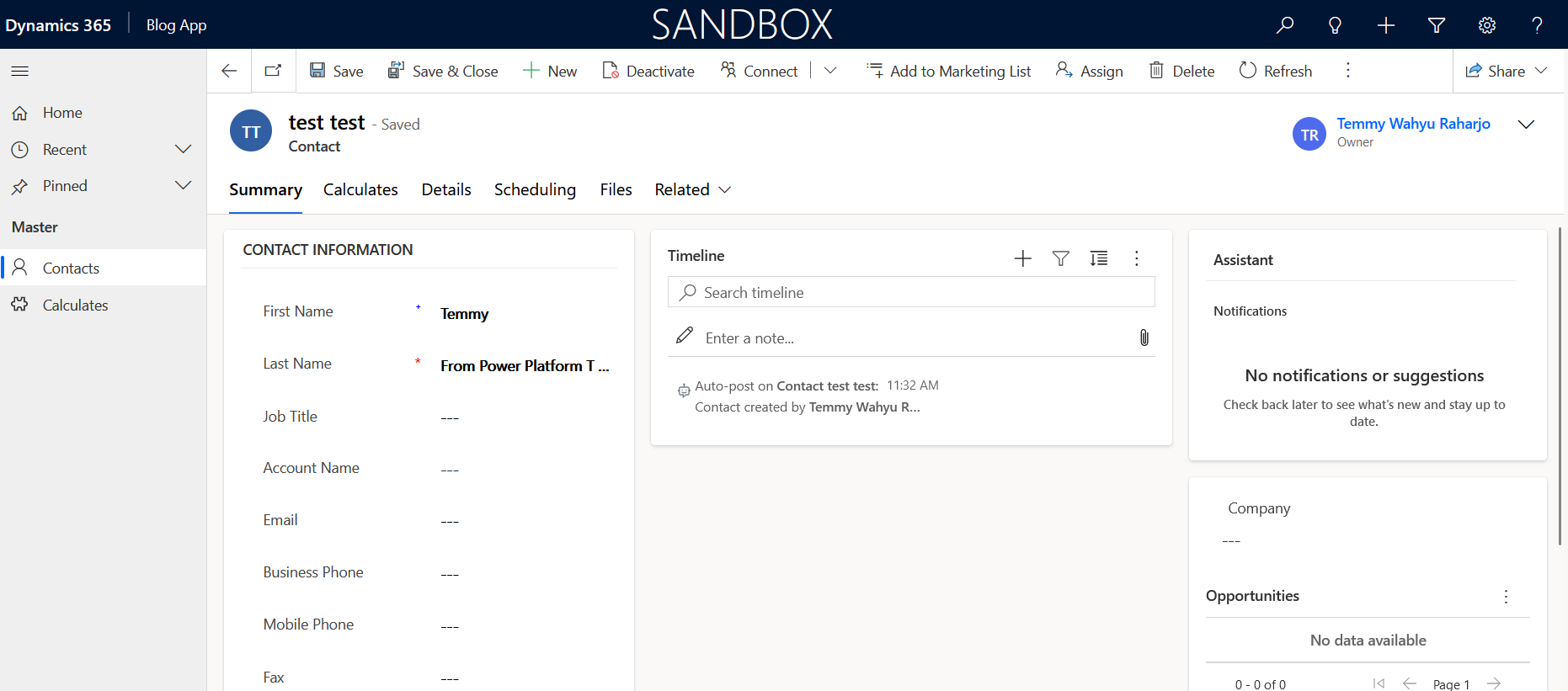
And it works like what I want (as you can see, sometimes in the plugin project, comes out reference "Microsoft.VisualBasic" that I need to keep deleting). The result from CRM:
Happy CRM-ing!
Leave a comment
Your comment is sent privately to the author and isn't published on the site.